Day 7: Analogous sensor

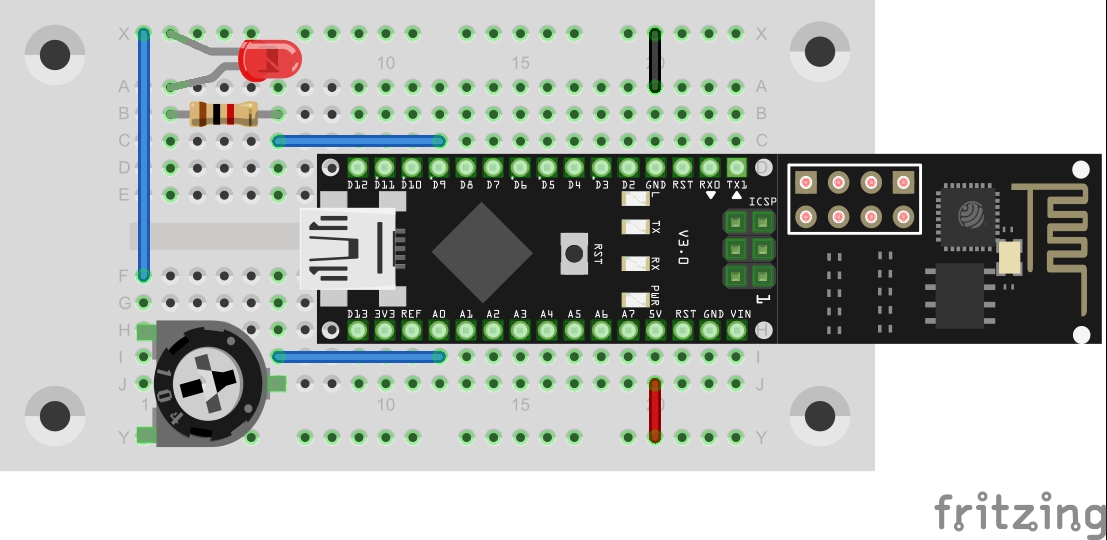
In the last project, a button was used to deal with the simplest form of a sensor. This time, a potentiometer should be used as an analogue sensor to permanently send measured values into the network. Behind the 7th door of the advent calendar, there is a potentiometer with 10 kΩ. The setup is shown in the lower figure. The setup on pin A0 The program: Day7_UDPAnalog ...

07.12.2015 · 2 min · Fabian Kainka

Day 6: UDP-Button

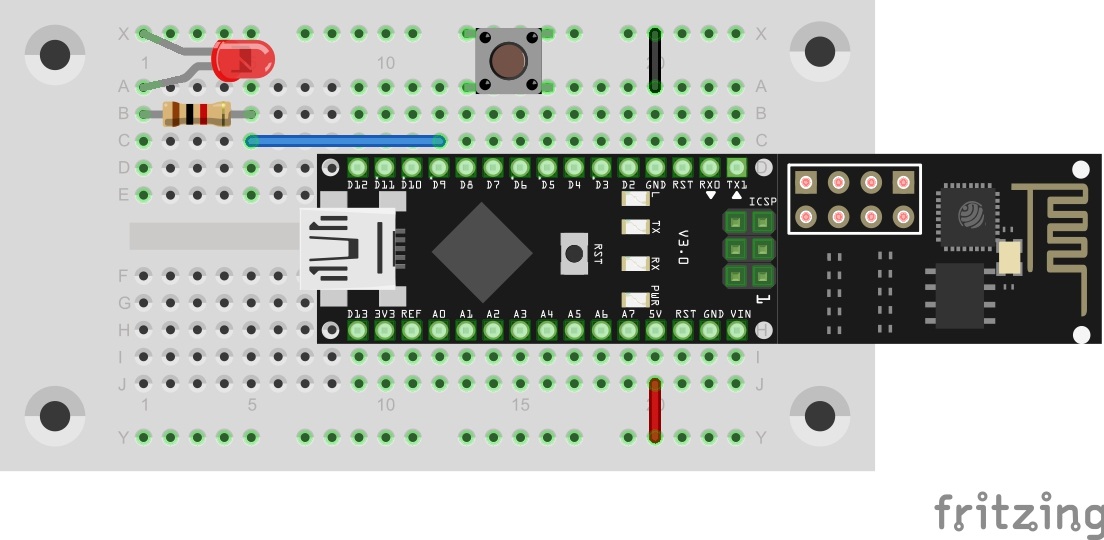
In yesterday’s program, the first commands were evaluated by the controller. Today’s program maintains this function but can also additionally send a command into the network independently. The button on pin D8 You will find a button behind today’s door. It is used as a simple sensor here. Connect it to the controller as shown in the setup image. The program: Day6_UDPSwitch ! Attention: Some MAC-Users reportet a bug in the PacketSender-Software. This bug doesn’t allow you to change the ports. If you have problems with this bug you can change the ports in the Arduino program. All you have to do for todays project is to change the line 83 from succes &= sendCom(“AT+CIPSTART="UDP","192.168.4.255",90,91”, “OK”); to succes &= sendCom(“AT+CIPSTART="UDP","192.168.4.255",5505,5506”, “OK”); ...
06.12.2015 · 1 min · Fabian Kainka

Day 5: Switching an LED

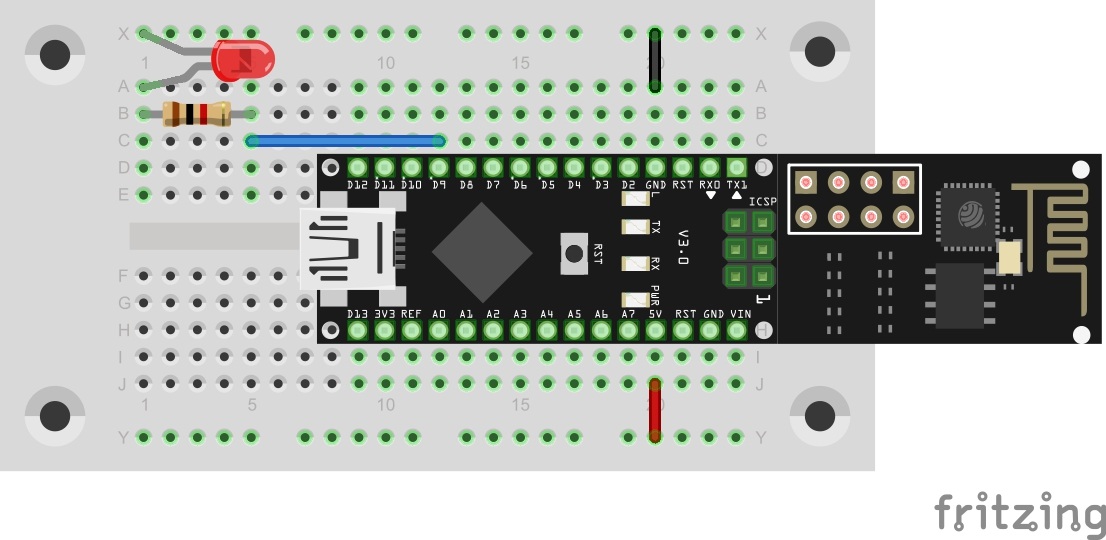
Today’s program is finally about controlling hardware via the UDP protocol. In this case, an LED is switched on and off with simple commands. The LED in Pin D9 You will find an LED board behind the fifth door. The right dropping resistor already was in yesterday’s door. Build the circuit as the picture shows. The program: Day5_UDPLED ! Attention: Some MAC-Users reportet a bug in the PacketSender-Software. This bug doesn’t allow you to change the ports. If you have problems with this bug you can change the ports in the Arduino program. All you have to do for todays project is to change the line 83 from succes &= sendCom(“AT+CIPSTART="UDP","192.168.4.255",90,91”, “OK”); to succes &= sendCom(“AT+CIPSTART="UDP","192.168.4.255",5505,5506”, “OK”); ...
05.12.2015 · 2 min · Fabian Kainka

Day 4: UDP bidirectional

In yesterday’s project, the UDP communication was tested in one direction, i.e. from the board to the PC. In this program, the module is set so that communication in the other direction is possible as well, almost like in a chat. Behind the fourth door of the Advent calendar, there is a resistor with 1 kΩ (brown, black, red). The component is not used in today’s test yet, but should be kept for later. ...

04.12.2015 · 2 min · Fabian Kainka

Day 3: UDP-Send

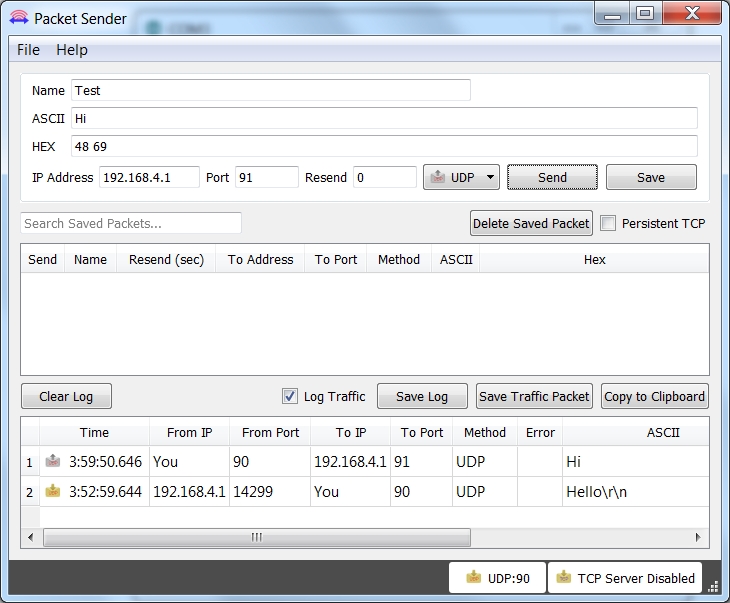
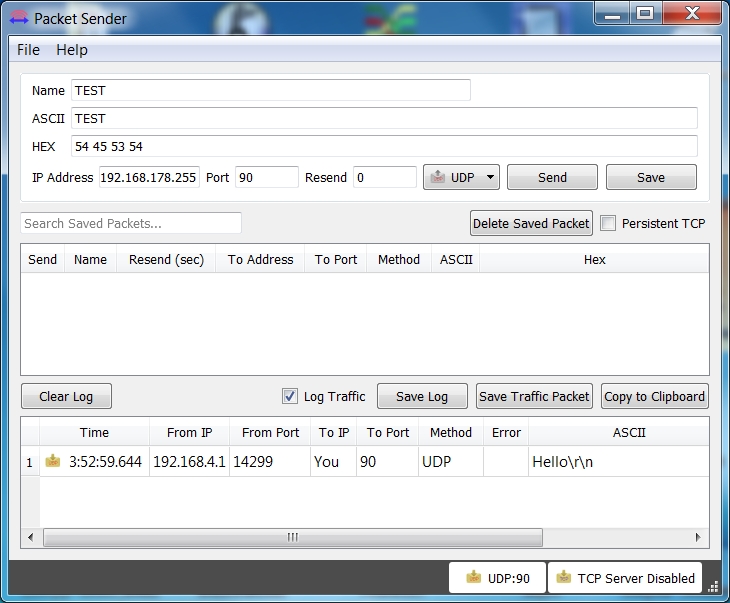
In today’s project, data are exchanged between the board and the PC through the WLAN for the first time. The prerequisite for this is that your computer has a WLAN adapter. The UDP (User Datagram Protocol) is used. Another program on the PC-side ensures successful receipt of the messages. Behind the third door of the calendar, you can find an insulated cable that you will need to build circuits. To prepare for later experiments, you can place the supply lines ground and VCC on the outer tracks. ...

03.12.2015 · 3 min · Fabian Kainka

Day 2: Google Ping

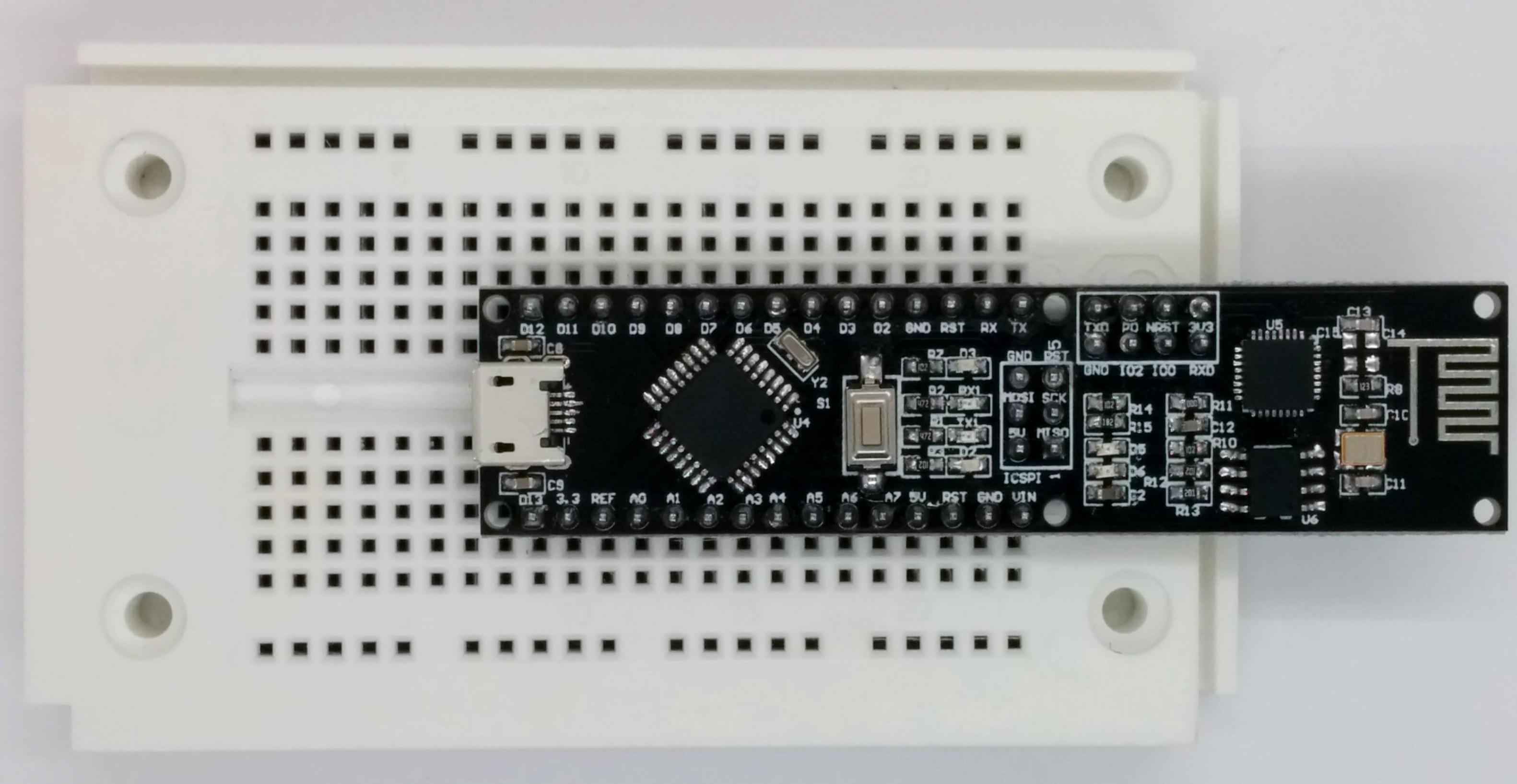
With today’s project, you test whether you can reach the Google server. This is used as a test of whether there generally is a connection to the Internet or, e.g., a firewall is blocking the NanoESP-board. You will find a plug board behind today’s door. The plug board is used as an experimenting platform later, to connect sensors and other elements. It is best if you plug the controller onto the plug board as shown in the following figure. This leaves you the most space for experiments, while the WLAN module protrudes over the plug board at the rear. The micro USB cable is then suspended between the contact sides and will only interfere minimally. ...

02.12.2015 · 2 min · Fabian Kainka

Day 1 - First Steps

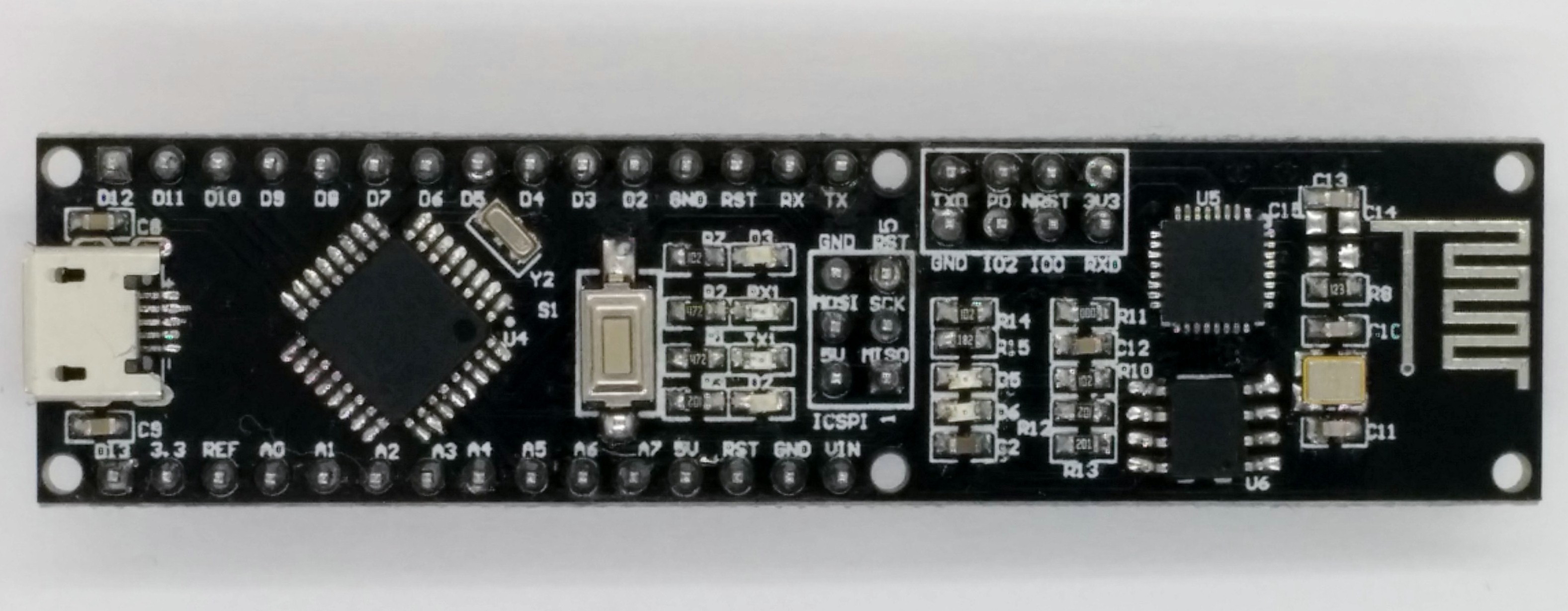
It is the first day of December and thus time to open the first door. Behind the door, you will find the most important part of this calendar: the Arduino™-compatible NanoESP-board with integrated WLAN module that this calendar is about. The NanoESP Board As you can see quite well on the PCB, the board is made up of two components. The left half is an Arduino™-compatible micro controller system that can be compared to the Arduino™ Nano. The right part is the WLAN module with the designation ESP8266. These two components communicate via a serial interface generated by software. The Arduino™-side rather acts as the boss, forwarding the commands to the WLAN module. Some of these commands will already be tried out today on the first day. ...

01.12.2015 · 4 min · Fabian Kainka

Day 0: Download all Projects (Spoiler Alert)

Many people asked me when the projects will be ready for download. Every project description including schematics and software will come on its owm December day. But if you can’t wait, you can download only all software files in advance here. CalenderIoT

10.11.2015 · 1 min · Fabian Kainka

Board specifications NanoESP & Pretzel Board

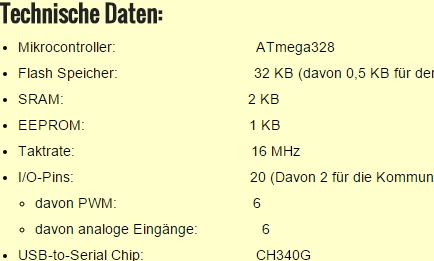
On this page you can find the specifications of the Board Specifications: Microcontroller: ATmega328 Flash memory: 32 KB (including 0,5 KB for the Bootloader) SRAM: 2 KB EEPROM: 1 KB Taktrate: 16 MHz I/O-Pins: 20 (including 2 for communication with the WiFi module) Included PWM: 6 Included analog inputs: 6 USB-to-Serial Chip: CH340G Operating voltage: 5 V Recommended input voltage:: 7-12 V Maximum current per I/O pin: 40 mA Load capacityof the 3.3 V output: 50 mA WLAN-Modul: ESP8266 ...

23.09.2015 · 1 min · Fabian Kainka

Quick Start - NanoESP & Pretzelboard

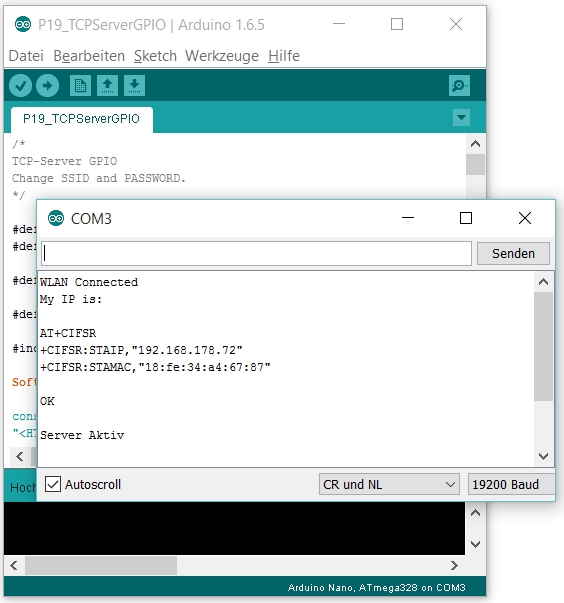
When you attach the board for the first time via the MicroUSB connector, your PC will try to install a driver. If this does not work automatically download and install the driver here. The ArduinoTM IDE provides the simplest way of programming the development board. Download the IDE from www.Arduino.cc. When you start the software, you first have to choose the correct port and board. For the latter, you select the Arduino NanoTM (ATmega328 processor). ...

22.09.2015 · 1 min · Fabian Kainka