Day 12: MQTT Button

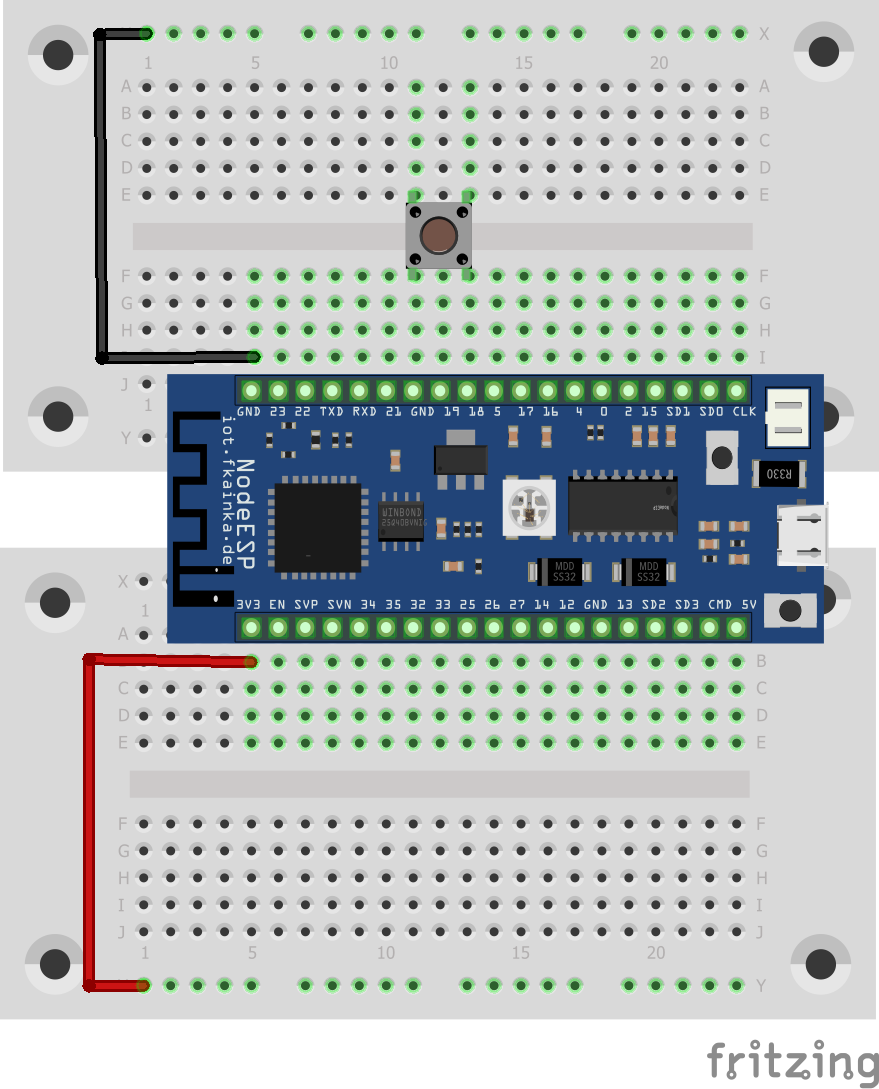
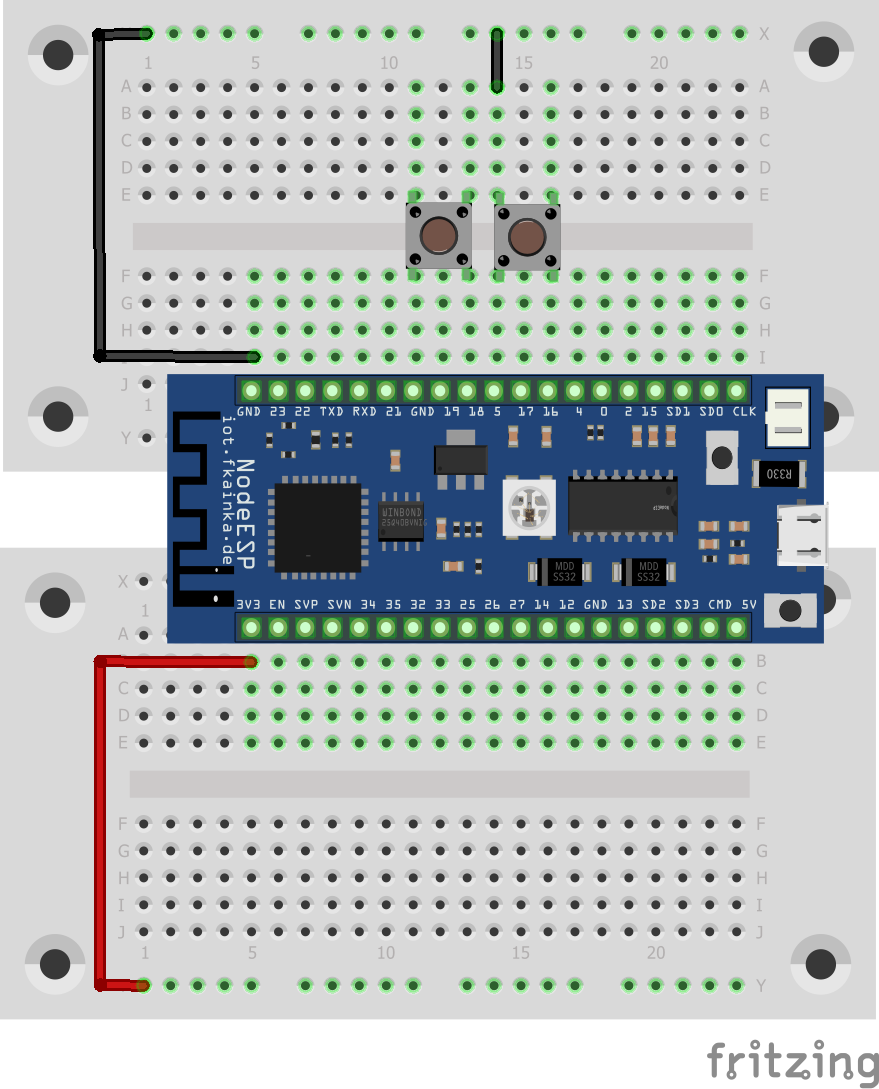
Today we will find again a button hidden behind the door of the Advent calendar. In our experiment today we will continue to cover the MQTT protocol, but this time in conjunction with Node-RED. We will also learn how two buttons can be evaluated simultaneously. The experiment today is structured as follows: Setup with two buttons So now we have two buttons that we can use. We activate the program for today. Then we import the Node-RED flow. You need to adapt it slightly by replacing [PID] in the topic with your personal MQTT ID. That’s pretty easy if you use this trick: ...
12.12.2018 · 4 min · Fabian Kainka

Day 11: MQTT

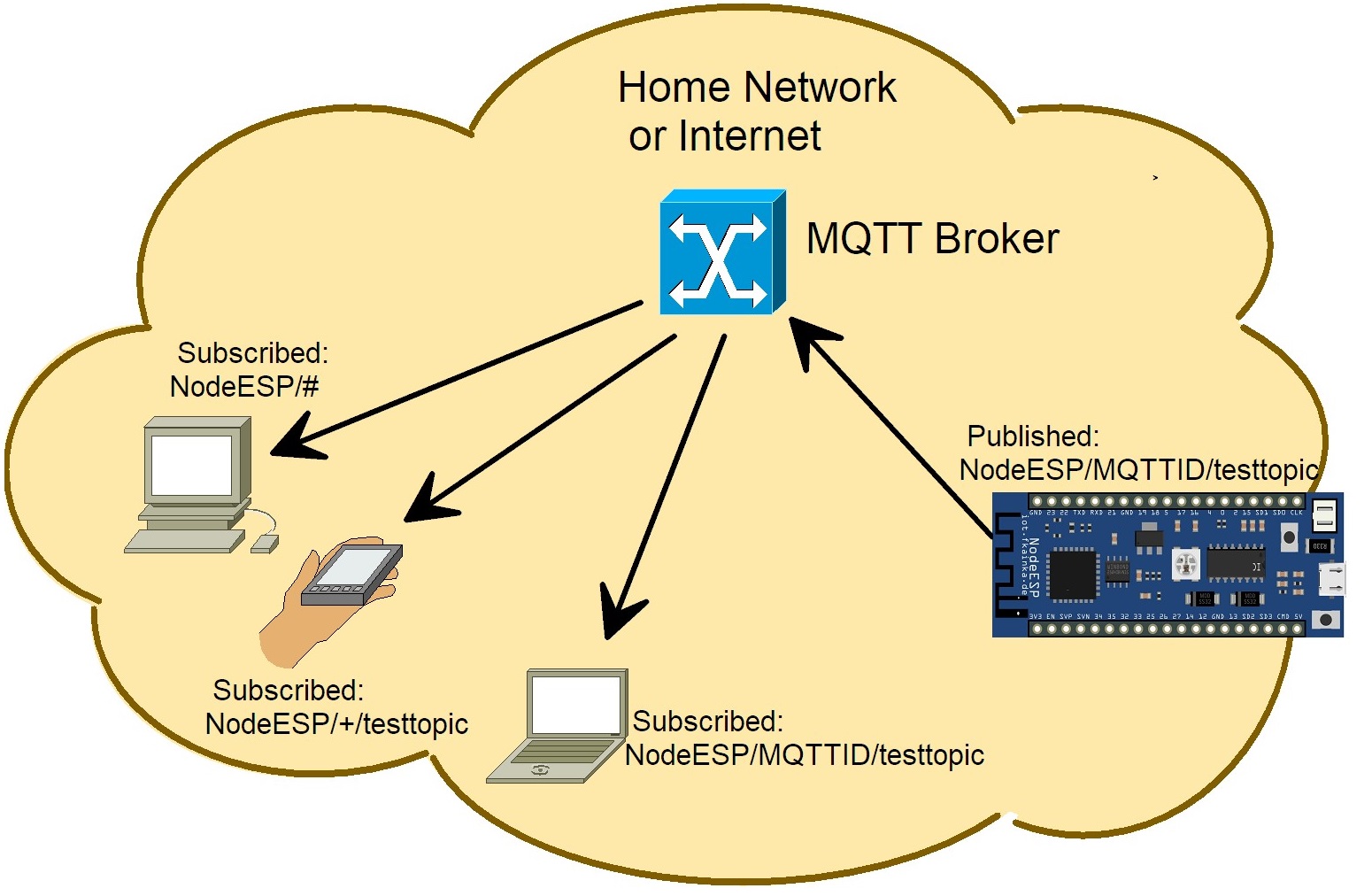
There is a cable set again hidden behind the door today. We will need it in the next few days when the setups become more complex. Over the past few days we have sent most of our data via UDP. This protocol is very convenient; on the one hand it has a small overhead (data is sent in addition to the actual application data) and on the other hand, it is a broadcasting system and can thus send data to several devices simultaneously. But today we will learn about a second protocol that plays a major role in IoT. This is the message protocol MQTT (Message Queue Telemetry Transport) and it was specifically developed for machine-to-machine communication (M2M). The reason that this is such a brilliant protocol is due to its compactness and simplicity when it comes to exchanging data between devices such as control data, measurement data or text. Compared to HTTP, the overhead is very small. That is why embedded devices such as microcontrollers like our NodeESP can process the data well. ...

11.12.2018 · 5 min · Fabian Kainka

Day 10: Deep Sleep

There is a battery compartment for three A batteries (4.5 V) hidden behind the door today that will 10. Tag power the board independently of a power outlet. For economical battery operation, we have the deepsleep mode. This mode allows the board to go into a deep sleep where it uses almost no power at all. After a certain time, the board wakes up, performs a modest task and goes back to sleep shortly after. In this mode a lot of energy is saved due to the long sleep and short wake times and ultimately the batteries will supply power to the board for months. The setup we will use today includes again the light sensor and it gets a wire jumper that connects pin 23 and GND. ...

10.12.2018 · 2 min · Fabian Kainka

Day 9: A Mood Light

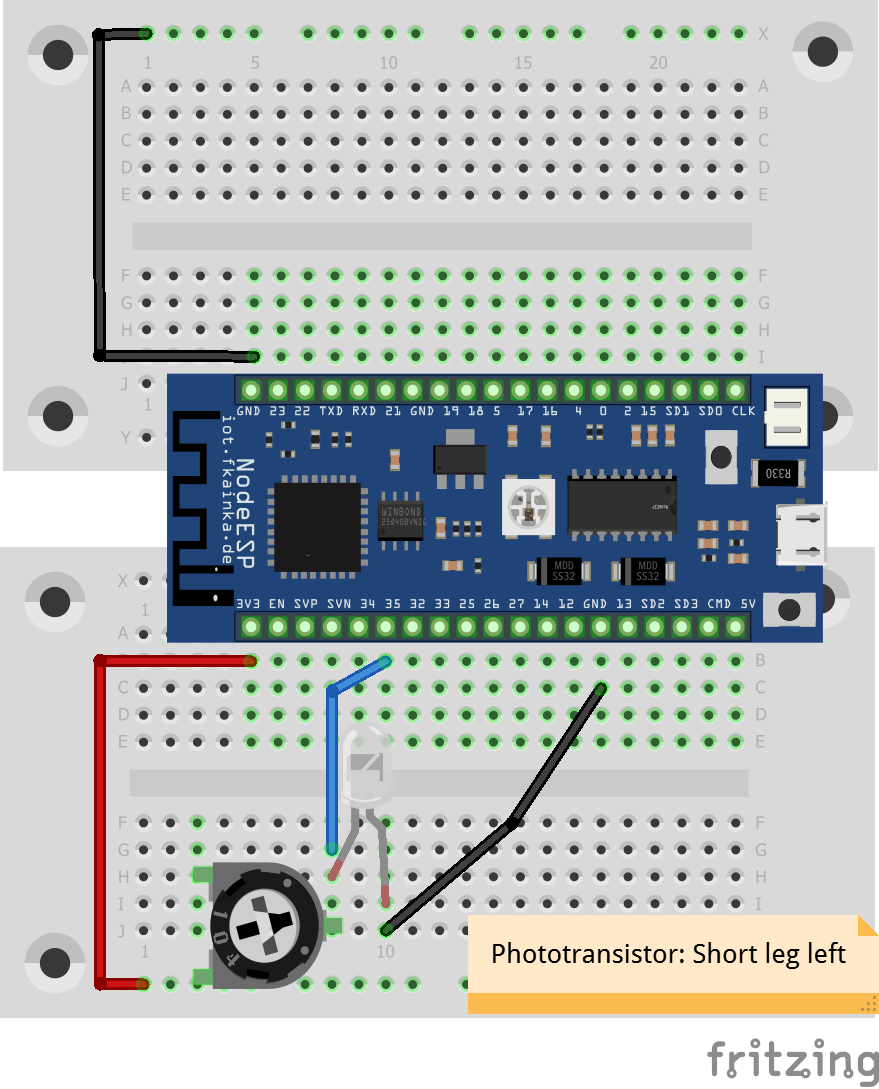
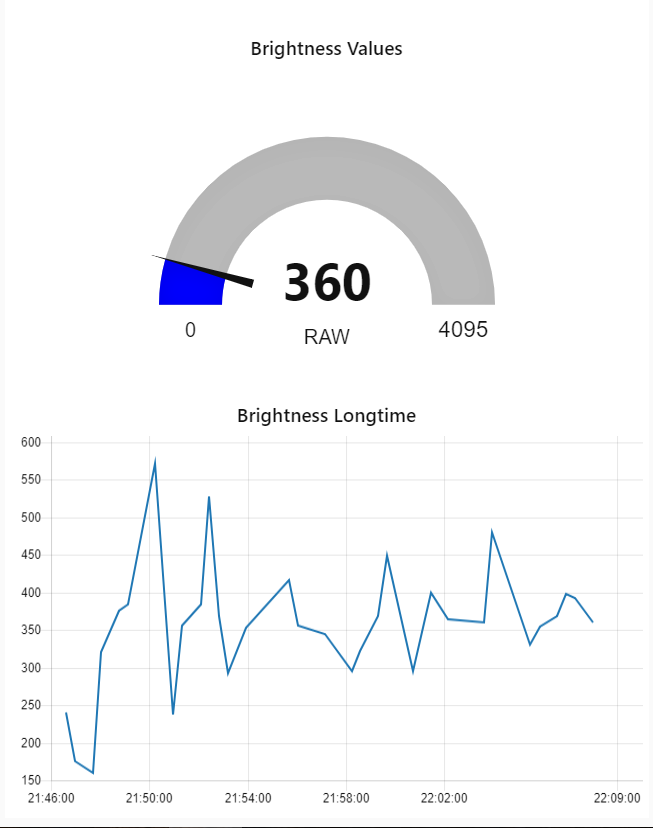
There is a photo transistor hidden behind the door today. We will use it to measure the ambient brightness. The potentiometer is in series with the phototransistor potentiometer in our circuit and you will be able to change the sensor sensitivity with the potentiometer. In this circuit the reading value will increase when dimming the sensor. Todays Circuit You will see this happening today in our user interface within the gauge element. But again, you first import and start today’s flow in your Node-RED environment and of course, you have to disable the one from yesterday. Also, do not forget to enable today’s program on the configuration page and adjust the IP of the UDP send node. ...

09.12.2018 · 2 min · Fabian Kainka

Day 8: A Controller

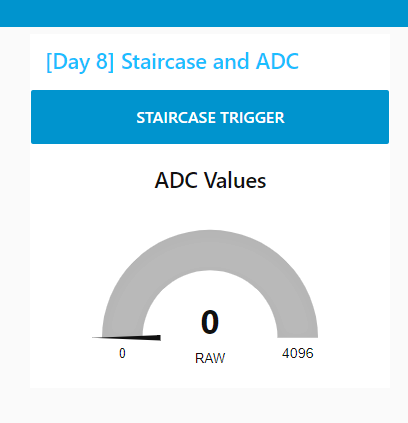
Breadboard Construction On the eighth day you will find a potentiometer behind the door. We are going to use it as voltage divider. You can set a voltage between 0 V and 3.3 V, which is measured by the board and sent to NodeRED. On top of to the functions of yesterday’s stairway light, you can also send the measured values. The Flow of Today External content from pastebin.com Loading it sends data such as your IP address to pastebin.com. Privacy Load content open directly ↗ As usual you can obtain today’s flow from here. Don’t forget to disable yesterday’s flow and you may need to adjust the send-IP. The flow of today also has a new node for the dashboard, namely a gauge to visually display the measured value. ...

08.12.2018 · 2 min · Fabian Kainka

Day 7: Stairway Light

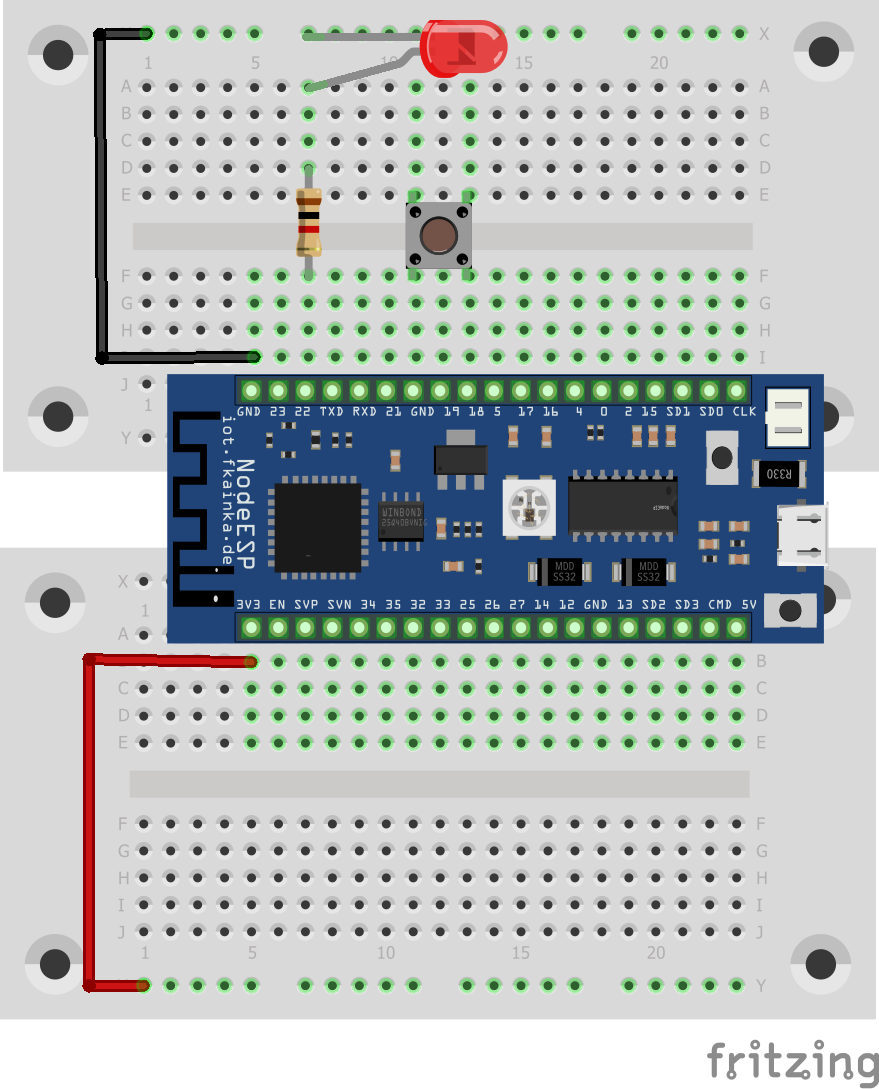
There is a red LED hidden behind the door today. We are going to use this to build a simple stairway light with web interface. We will thus build the following circuit and, of course, activate today’s program. Breadboard Construction (short LED pin is up) Locate the Node-RED flow below and import. Deactivate yesterday’s flow after the import to make sure the UDP receive nodes do not get in your way. This time the flow also has a send node besides the receiving node. You may need to adapt the send node to reflect your broadcast IP. A message that arrives at the UDP will be converted back to a JSON object by means of a JSON string, which is pure text. The difference here is that you can now access also individual attributes. ...

07.12.2018 · 2 min · Fabian Kainka

Tag 6: Touch to Speach

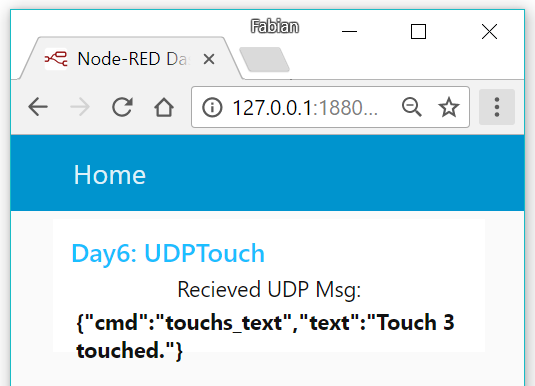
Behind the sixth door of the Advent calendar is a 1 kOhm resistor, which we will use tomorrow. Today we will continue with Node-RED and try out the touch function of the board. As always you will select the program of today. And today we will also build the following circuit. The yellow wires with one free end are the touch sensors. Breadboard Construction: Three wires suspended in the air from one end Once set up, you can restart Node-RED using the terminal and the node-red command. Then open the Node-RED editor via http://127.0.0.1:1880/. Today we will install a few nodes. To do this, click on the three dashes in the top right corner where you will see manage palette under which all the installed nodes are listed. Select the Install tab and you will see a large number of different modules that you can install. For today we are searching for the module node-red-dashboard. Click the Install button. A message appears warning you that installation may be difficult at times. Just click Ok, this module is easy to install. After a short while, a success message appears, and the new nodes are now in your node row. ...

06.12.2018 · 3 min · Fabian Kainka

Day 5: Node-RED

Behind the fifth door of the Advent calendar is a button and we are going to use it today in our experiment instead of the boot button. We will connect the button to pin 18 and GND in such a way that when pressed, it will pull the pin to ground, thus to LOW. If you have selected the program of the day and you press the button, a message is sent via UDP. ...

05.12.2018 · 4 min · Fabian Kainka

Day 4: UDP and JSON

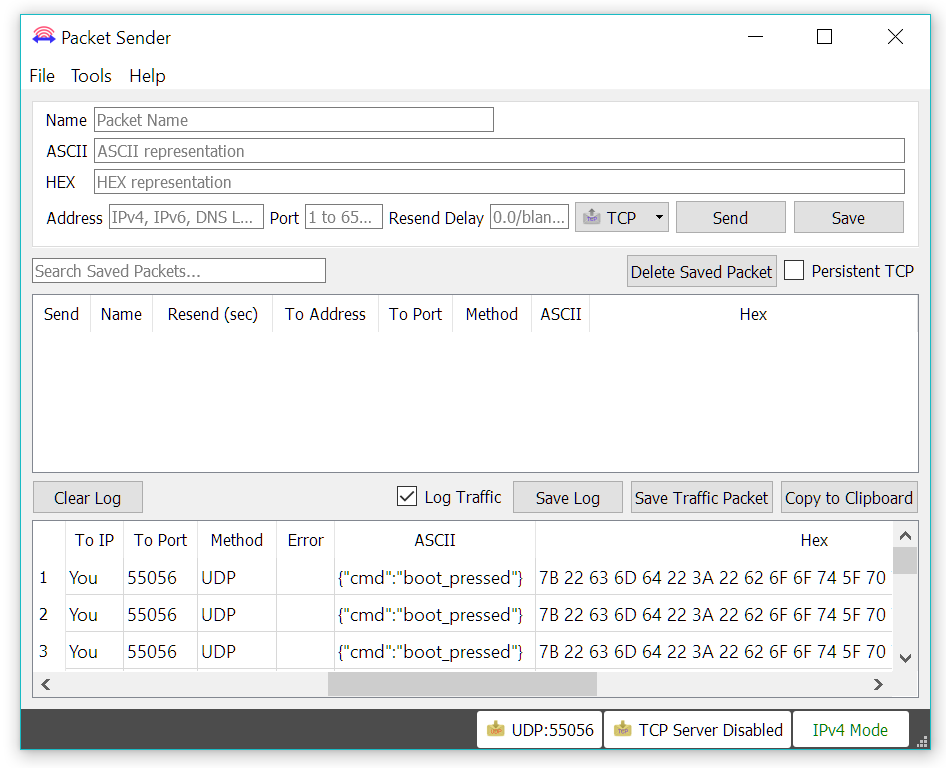
Behind the fourth door of the Advent calendar is a set of cables that is very useful for the upcoming hardware setup. But today in our project we are going to look at the JSON format; what is it and how does it help us communicating with the board. As usual, first you need to activate today’s program. You will also need the Packet Sender program with the same settings that we were using yesterday. Today, a message appears only after you briefly press on the board’s boot button. This message looks like this: ...

04.12.2018 · 3 min · Fabian Kainka

Day 3: UDP and Packet Sender

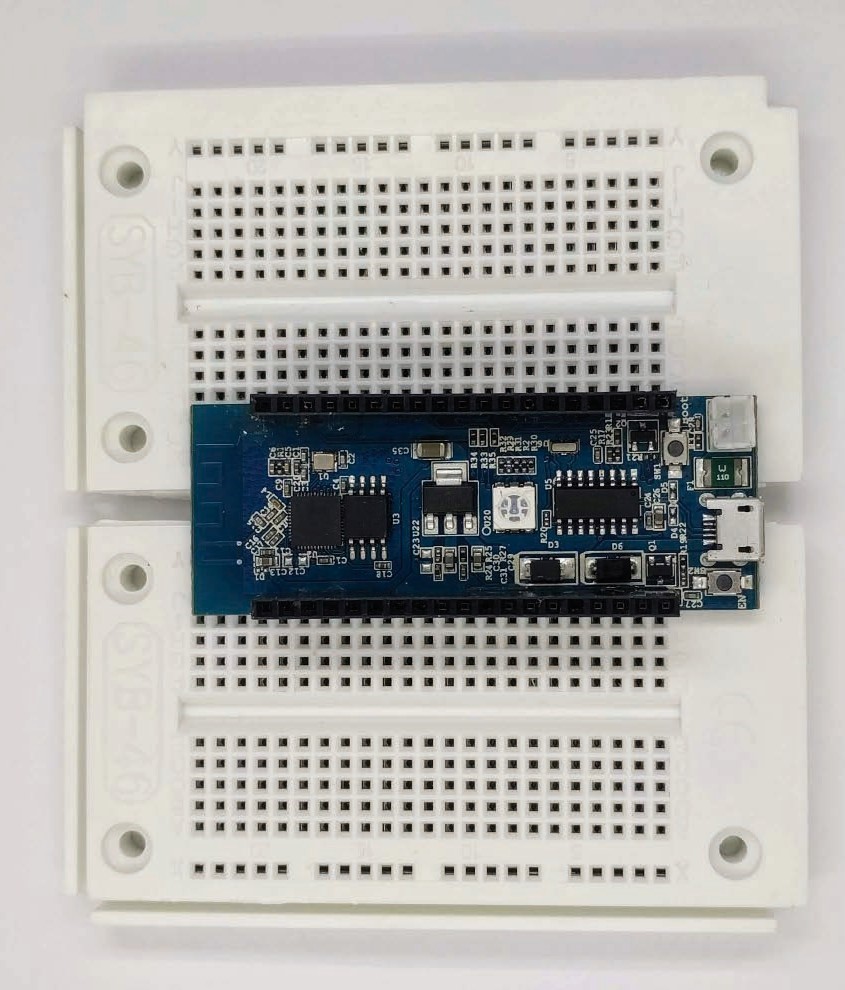
Today’s door reveals another breadboard. It can be plugged into the board of yesterday. The NodeESP board can now be placed on both boards together. However, this constellation will not work for everyone. Breaking off the side parts of the boards is the easiest solution. I have done this by fitting the boards into each other and then bending one until a side part broke off. I did the same thing with the other board. But you could use pliers, too. Without the side parts, you can place the boards closer to each other, and then there won’t be a problem with the grid. Simply plug the NodeESP board onto both boards as shown in the picture. This leaves enough room for other components. In today’s project, we will learn how to connect to the board from your PC without using the web browser. ...

03.12.2018 · 3 min · Fabian Kainka