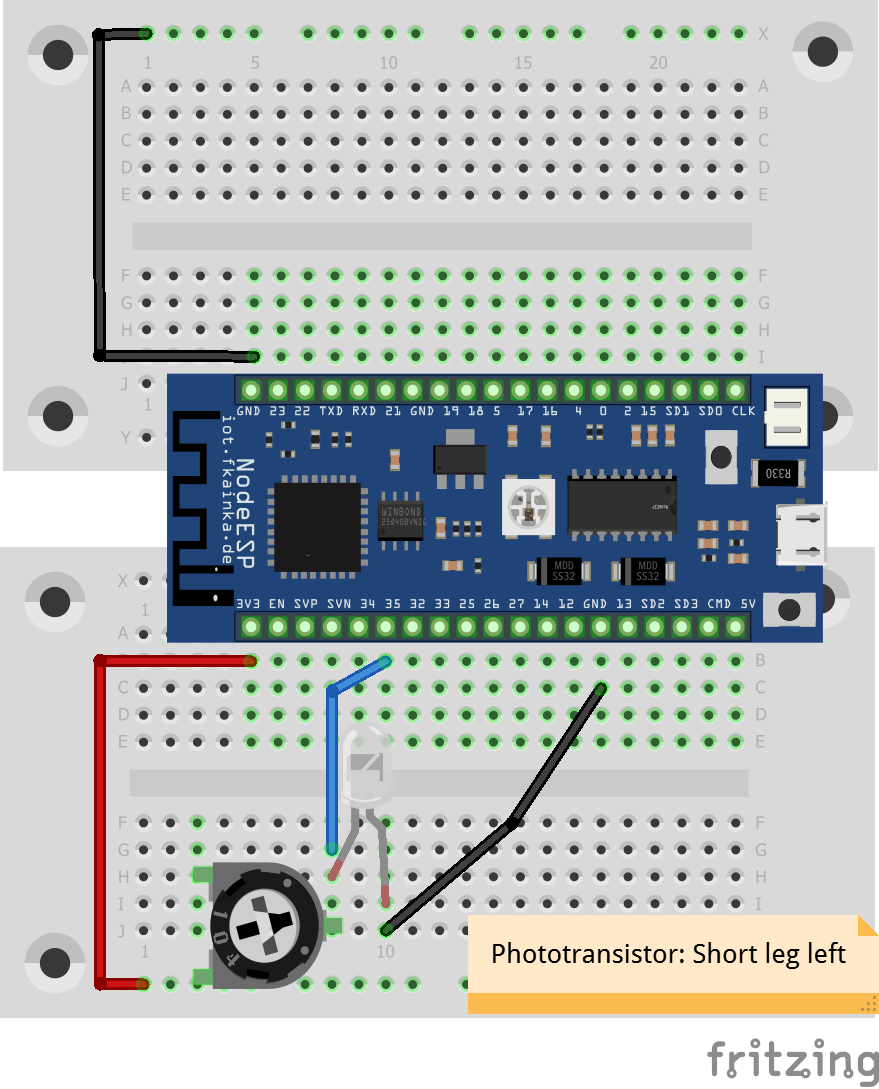
There is a photo transistor hidden behind the door today. We will use it to measure the ambient brightness. The potentiometer is in series with the phototransistor potentiometer in our circuit and you will be able to change the sensor sensitivity with the potentiometer. In this circuit the reading value will increase when dimming the sensor.

You will see this happening today in our user interface within the gauge element. But again, you first import and start today’s flow in your Node-RED environment and of course, you have to disable the one from yesterday. Also, do not forget to enable today’s program on the configuration page and adjust the IP of the UDP send node.
We will use the on-board LED again and in addition, we will display the measured values. The LED should automatically adapt its colour to the light conditions dependent on the measured value. In full darkness, the LED is supposed to glow red. The colour will change from green to blue in line with increasing brightness. Illuminate your work area in the evenings with a relaxing red, for example, while a strong blue light is lit during the day.
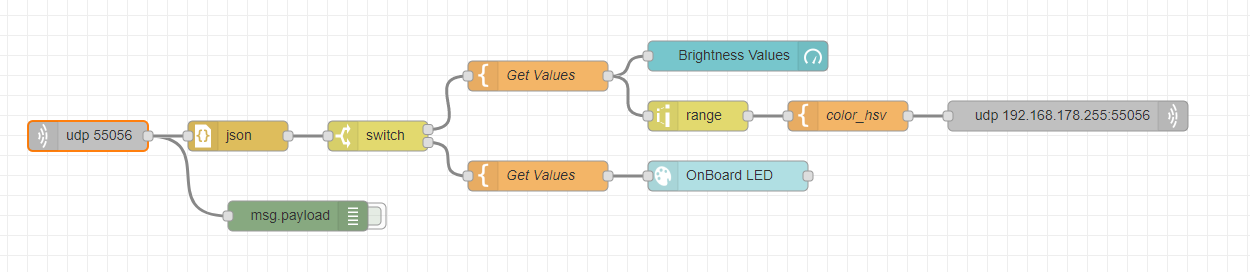
The range node converts measured values ranging from 0 to 4095 to a range of 240 to 0. This will send the desired LED colour in what is called HSV format. HSV stands for Hue, Saturation and Value, the latter being the brightness value. It is an alternative representation to the RGB model. The HSV model represents the colour hue by an angle of 0° to 360°. Red is 0°, green is 120° and blue is 240°. The reading is thus converted into a value up to 240 here, and covers the entire colour palette from red to blue. The following template node is used to compile the command, which is then sent to the board. For a medium value, the command would be:
{“cmd”:“set_rgb_hsv”,“value”:“hsv(120, 100%, 100%)”}
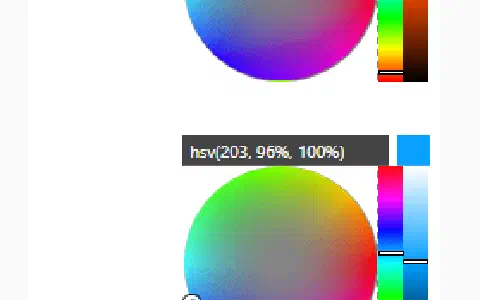
The percent signs after saturation and brightness could also be omitted. The board changes the colour accordingly and returns the same values with the command get_rgb_hsv as confirmation. Node-RED receives this message, too, and represents it on the interface web page by means of the colour picker. That way you are able to always track the colour the board is currently revealing.
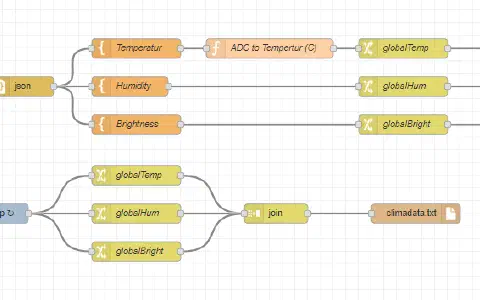
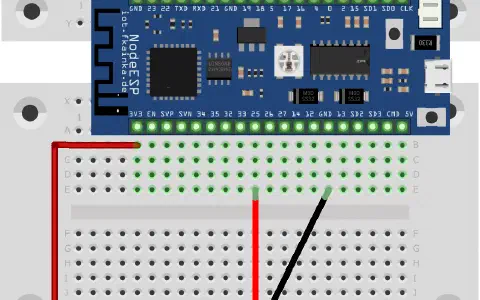
Es funktioniert. Irritierend ist die Meldung "Unexpected number in JSON at position 36", die ich im debug-Fenster erhalte. Kommt vom Board ab und zu eine falsche JSON Meldung? Was ist die Ursache und wie kann ich Meldung loswerden?
Vielen Dank und einen schönen Sonntag
Gérard