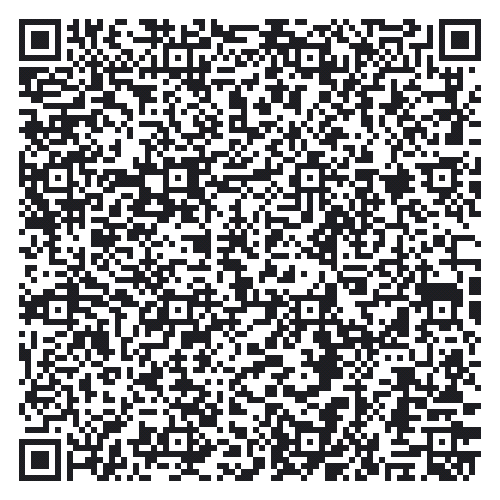
Behind today’s door is another 1-kohm resistor. But today you don’t have to change anything in the hardware layout from yesterday. Only a small detail changes on the interface.
You don’t have to re-upload the programme because you’re simply manually adjusting the interface from yesterday. If you’d like to load the interface in the app anyway for safety’s sake, you’ll find the QR code here as usual. But then you also have to re-enter the token in your programme.

In order to make the changes manually, you first have to delete the button that was previously responsible for the LED at D9. To do this, tap briefly on the button while the interface is not started and tap the “delete” option below. There you’ll also be shown the energy that you “recycle.” Now, instead of the button, you have to insert a slider. To do this, tap on the plus sign at the top right and select “Slider_L.” The slider appears on the screen. By briefly tapping on the element, you reach its settings. Once you’re there, set “Output” to “Digital D9.” Note that after “D9” there’s a small red “PWM,” a little indication of how today’s test works. After these changes, you can start the interface by tapping the Play button at the top right.
What was previously possible only with the virtual LED is now also possible with real objects. You change the brightness of the LED at D9 by changing the slider position. Thus, for example, you can build a dimmable living room lamp that can be controlled via app. The keyword for this subject is PWM (pulse width modulation). Unlike with an incandescent light bulb, for example, you can’t simply dim an LED with less voltage. The procedure here is more complicated and functions by quickly switching the port on and off. The on and off times vary such that it looks like the LED becomes brighter or darker. The longer the on time is compared to the off time, the brighter the LED appears. The fact that the flickering of the LED can’t be seen or can barely be seen is due to the high speed with which the port is switched. With this procedure, you can also control engines or generate audio signals.
The sketch: A16_P09_Blynk5_PWM.ino
/*
Blynk 5: PWM
No Change to previous programm
Change ssid, password and token
*/

char ssid[] = "YourSSID";
char password[] = "YourPassword";
char token[] = "YourToken";

#define BLYNK_DEBUG
#define BLYNK_PRINT Serial    // Comment this out to disable prints and save space
#include <ESP8266_SoftSer.h>
#include <BlynkSimpleShieldEsp8266_SoftSer.h>

// Set ESP8266 Serial object
#include <SoftwareSerial.h>
SoftwareSerial EspSerial(11, 12); // RX, TX

#define BUTTON 7

ESP8266 wifi(EspSerial);

 WidgetLED led1(V0);
 WidgetLED led2(V1);

void setup()
{
  // Set console baud rate
  Serial.begin(19200);
  EspSerial.begin(19200);

  Blynk.begin(token, wifi, ssid, password);

  pinMode(BUTTON, INPUT_PULLUP);
}

void loop()
{
  Blynk.run();
  checkPin();
  checkPoti();
}

boolean currState = false ;

void checkPin()
{
  if (!digitalRead(BUTTON))
  {
    currState = !currState;

    //write current state to virtual LED
    if (currState){
       led1.on();
    }
    else{
       led1.off();
    }

    //wait till button is released
    while (!digitalRead(BUTTON)){
    }

  }
}
int lastValue = 0;

void checkPoti()
{
  //read A0 and convert it to values 0-255
  int currValue = map(analogRead(A0), 0, 1023, 0, 255);

  //if values have changed write to virtual led2
  if (!(currValue == lastValue)){
      lastValue = currValue;
      Blynk.virtualWrite(V1, currValue);
  }
}
(The former Arduino Create embed is no longer available; the code is taken from the download of all sketches.)
21 comments
Comments are closed. These comments were posted on the former WordPress site (mostly in German).
gestatten Sie mir eine Frage: Wenn Sie nicht wissen, wofür die Blynk-App eine Internetverbindung während der Ausführung benötigt, warum bilden Sie dann die Azubis aus?
Und bei mir kommt es auch nur zu minimalen Verzögerungen, weit weniger als eine Sekunde.
Bin mir nicht ganz sicher welche Initialwerte hier genau gemeint sind, aber z.T. kann man Blynk sagen dass er manche Werte auf dem Server speichern soll.
Es gibt allerdings eine Alternative, der Server ist Open Source und kann daher lokal installiert und betrieben werden. Dann ist eine Kommunikation innerhalb des lokalen Netzes (aber immer noch über den (lokalen) Server) ohne Internetverbindung möglich.
Dieser Aufbau minimiert auch die in Ihrem ursprünglichen Kommentar angesprochene Verzögerung.
vielleicht einfach nochmal das Bild von Tag 5 betrachten? Wenn Blynk mit dem Pretzel Board kommunizieren soll, dann geht das nur über das Internet. Alternativ über einen lokal installierten Server. Steht aber auf der Blynk-Seite. Was die freche Ausdrucksweise betrifft. Ist denn "… dieses Blynk ist ein Schrott…" oder "… diese blöde App…" dann eine bessere Ausdrucksweise?
Ich würde sagen, einfach nochmal zu den Azubis dazu setzen und nochmal schauen, ob im Kopf nicht noch was aufgeht.
teilweise lag zur blynkoberfläche. so man darf nicht zu schnell sein. Und mein Sony hat echte schwierigkeiten mit sliden.
nichts für ungut, aber ich sehe das anders. Blynk ist ein schöner Einstieg in das IoT.
In der Doku zu Blynk auf http://docs.blynk.cc/ ist zu lesen, dass auch Initialwerte übertragen werden können. Das ist dann halt etwas komplizierter. Dass die App über eine Internetverbindung geht ist ja gerade der Trick. Damit kann ich meine Steuerung von überall auf der Welt vornehmen. Eben das "Internet" of Things.
Aber auch lokal geht das. Man kann seinen eigenen Blynk-Server lokal im WLAN aufbauen, aber das ist auch mir momentan zu kompliziert.
Gruß Uli
Cmd skipped
was kann ich da machen es funktioniert auch nicht
Habe gerade die letzten 3 Tage nachgeholt, alles bestens, bis auf die Tatsache, dass der Kalender gestern leer war. Tss Tss.
Das Script für heute hat nur einen Effekt, Blynk zeigt an dass das Arduino Nano offline sei. Basta.
Wenn ich ältere Sketches laufen lasse, ist es auf einmal online!
Was läuft da schief. Hat man nur x Versuche pro Tag?
Die ID war jedenfalls jedesmal richtig! Wenn die falsch ist, bleibt Nano auch offline, das habe ich inzwischen mühsam gelernt, da die Mails manchmal ne halbe Stunde brauchen.
Beispiele:
Bei dem Taster könnte man sich die Frage stellen warum dieser 4 pins hat und in welcher Richtung der Strom fließt.
Wer noch nie mit einem Poti gearbeitet hat fragt sich vielleicht wie der Poti funktioniert (Stichwort Spannungsteiler) um die Bauteile auch in weiteren Projekten verwenden zu können.
Warum benötigt man für die LED einen Wiederstand von 100k und was passiert bei einem kleineren oder größeren Wiederstand?
Natürlich kann sich der interessierte Leser das alles googlen, ich meine ja nur, dass es die Qualität des Adventskalenders vor allem für Anfänger enorm erhöhen würde.
So wie es im Augenblick läuft, beschränkt sich der Lerngehalt darauf den Code zu kopieren und die App zu aktualisieren. Wenn das bis zum 24. so weiter geht, hat der Kalender den Lerngehalt von Malen nach Zahlen.
Die Blynk-App ist ja noch einigermaßen selbsterklärend, aber der Arduino-Code nicht. Was von den Blynk-Elementen muss hier eingefügt werden und was nicht? Und was muss von 255 auf 1023 konvertiert werden und warum?
So kann ich zwar die Schaltungen nach bauen und auch ein wenig damit spielen, aber eine eigene einfache Anwendung würde ich nicht hinbekommen, was ich sehr schade finde.
Ich hoffe, da folgt noch etwas.