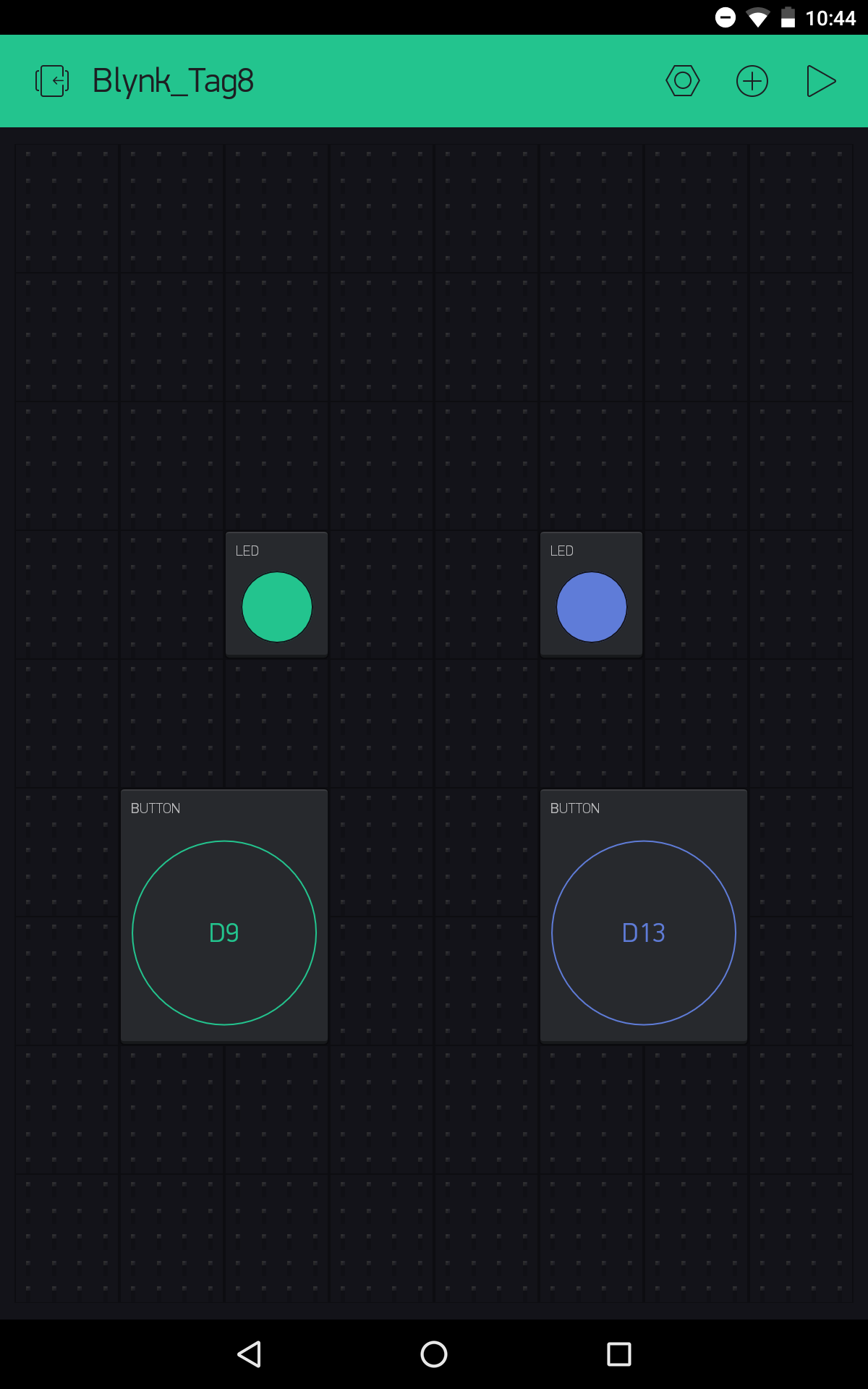
In the test for the sixth day, you saw how a push button on the hardware side can be mapped on a button in the app. However, another widget, namely the LED widget, is much simpler for this instance. In today’s test, you’ll see how to use it properly and what options it offers.
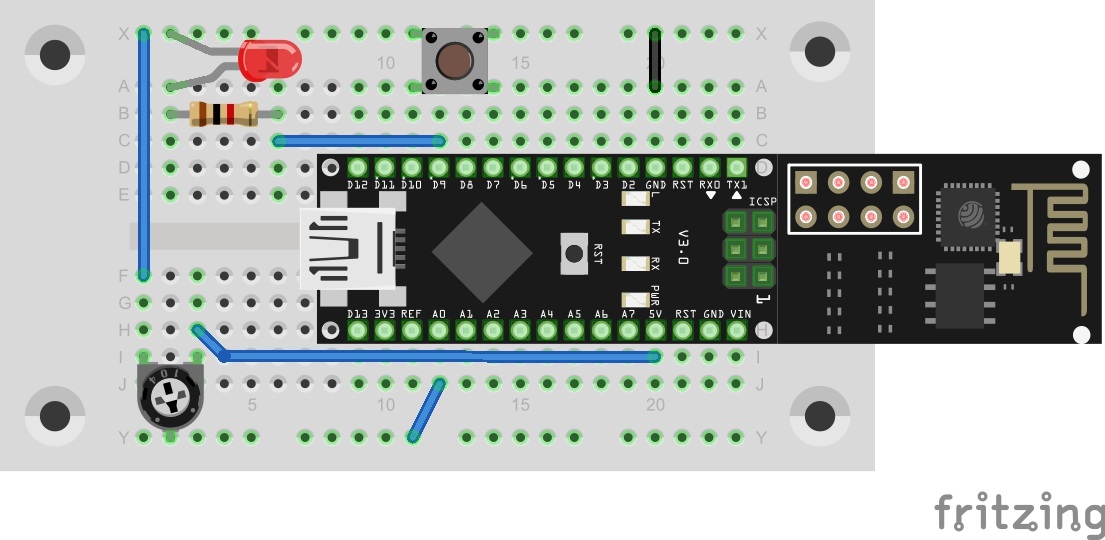
Behind today’s door is another 1-kohm resistor that is important for later tests. Today the circuit from yesterday is expanded by a button.
You can insert the interface again via QR code. However, the Blynk app may then give you a notice that you don’t have enough energy. As mentioned on Day 6, you can get around this problem by deleting the old projects. Now you have enough energy again.

You’ll find today’s programme bellow. Enter your WLAN data and the token code, and already you can upload the programme.
The sketch: A16_P08_Blynk4_VirtualLEDs.ino
/*
Blynk 4: Virtual LEDs
Change ssid, password and token
*/

char ssid[] = "YourSSID";
char password[] = "YourPassword";
char token[] = "YourToken";

#define BLYNK_DEBUG
#define BLYNK_PRINT Serial    // Comment this out to disable prints and save space
#include <ESP8266_SoftSer.h>
#include <BlynkSimpleShieldEsp8266_SoftSer.h>

// Set ESP8266 Serial object
#include <SoftwareSerial.h>
SoftwareSerial EspSerial(11, 12); // RX, TX

ESP8266 wifi(EspSerial);

#define BUTTON 7

//Virtual LED Widgets
 WidgetLED led1(V0);
 WidgetLED led2(V1);

void setup()
{
  // Set console baud rate
  Serial.begin(19200);
  EspSerial.begin(19200);

  Blynk.begin(token, wifi, ssid, password);

  pinMode(BUTTON, INPUT_PULLUP);
}

void loop()
{
  Blynk.run();
  checkPin();
  checkPoti();
}

boolean currState = false ;

void checkPin()
{
  if (!digitalRead(BUTTON))
  {
    currState = !currState;

    //write current state to virtual LED
    if (currState){
       led1.on();
    }
    else{
       led1.off();
    }

    //wait till button is released
    while (!digitalRead(BUTTON)){
    }

  }
}
int lastValue = 0;

void checkPoti()
{
  //read A0 and convert it to values 0-255
  int currValue = map(analogRead(A0), 0, 1023, 0, 255);

  //if values have changed write to virtual led2
  if (!(currValue == lastValue)){
      lastValue = currValue;
      Blynk.virtualWrite(V1, currValue);
  }
}
(The former Arduino Create embed is no longer available; the code is taken from the download of all sketches.)
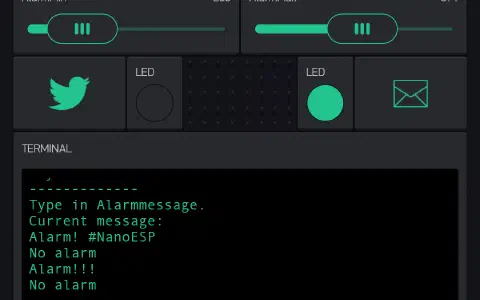
The programme now unites multiple hardware and software actors and buttons. For example, if you push the first button in the app, the LED at D9 starts to light up. The second button switches on the LED D3, which is permanently mounted on the board. With the button on the breadboard, you change the status of the first app LED. You can affect the brightness of the second LED with the potentiometer. Thus you have many different control options for many different elements.

Bekomme folgende Fehlermeldung:
A16_P08_Blynk4_VirtualLEDs:42: error: 'checkPin' was not declared in this scope
Dieselbe Fehlermeldung hatte ich bereits am sechsten Tag….
Recht herzlichen Dank !