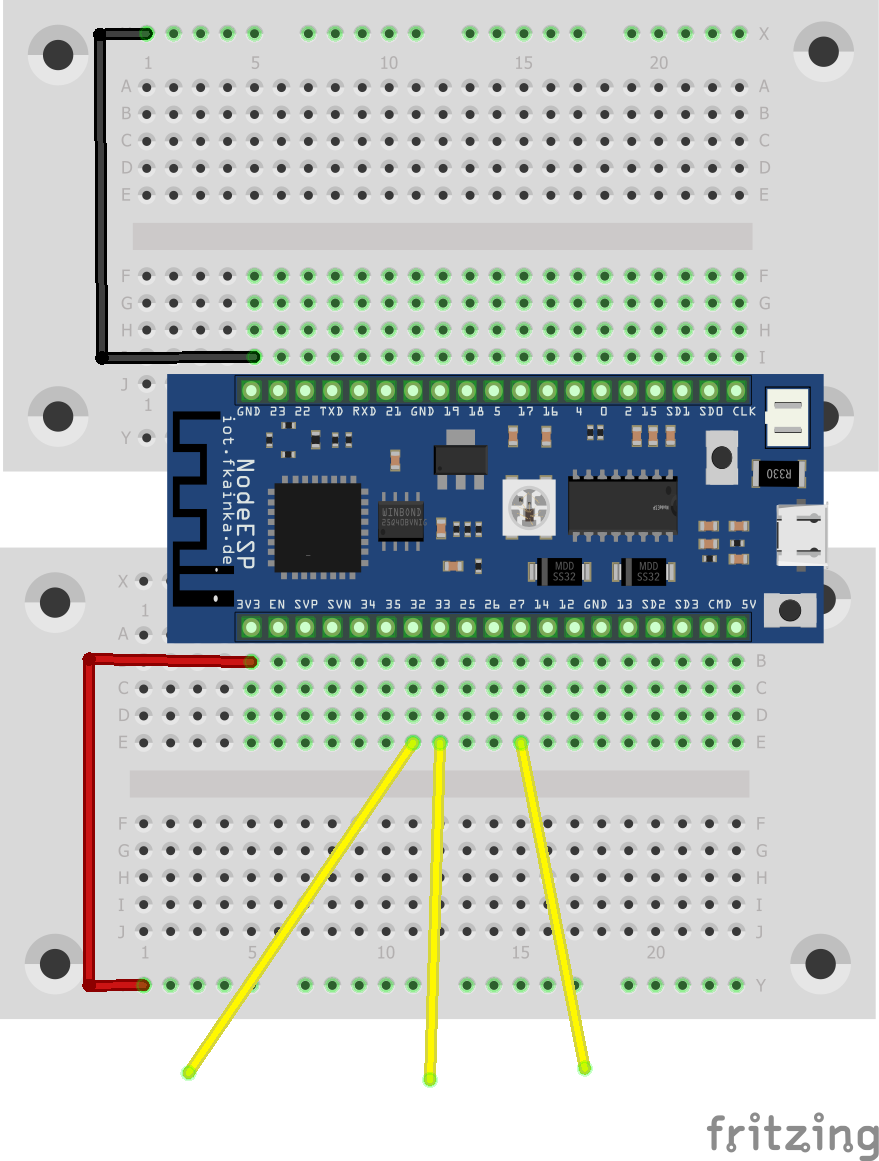
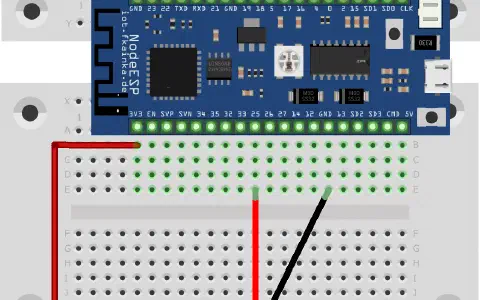
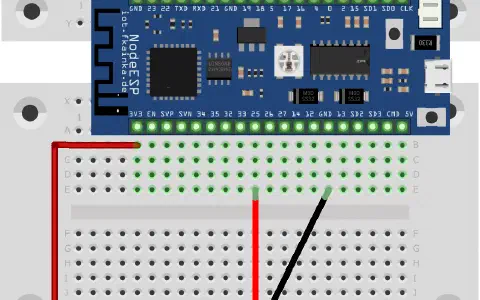
Behind the sixth door of the Advent calendar is a 1 kOhm resistor, which we will use tomorrow. Today we will continue with Node-RED and try out the touch function of the board. As always you will select the program of today. And today we will also build the following circuit. The yellow wires with one free end are the touch sensors.
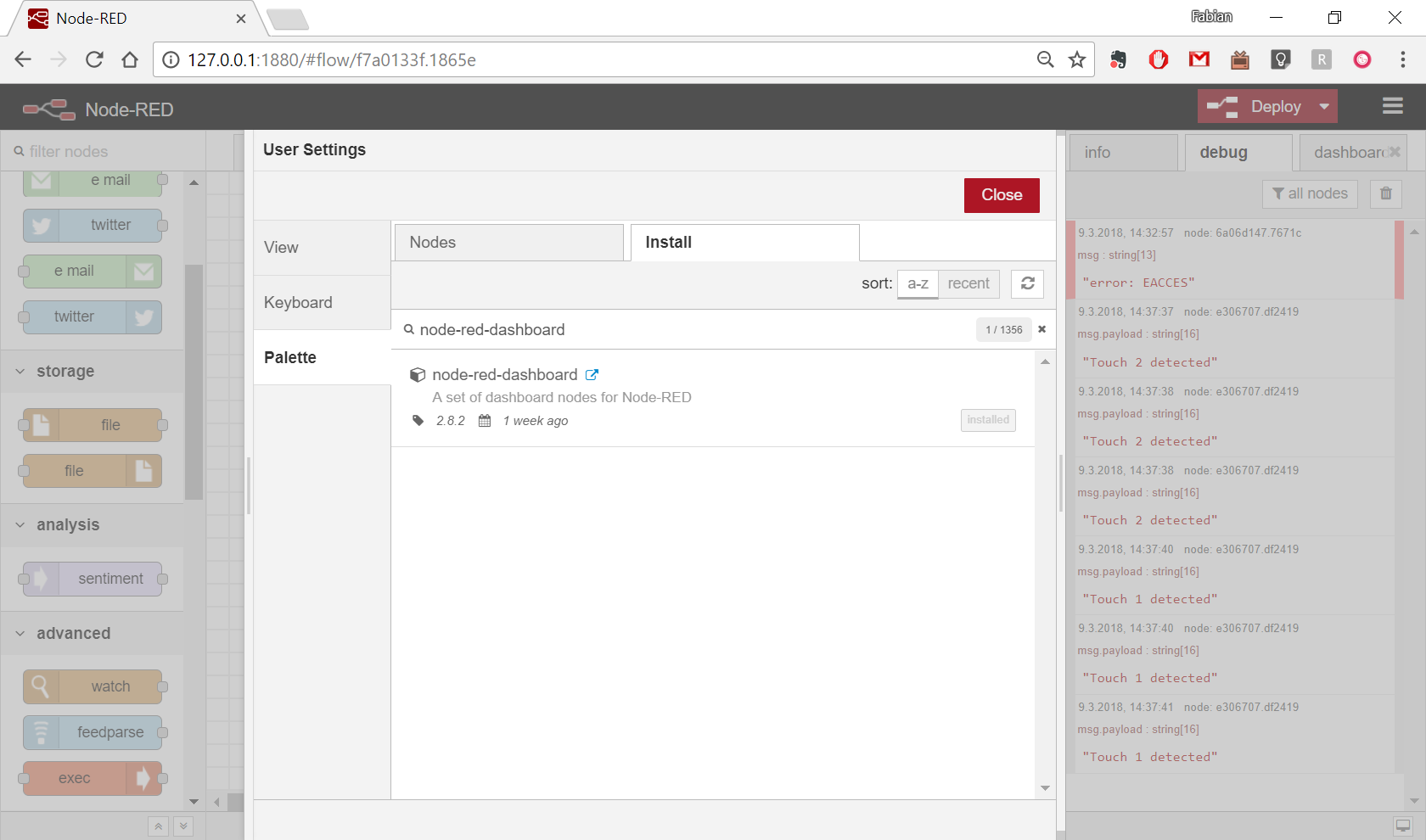
Once set up, you can restart Node-RED using the terminal and the node-red command. Then open the Node-RED editor via http://127.0.0.1:1880/. Today we will install a few nodes. To do this, click on the three dashes in the top right corner where you will see manage palette under which all the installed nodes are listed. Select the Install tab and you will see a large number of different modules that you can install. For today we are searching for the module node-red-dashboard. Click the Install button. A message appears warning you that installation may be difficult at times. Just click Ok, this module is easy to install. After a short while, a success message appears, and the new nodes are now in your node row.
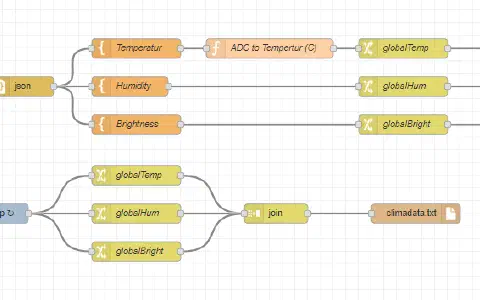
The next step involves setting up the flow for today. So that you do not have to do everything yourself, you have the option of importing complete flows into Node-RED. Click the three dashes again and then on Import and next on Clipboard. You can copy the flows into the text field that pops up. You will find today’s flow in the Pastebin Frame below:
A new tab should appear in the bar at the top after the import. Now you need to deactivate yesterday’s flow as it would listen to the UDP port. Double-click on the Flow tab, change the status from Enabled to Disabled in the Flow menu and confirm with Done. Now you can confirm the new processes with Deploy.
Open this page in the browser:

What you see now is a user interface (UI), which is often called a dashboard. By installing this new node module, you can to create your own interface
| Note: If wire contact does not trigger a message, adjust the sensitivity of the touch detection on the configuration page. A higher value means that the touch sensitivity of the buttons increases. |
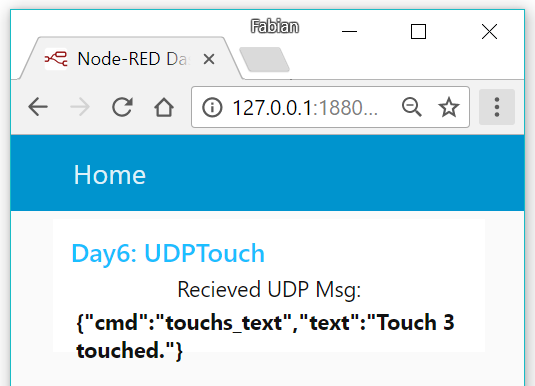
to control operations. Today’s interface was imported with today’s flow. It is a text box, which shows the UDP messages. But there is a small addition: do not have the volume of your PC turned too high, when you now touch one of the freely dangling wires on the board. The board will automatically detect the contact and will send a UDP message that will be shown in the text box. In addition, there is a text-to-speech node on the dashboard that reads the text value in the JSON object. By that you have successfully created a first voice output – and all this with just a single node.
lässt sich die Nachricht verändern, die beim Touchen gesendet wird?
VG