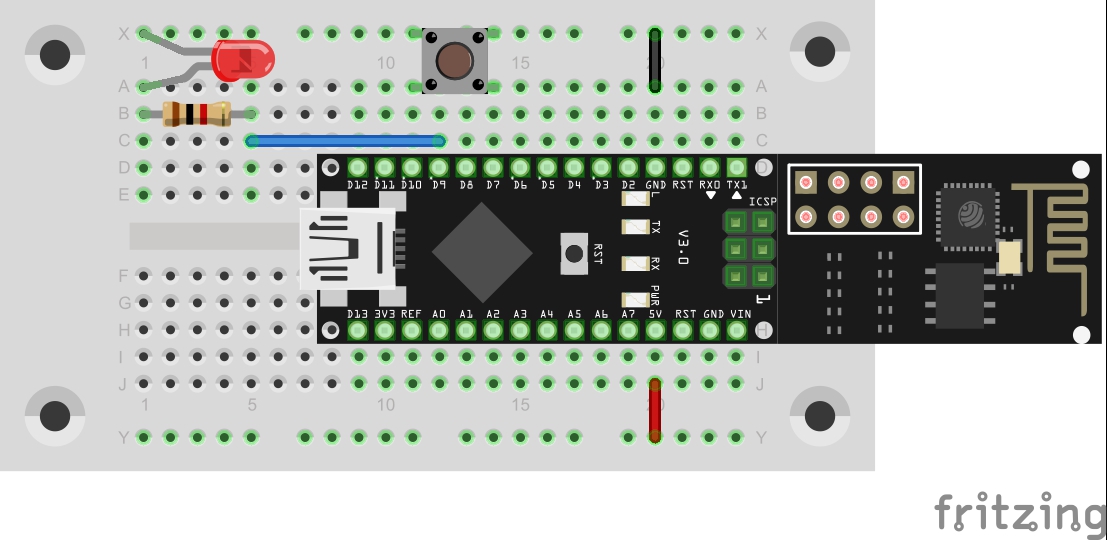
In yesterday’s test, you realised a simple control of an LED using the Blynk app. Today you’ll see that the control works in both directions. The push-button switch behind today’s door really comes in handy for this purpose. With it, you can expand yesterday’s circuit as follows:

You can scan the interface for today here:
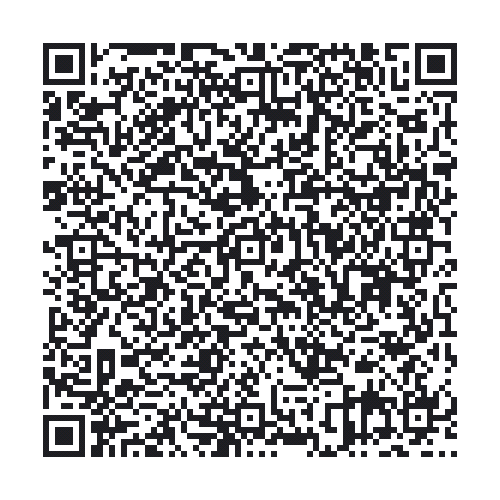
In the Blynk app, there is a virtual currency labelled Energy. It prevents you from using very extensive projects or many smaller projects in the app at the same time. For you, that means that you may have to delete old projects starting on Day 8. But you can save your adapted project by creating a QR code and saving it somewhere.
As always, you’ll find today’s programme here:
The sketch: A16_P06_Blynk2_Button.ino
/*
Blynk 2: Button
Change ssid, password and token
*/

char ssid[] = "YourSSID";
char password[] = "YourPassword";
char token[] = "YourToken";

//#define BLYNK_DEBUG
#define BLYNK_PRINT Serial    // Comment this out to disable prints and save space
#include <ESP8266_SoftSer.h>
#include <BlynkSimpleShieldEsp8266_SoftSer.h>

#define BUTTON 7

// Set NanoESP Serial object
#include <SoftwareSerial.h>
SoftwareSerial EspSerial(11, 12); // RX, TX

ESP8266 wifi(EspSerial);

void setup()
{
  // Set console baud rate
  Serial.begin(19200);
  EspSerial.begin(19200);

  Blynk.begin(token, wifi, ssid, password);

  pinMode(BUTTON, INPUT_PULLUP);
}

void loop()
{
  Blynk.run();
  checkPin();
}

boolean currState = false ;

void checkPin()
{
  if (!digitalRead(BUTTON))
  {
    //toggle state
    currState = !currState;
    Blynk.virtualWrite(V0, currState);

    //Wait till button is released
    while (!digitalRead(BUTTON)){
    }
  }
}
(The former Arduino Create embed is no longer available; the code is taken from the download of all sketches.)
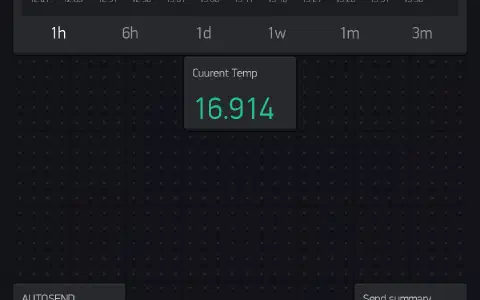
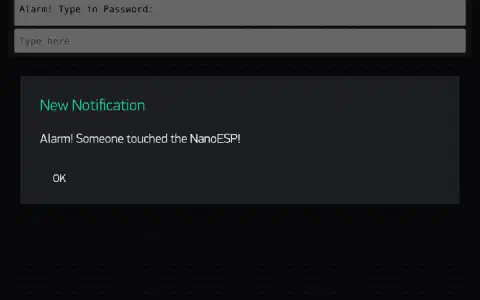
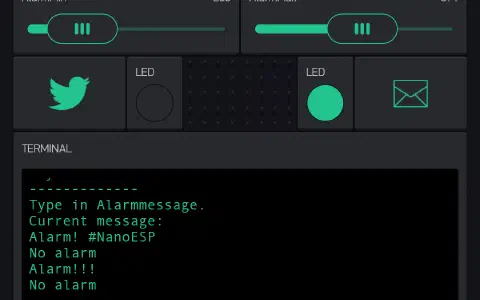
Today, too, the WLAN data and the AUTH TOKEN of the project must be transferred into the programme. Each project has its own token, so you have to have the code re-sent or transfer it into the programme manually. After you start the interface with the Play button, you can again cause the LED on the breadboard to light up by tapping on the button. But you also see a change in the app if you push the button on the breadboard. Thus, the connection is possible in both directions.
88 comments
Comments are closed. These comments were posted on the former WordPress site (mostly in German).
Zu dem Steckbord. Am ersten Tag hatte ich einen blutigen Finger so musste ich auf den NanoESP drücken das dieser in das Board rutschte. Auch die Pin´s vom Widerstand und der LED war krumm und schief aber in das Board wollten sie nicht rein. Ich habe dann ein kleines Stück vom dem Draht (der ist etwas dicker ) an die LED und den Widerstand gelötet und den Draht mit einer Zange ins Board gedrückt.
werde ihn mal duchmessen
'checkPin' was not declared in this scope". Was mache ich falsch?
zwischen den "breiten" Beinchen auf einer Seite 1,9 Ohm wenn der schalter gedrückt gehalten wird sonst unterbrochen. die andere Richtung (schmale auf einer Seite) immer 1,8 Ohm.
void loop()
{
Blynk.run();
checkPin();
}
Unter boolean currState=false steht folgendes:
boolean currState = false ;
void checkPin()
{
if (!digitalRead(BUTTON))
{
//toggle state
currState = !currState;
Blynk.virtualWrite(V0, currState);
{
//Wait till button is released
while (!digitalRead(BUTTON))
}
}
Trotzdem erhalte ich immer wieder diese Fehlermeldung. Bin ich den der einzige, bei dem das nicht klappt?
{
//Wait till button is released
while (!digitalRead(BUTTON))
}
}
es müsste aber
//Wait till button is released
while (!digitalRead(BUTTON))
{
}
}
}
sein.
Bzw in dem vorgegebenen Code ist das { direkt hinter der while Zeile.
'checkPin' was not declared in this scope".
Ich weis nicht mehr weiter!
Diese Einstellung hilft mir zumindestens um fehlende Details zu akzeptieren ;)
Das Problem tritt teilweise mit älteren Versionen der IDE auf, dass Variablen, Funktionen etc. deklariert werden müssen, bevor sie aufgerufen werden, damit sie korrekt referenziert werden können.
In jedem Fall sollte es aber helfen ein
void checkPin();
unter #define BUTTON 7 einzufügen, um die Funktion prototypisch zu deklarieren.
https://create.arduino.cc/editor/FKainka/f8c95bcb-25e9-4b26-bdc2-be7b36ee9547/preview
Man kann das Problem mit Mozilla Firefox umgehen, indem man die Quellcode-Seite erst im Internet Explorer aufruft, dann die Adresse kopiert und schlielich wird unter genau dieser Adresse mit Mozilla Firefox die gewünschte Seite mit dem Quellcode sichtbar.
Der Serielle Monitor sagt aber: Connected to WiFi.
Was mache ich falsch?
Ich würde mich sonst dem Kommentar von SilentGuy anschließen, den Code nochmal über den Button runterzuladen, wenn du ihn bislang nur kopiert hast, da beim Kopieren sowohl mit der Klammerung, als auch mit der Zeichenkodierung einiges schief gehen kann.
Ansonsten ist das Problem schwierig zu analysieren, da die Art wie der Compiler Funktionen handhabt, die vor ihrer Deklaration verwendet werden, compilerabhängig ist.
kommt diese Meldung
[0] Blynk v0.3.4
[499] Connecting to ********
[10579] Failed to connect WiFi
Das Passwort und die SSID sind richtig und das WLAN erreichbar
denn die Projekte ohne Blynk funktionieren super.
Kann mir jemand helfen
Hallo,
das Problem hatte ich auch. Erst funktionierte es, dann aber wieder nicht mehr.
Ich habe dann die App auf meinem Telefon mal komplett geschlossen und wieder geöffnet. Das half dann.
Bei mir trat das Problem auf, nachdem mein Handy in den Standby-Modus ging und ich dennoch den Taster auf dem Board betätigte.
Aber durch das gänzliche Schließen der App und das anschließende Starten funktionierte es wieder.
Wichtig sind nur folgende Punkte:
Ich hoffe, ich konnte wenigstens etwas weiterhelfen.
Gruß
Dann überprüfen Sie bitte Ihr Passwort. Ist alles exakt so geschrieben?
Haben Sie sich ein neues Token zukommen lassen? Vielleicht ist ein Tippfehler im Token?
Und was noch zu erwähnen wäre: Für alle drei Punkte gilt, dass die eingetragenen Werte (also SSID, Passwort, Token) müssen innerhalb der Anführungszeichen stehen.
Bei meinem ersten Versuch hatte ich eines versehentlich entfernt. Dann funktioniert es auch nicht.
Dann erklärt sich auch, wie herum der Knopf montiert wird und dann passt er (bei mir) spontan.
[0] Blynk v0.3.4
[499] Connecting to ********
[10579] Failed to connect WiFi
Die Bibliothek ist installiert.
Das WLAN ist in Reichweite und sowohl Name und Passwort sind richtig da es in den anderen Projekten auchfunktioniert.
Kann mir jemand helfen
Vielen Dank
Habe probiert und kann die LED jetzt auch über den Taster an und ausschalten. Habe nur noch nicht rausgefunden wie ich das den Button in der Blynk-App mitteilen kann das die LED inzwischen aus ist :-(
[0] Blynk v0.3.4
[499] Connecting to *******
[3639] IP: +CIFSR:STAIP,"*********"
+CIFSR:STAMAC,"********"
OK
[4664] Failed to disable MUX
[4664] Connected to WiFi
Die APP sagt das Borard ist offline
Hast du noch nen Rat dafür?
Schade, gester funktionierte es sofort, heute bekomme ich beim Kompilieren Fehler angezeigt.
Sicher beim Einbinden der Bibliotheken?
Linking everything together…
"D:\arduino-1.6.13\Arduino\hardware\tools\avr/bin/avr-gcc" -w -Os -flto -fuse-linker-plugin -Wl,–gc-sections -mmcu=atmega328p -o "C:\DOKUME
1\Weber\LOKALE1\Temp\arduino_build_121965/A16_P06_Blynk2_Button.ino.elf" "C:\DOKUME1\Weber\LOKALE1\Temp\arduino_build_121965\sketch\A16_P06_Blynk2_Button.ino.cpp.o" "C:\DOKUME1\Weber\LOKALE1\Temp\arduino_build_121965\libraries\BlynkESP8266_SoftSer\ESP8266.cpp.o" "C:\DOKUME1\Weber\LOKALE1\Temp\arduino_build_121965\libraries\SoftwareSerial\SoftwareSerial.cpp.o" "C:\DOKUME1\Weber\LOKALE1\Temp\arduino_build_121965\libraries\blynk-library-0.3.4\WidgetRTC.cpp.o" "C:\DOKUME1\Weber\LOKALE1\Temp\arduino_build_121965\libraries\blynk-library-0.3.4\utility\BlynkDebug.cpp.o" "C:\DOKUME1\Weber\LOKALE1\Temp\arduino_build_121965\libraries\blynk-library-0.3.4\utility\BlynkHandlers.cpp.o" "C:\DOKUME1\Weber\LOKALE1\Temp\arduino_build_121965\libraries\blynk-library-0.3.4\utility\utility.cpp.o" "C:\DOKUME1\Weber\LOKALE1\Temp\arduino_build_121965/core\core.a" "-LC:\DOKUME1\Weber\LOKALE1\Temp\arduino_build_121965" -lmcollect2.exe: error: ld returned 5 exit status
Bibliothek BlynkESP8266_SoftSer im Ordner: D:\arduino-1.6.13\Arduino\libraries\BlynkESP8266_SoftSer (legacy) wird verwendet
Bibliothek SoftwareSerial in Version 1.0 im Ordner: D:\arduino-1.6.13\Arduino\hardware\arduino\avr\libraries\SoftwareSerial wird verwendet
Bibliothek blynk-library-0.3.4 in Version 0.3.3 im Ordner: C:\Dokumente und Einstellungen\Weber\Eigene Dateien\Arduino\libraries\blynk-library-0.3.4 wird verwendet
exit status 1
Fehler beim Kompilieren für das Board Arduino Nano.
komisch, steh da vor einem Rätsel.
0] Blynk v0.3.4
[499] Connecting to *******
[3639] IP: +CIFSR:STAIP,“*********“
+CIFSR:STAMAC,“********“
OK
[4664] Failed to disable MUX
[4664] Connected to WiFi
Im Router wird das Board als aktiv angezeigt
In der App aber nicht
D10 spielt meines Wissens nach keine Rolle und ist nur der Platzhalter für den Experiment.
Kinnie
Kinnie
Bei mir Half unter Dokumente \ Arduino \ libraries alle Libs zu löschen und nur noch die blynk zu installieren.
https://github.com/blynkkk/blynk-library/releases/tag/v0.3.4
Anschließend neu Kompilieren und nicht vergessen Wlan Daten sowie Token nochmal abgleichen und schon müsste es funktionieren.
//Wait till button is released, entspricht Tastenentprellung blockiert aber Rückkehr zu loop()!
while (!digitalRead(BUTTON)){
Blynk.run(); // Erlaubt LED an/aus auch wenn Taste gedrückt ist
}
Ansonsten gibt es ab und an einen hänger wenn die WLAN Verbidung des Smartphones abreisst (Grenzbereich des Routers).
Zwischendurch meinte Arduino, dass Bibliotheken upgedatet werde können. Es war auch die Blynk Libery. Das habe ich getan da es immer Probleme gab sich mit dem Wlan zu verbinden. Ging immer nur nach Rechnerneustart.
Nun kommt nur noch:
fatal error: BlynkSimpleShieldEsp8266_SoftSer.h: No such file or directory
#include
^
compilation terminated.
Was muss ich tun damit es wieder geht?
Aber bei Blynk erhalte ich die Meldung, mein Nano ist nicht im Netzwerk. Wobei es mir so vorkommt, als würde das Board kurz blinken, dann kommt die Meldung, dass es disconnected wurde. Danach nur noch die Meldung Nano nicht im Netzwerk vorhanden.
Da ich eine Verbindung zum Wifi habe, gehe ich davon aus, dass meine Zugangsdaten korrekt eingetragen sind. der Token wird bei mir nicht eingetippt, ich kopiere ihn nur hinein. Das gestrige Projekt mit dem gestrigen Token funktioniert ebenfalls. Am Sketch hat sich bzgl. der Verbindung eigentlich ja nichts geändert, von daher verstehe ich nicht, wo das Problem gerade liegt. Jemand eine Idee?
Man kann allerdings anschließend die hier vorgestellten Programme nicht mehr 1 zu 1 übernehmen, sondern muss diese etwas anpassen. Das ist mit den Beispielsketches der neuen Blynk Version aber nicht allzu schwer.
Ich habe allerdings nach wie vor das Problem, dass das Schalten der Led oder drücken des Knopfes zwei- bis dreimal funktioniert, spätestens dann bricht die Verbindung aber ab und ich bekomme ein "Arduino not in Network", "Arduino disconnected" oder Ähnliches.
Jetzt habe ich mal die Debug-Option aktiviert und siehe da, der Verbindungsabbruch geht immer mit einem "Cmd error" einher, weiß irgendjemand wodurch der zustande kommt oder hat ein ähnliches Problem?
schon versucht #define BLYNK_DEBUG oben in der Datei mal zu aktivieren? (// entfernen)? Die Ausgabe auf dem seriellen Monitor wird dadurch etwas besser beziehungsweise man bekommt hoffentlich zumindest eine Fehlermeldung.
Man muss von der Projekt-Seite die Zip-Datei herunterladen und in den Ordner entpacken (vorher sollte man die von der alten Version löschen).
Im Sketch sind ein paar änderungen nötig:
//#define BLYNK_DEBUG
#define BLYNK_PRINT Serial // Comment this out to disable prints and save space
#include <– neu
#include <– neu
#define BUTTON 7
// Set NanoESP Serial object
#include
SoftwareSerial EspSerial(11, 12); // RX, TX
ESP8266 wifi(&EspSerial); <– geändert '&'
#define BLYNK_PRINT Serial // Comment this out to disable prints and save space
#include <ESP8266_Lib.h> <– neu
#include <BlynkSimpleShieldEsp8266.h> <– neu
#define BUTTON 7
// Set NanoESP Serial object
#include <SoftwareSerial.h>
SoftwareSerial EspSerial(11, 12); // RX, TX
ESP8266 wifi(&EspSerial); <geändert &
Freue mich schon auf nächste Türchen.
Was kann ich tun?
ich bekomme immer nur:
Arduino: 1.6.13 (Windows 10), Board: "Arduino Nano, ATmega328"
C:\Users\Büro\AppData\Local\Temp\Temp1_A16_P06_Blynk2_Button(2).zip\A16_P06_Blynk2_Button\A16_P06_Blynk2_Button.ino: In function 'void loop()':
A16_P06_Blynk2_Button:37: error: 'checkPin' was not declared in this scope
exit status 1
'checkPin' was not declared in this scope
Was soll ich tun?
https://www.androidpit.de/display-overlay-erkannt-fehler-beheben-loesung
Offensichtlich ist eine APP auf deinem Smartphone der Verursacher des Problems. Erst wenn dieser Fehler behoben ist, funktioniert die Kamera und der QR-Code.
lg
Robert
Ansonsten hilft aber eine Prototyp Deklaration am Anfang der Datei, einfach
void checkPin();
oben in der Datei einfügen.
ich das heute türchen gemacht, aber leider leuchtet meine LED nicht. Ich sehe zwar wenn ich den Hardwarebutton benutze das eine Verbindung in beide Richtungen funktioniert, aber leider geht die Lampe nicht mehr an?
Kann jemand helfen???
kommt vielleicht etwas späht, aber schreib mal unter #define BUTTON 7 void checkPin();
Die LEDs können ohne Vorwiderstand oder falsch gepolt schnell kaputt gehen.
Richtig: langer Draht an +, kurzer an -
das Gleiche Prob wie gestern (Gestern hats auch nicht funktioniert) sobald ich den Button in der App drücke leucht ganz kurz D5 auf. aber die LED leuchtet nicht wo ist da mein Problem?
danke.
Danke <3