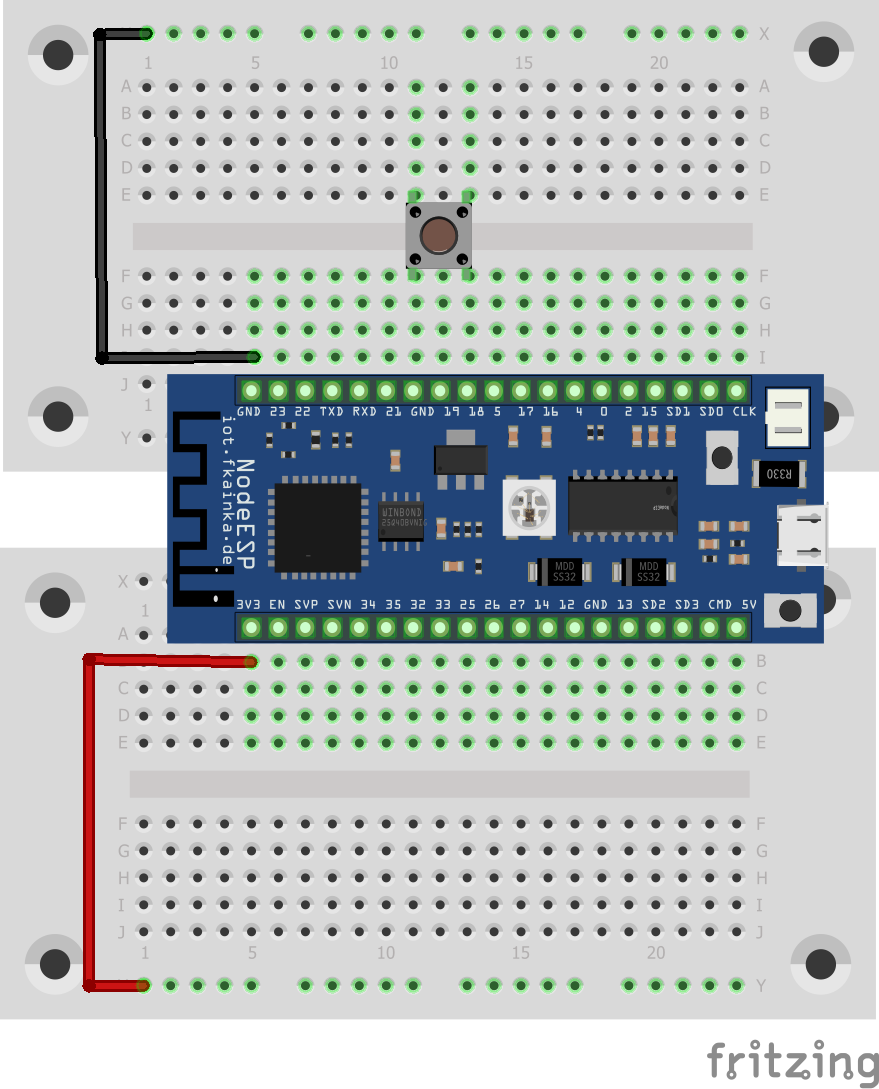
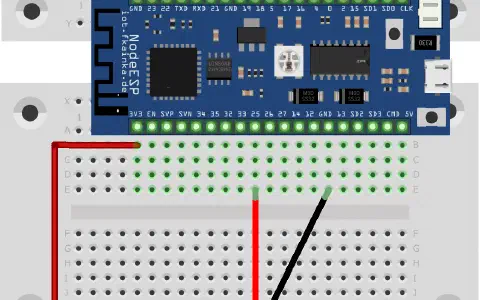
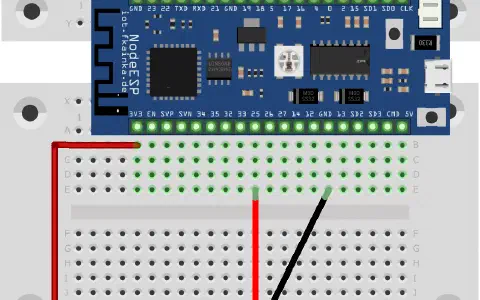
Behind the fifth door of the Advent calendar is a button and we are going to use it today in our experiment instead of the boot button. We will connect the button to pin 18 and GND in such a way that when pressed, it will pull the pin to ground, thus to LOW. If you have selected the program of the day and you press the button, a message is sent via UDP.

Today, you will become familiar with the Node-RED program and learn how to create your own little programs and automate tasks. Node-RED is free software and allows us to link together different devices, online services and APIs (programming interfaces) through a simple graphical interface. The links are called flows and are simply drawn by mouse click.
Node-RED is available for Linux, Windows and macOS. It would also make sense to use a Raspberry Pi, as it can be left on, it does not need much power and that is in line with the idea of the Smarthome. Besides, Node-RED is already preinstalled under Raspbian.
I will demonstrate the installation for Windows 10 as an example. Most of these commands can be used with other systems.
First Node.js must be installed. This software is available along with a detailed installation manual from the website https://nodejs.org/. Double-click and install the 16 MB MSI file. To make sure that everything installs properly, open the Windows terminal, also called command line or shell (Windows key + [R] and then enter cmd), and type node –version && npm –version
You will see something like v8.10.0 and 5.6.0, or maybe you already have a newer version. In the command line enter the command that will install NodeRED:
npm install -g –unsafe-perm node-red
This may take a while. Then use the command line to start Node-RED: node-red
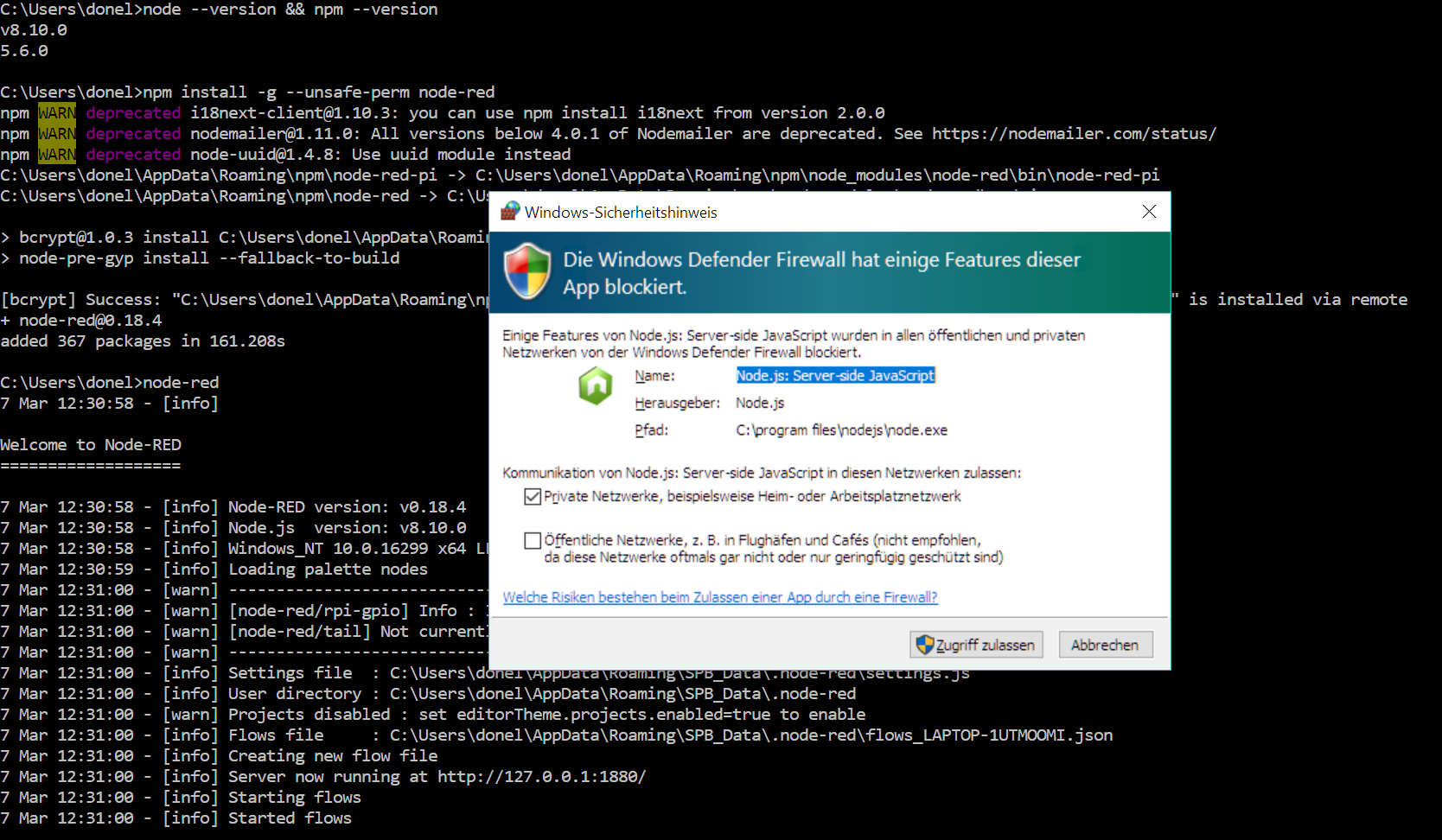
Firewall immediately acts and wants to know how to proceed with this new connection. Now it is essential to select Private networks and Allow access. Only then Node-RED will function properly. Also, it is important that you do not close the terminal at this stage as this would also terminate Node-RED.
Now you have installed and launched Node-RED. But except a few lines in the terminal you haven’t seen anything useful yet. The user interface of the software is opened via the browser. Thus, open t by using the address http://127.0.0.1:1880/. This is the localhost address that you use to address your machine. The number 1880 is the port through which you reach Node-RED. Note here, if you want to access NodeRED from another machine, you will have to use the machine’s proper IP. But right here you see the Node-RED interface with the flow area in the middle, with nodes on the left and information on the right.
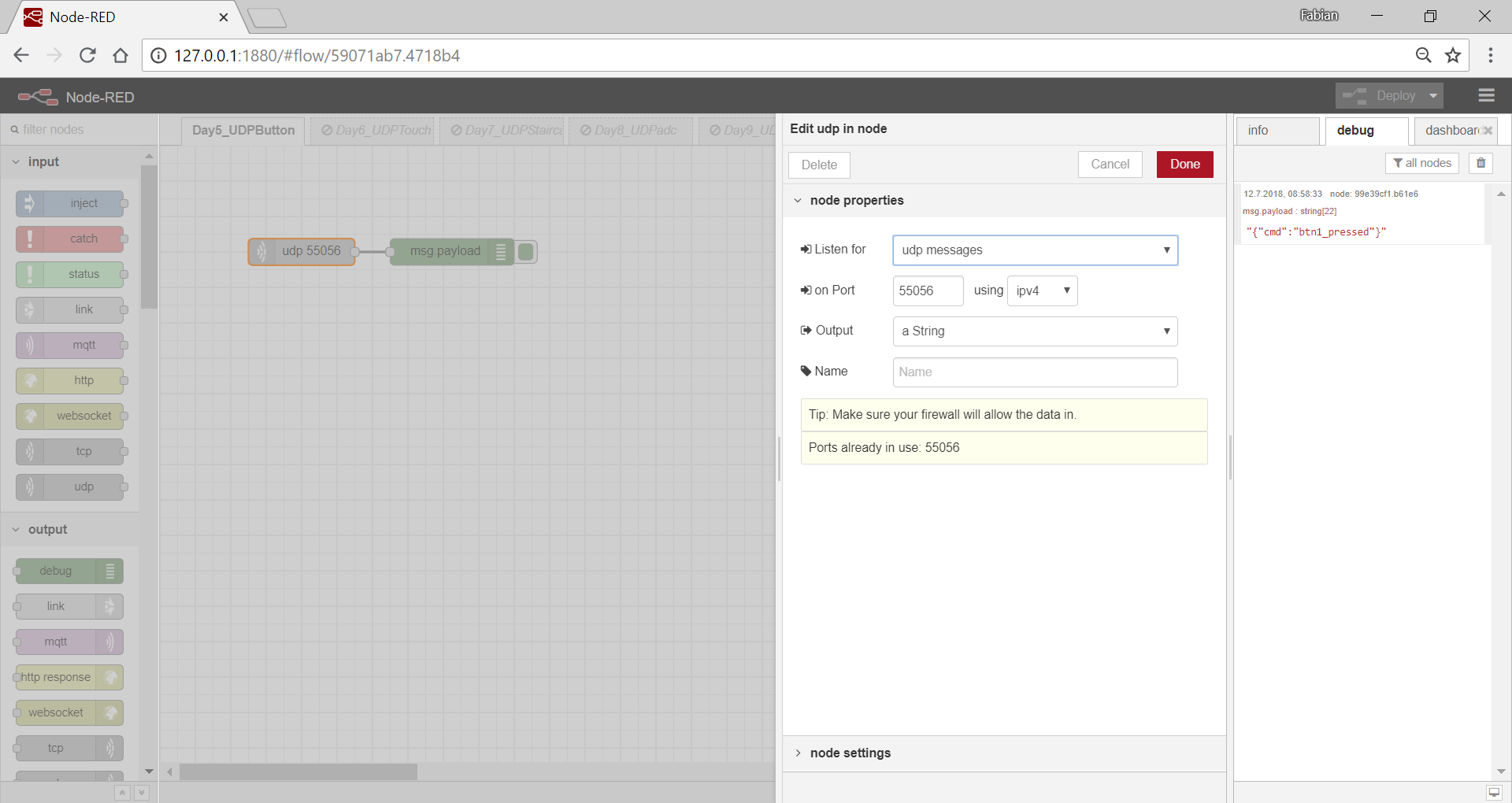
The Input section on the left has a node called udp. Drag it into the free area in the middle. A bit further down under the output is debug. Drag this node also into the area. Link the two nodes by clicking and dragging with the mouse. Then double click the UDP node to open the settings. Enter everything exactly as shown in the picture above. Confirm with Done. Start by clicking the Deploy button in the top right corner. The message Successfully deployed appears briefly. The new flow is now active. As a final step, select the debug tab on the very right and then press the button on the breadboard. The debug window will show a message in the familiar JSON format: {“cmd”: “btn1_pressed”}. The connection to Node-RED has been established.
Note**:** Counting the board pins can be tiresome. Therefore, we have provided a stencil on our Board page under Pinout, which you can print out, cut and place on the board.
Es hat alles geklappt, ausser dass ich im Debug Fenster keine Nachrichten erhalte.Der NodeESP sendet auf Knopfdruck eine Nachricht, die ich im Packet Sender sehe, aber nicht in NodeESP.
Im cmd Fenster (Windows 10) ist die Nachricht:
5 Dec 08:35:41 - [info] Starting flows
5 Dec 08:35:41 - [info] Started flows
5 Dec 08:35:41 - [info] [udp in:4c7fb40b.a27f3c] udp listener at 0.0.0.0:55056
Was kann ich sonst noch überprüfen?
Vielen Dank und freundliche Grüsse
Gérard