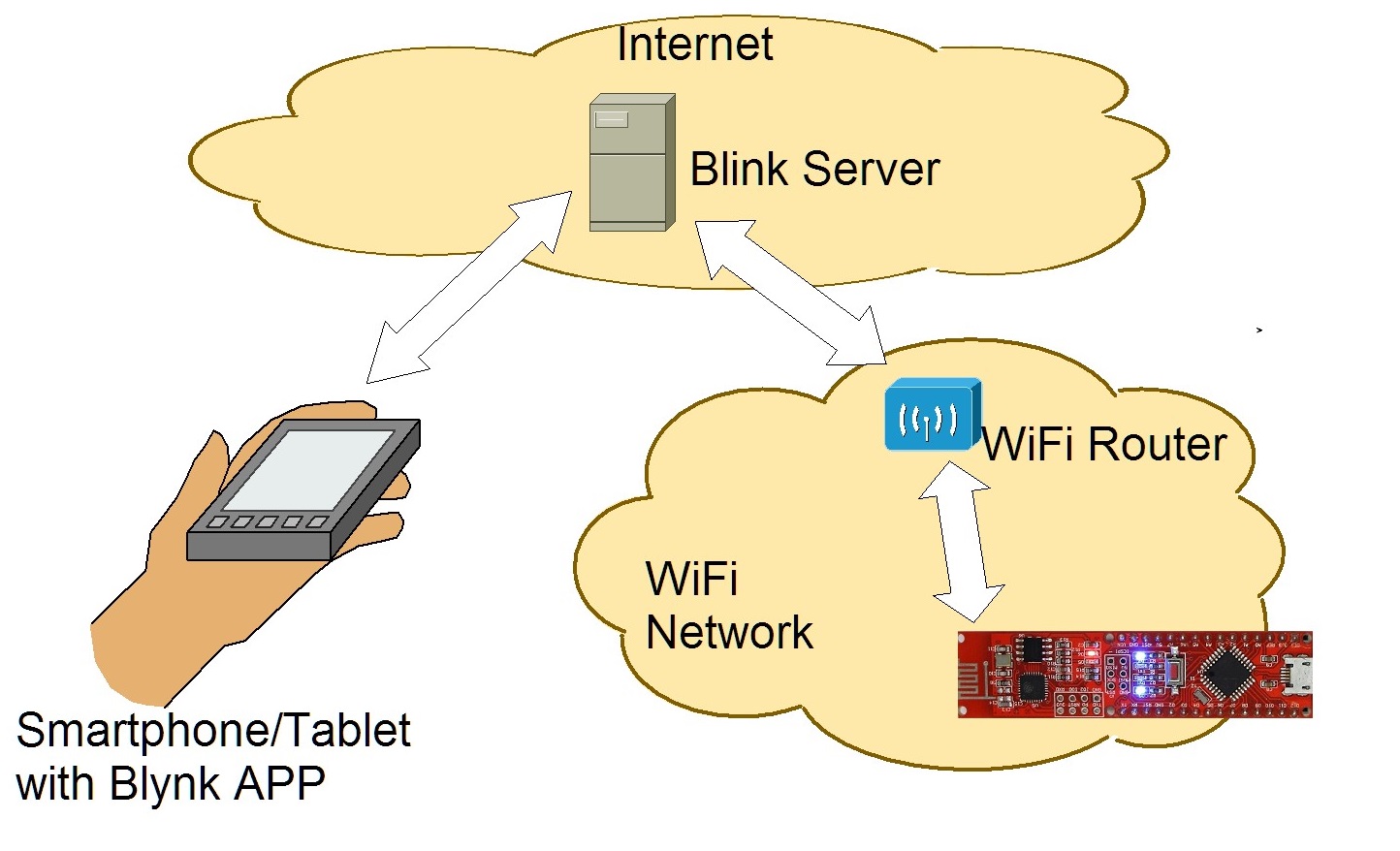
You already established a first connection from the board to the Internet yesterday. In the coming days, this connection should be used effectively. So we’re looking at the online platform Blynk, through which short commands, measurement data or messages can be exchanged between the NanoESP board and your smartphone.

Blynk enables the simple control of various IoT boards, e.g. the Raspberry Pi or our NanoESP, using an app. You can put the graphic interface together completely on your own, and programming is also extremely simple. As if that weren’t enough, you can even control the board from anywhere in the world. So it’s totally within the sense of the Internet of Things.
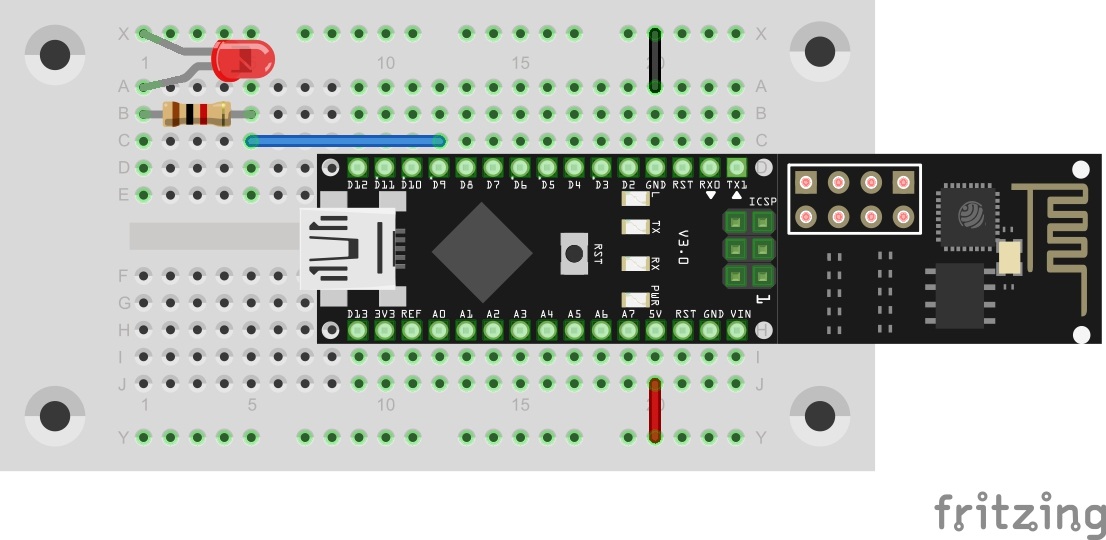
For your first test, you need the LED that’s behind today’s door and the resistor from yesterday. We want to switch the LED using the smartphone or tablet. Set up the circuit shown here on the breadboard. Pay attention to the correct polarity of the LED (small leg at GND).
In the next step, you need to install the Blynk library. You’ll find a functioning version linked on GitHub. Version 0.3.4 is required:
https://github.com/blynkkk/blynk-library/releases/tag/v0.3.4
Integrating this library is somewhat more complicated, since there are multiple library files in the ZIP folder. That means: You have to install it manually. But that’s not particularly hard. Simply open your Sketch file folder. If you don’t know exactly where it is, look under File > Presets.
In the Sketch folder is a folder named libraries. You need to copy the folder contained in the ZIP file into this folder. These are basically the steps the Arduino IDE took automatically on Day 2 when installing the NanoESP library. That’s why you’ll also find a subfolder named NanoESP in the libraries folder. You should now likewise be able to find the folder from the downloaded archive here.
Now Blynk is integrated into your Arduino IDE, but you don’t yet have the app that goes with it on your smartphone. To change that, download the app from your app store, depending on your operating system, or go to www.blynk.cc and follow the link there.
Open the app. You are greeted with the two options Login and Create New Account. Create a new account. For this, you don’t have to do anything more than enter an email address and a password. Then you can log in.
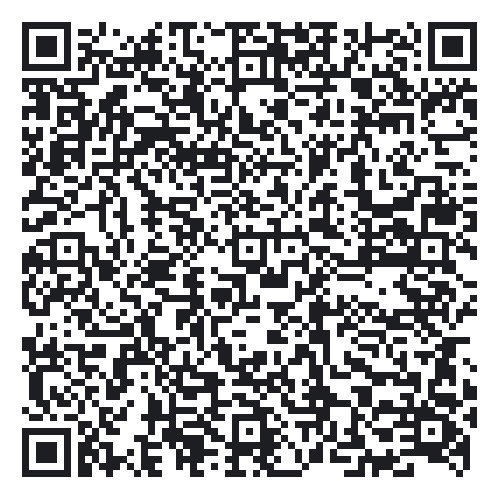
In order to get the interface for today on your smartphone, there’s an exceptionally practical function in the app. Tap the icon at the top right that’s between the plus and the i. A QR code scanner opens, which you simply have to hold on the following picture. The interface already appears on your device.
Next, you have to tap the hexagonal icon at the top right and write down the code that’s under AUTH TOKEN or, an option that’s especially practical, have it sent to your email address. You see, this code belongs in the Arduino programme.
You have to download today’s Arduino programme from below and open it in the Arduino IDE. Then, just like yesterday, you have to enter the WLAN data at the top in the programme after “SSID” and “PASSWORD.” You also have to enter the code referred to above after the keyword “token.” Only then can you load the programme on the NanoESP. After the upload, you can follow a couple of messages on the serial monitor and thus make sure that the connection set-up has worked.
The sketch: A16_P05_Blynk1_LED.ino
/*
Blynk 1: LED
Change ssid, password and token
*/

char ssid[] = "YourSSID";
char password[] = "YourPassword";
char token[] = "YourToken";

//#define BLYNK_DEBUG
#define BLYNK_PRINT Serial    // Comment this out to disable prints and save space
#include <ESP8266_SoftSer.h>
#include <BlynkSimpleShieldEsp8266_SoftSer.h>

// Set NanoESP Serial object
#include <SoftwareSerial.h>
SoftwareSerial EspSerial(11, 12); // RX, TX

ESP8266 wifi(EspSerial);

void setup()
{
  // Set console baud rate
  Serial.begin(19200);
  EspSerial.begin(19200);

  Blynk.begin(token, wifi, ssid, password);
}

void loop()
{
  Blynk.run();
}
(The former Arduino Create embed is no longer available; the code is taken from the download of all sketches.)
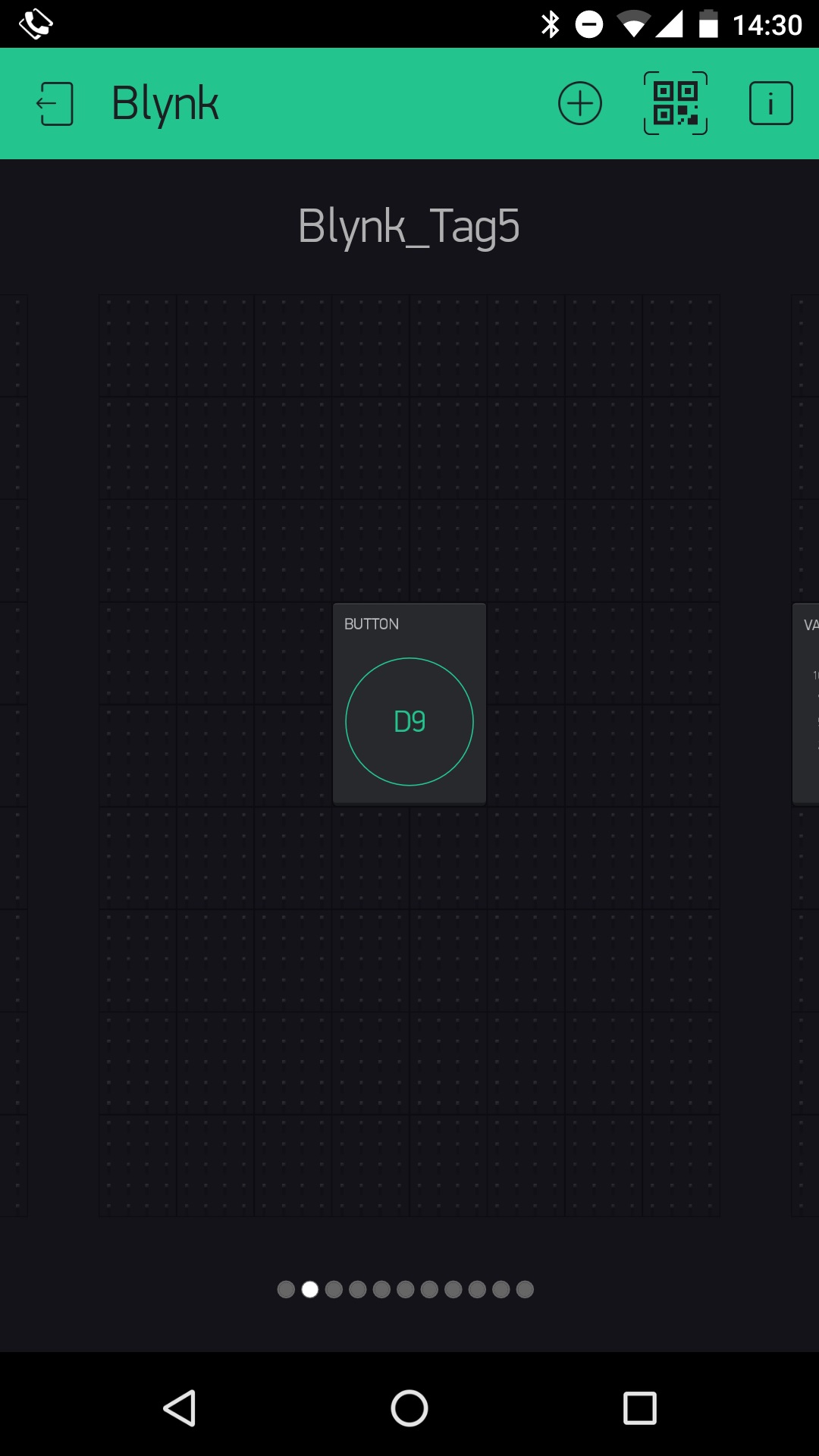
Now back to the smartphone or tablet. Start your interface by tapping on the Play button at the top right. You can now press the button in the middle of your interface, and whenever you touch the button, the LED lights up on the breadboard. As a test, you can change the button type; stop the programme by pressing the Stop button and tap briefly on the button. There change the button type from Push to Switch; then press Play again in the interface view. Now a simple tap is enough to cause the LED to stay lit.
Im Programm steht
Ungültige Bibliothek C:\Users\Denny\Documents\Arduino\libraries\A16_P05_Blynk1_LED in C:\Users\Denny\Documents\Arduino\libraries\A16_P05_Blynk1_LED gefunden
Aber wenn Ich den Button auf dem Smartphone betätige leuchtet kurz die LED D5 auf.