Behind the fourth door of the Advent calendar is a set of cables that is very useful for the upcoming hardware setup. But today in our project we are going to look at the JSON format; what is it and how does it help us communicating with the board.
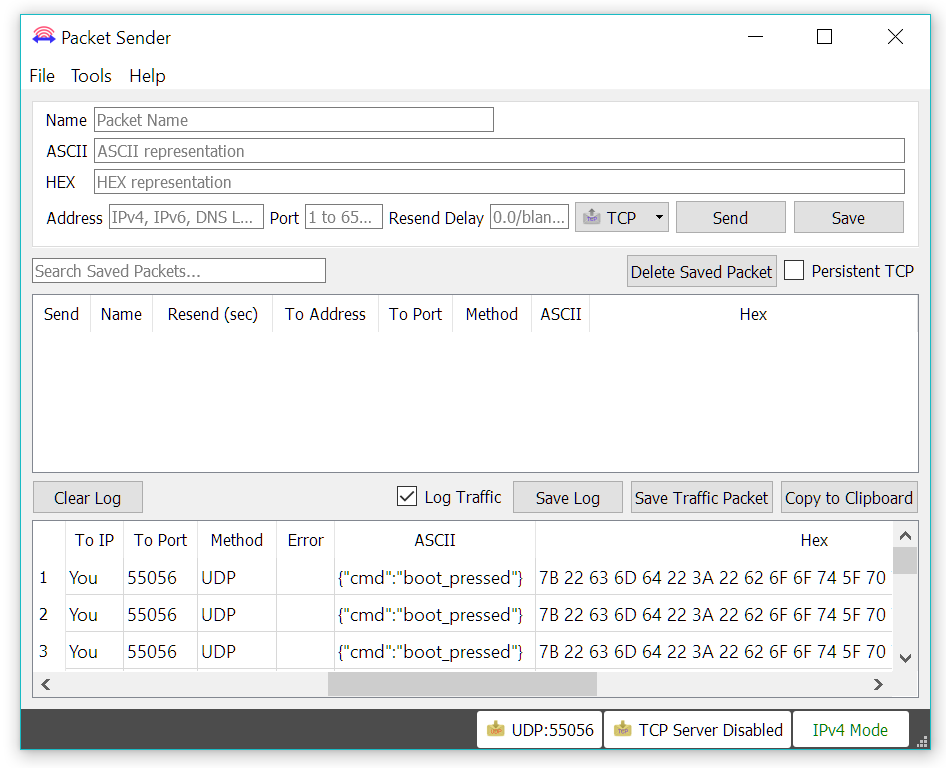
As usual, first you need to activate today’s program. You will also need the Packet Sender program with the same settings that we were using yesterday. Today, a message appears only after you briefly press on the board’s boot button. This message looks like this:
{“cmd”:“boot_pressed”}

This is a JSON (JavaScript Object Notation) message. JSON is a slim data exchange format for machines that is also very readable for humans. Basically, everything in the JSON format consists of names and values. First, we have the name of the value (which is also called key), in our case this is cmd (short for command), and then the value itself, here boot_pressed. Both texts are separated by a colon and, because this is text, it is also enclosed in quotation marks. A complete JSON object is also surrounded by curly brackets.
The board not only sends messages, it can also receive messages. To make this happen, you need to fix a few settings in the Packet Sender program. In the upper part there is a text field labelled Address. Here again you need to enter the broadcast address which is also used by the board. Alternatively, enter the board IP or just the mDNS name (simply nodeesp). In the Port field on the right, enter again the port 55056. Last but not least, select UDP from the drop-down menu further on the right. Now you can enter a message into the field ASCII located a little higher up and Send it. Start with sending a trial text such as Hello. Since the Packet Sender listens on the same port and you are also using the broadcast IP address, you will also receive some of the messages sent. In addition, you will receive the message {“cmd”:“ack”} from the board.ack is the short of acknowledged. The board thus has confirmed the receipt of a message, although most likely it couldn’t do anything with the message itself.
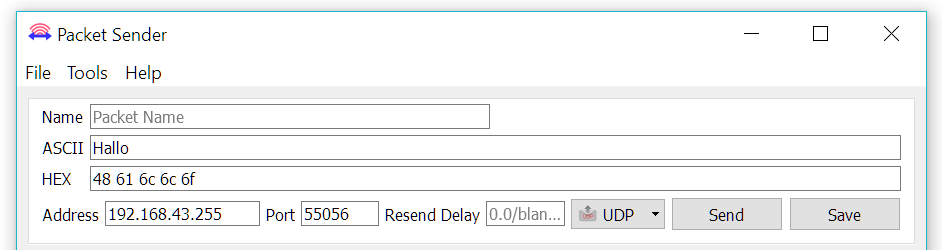
If you send a predefined command in JSON, things will look a bit different. If you send the text {“cmd”:“ping”}, for example, you will get {“cmd”: “pong”} as a reply from the board after a short while. You could also try other commands. For example, {“cmd”: “get_wifi_status”} will return the connection status of the board. {“cmd”: “get_wifi_scan”} will detect and list all Wi-Fi networks in range.
You can find a couple of universal commands on the board page or on the project page. But be careful: there are a few commands in the category Settings that will make changes to the settings of the board and then nothing will work anymore. If this happens, go to the default settings by holding down the boot button for more than 10 seconds. You can use this method for all programs that have WPS in brackets after the program name. You have the same function on the configuration page under Advanced Settings and then (Restore Default Configuration).
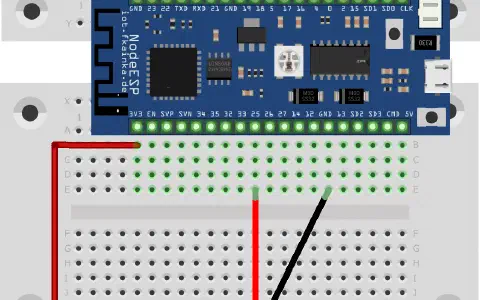
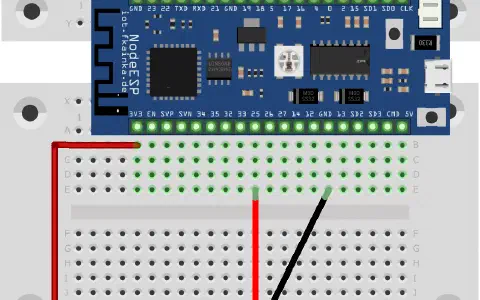
As a third option move pin 13 to LOW during the startup of the board. Don’t forget to disconnect pin 13 after the reset.
.
Im Packetsender unten auf den UDP Reiter klicken um den Server zu disablen, dann noch mal um ihn wieder zu aktivieren.
Danach sollten Pingbefehle, Boot-Button und Co auch funktionieren..
Hat zumindest bei mir (nach anfänglichen Problemen) geholfen.
P.S.: Wo sich der Bootbutton befindet seht ihr auf dem Pinout (.local Website)