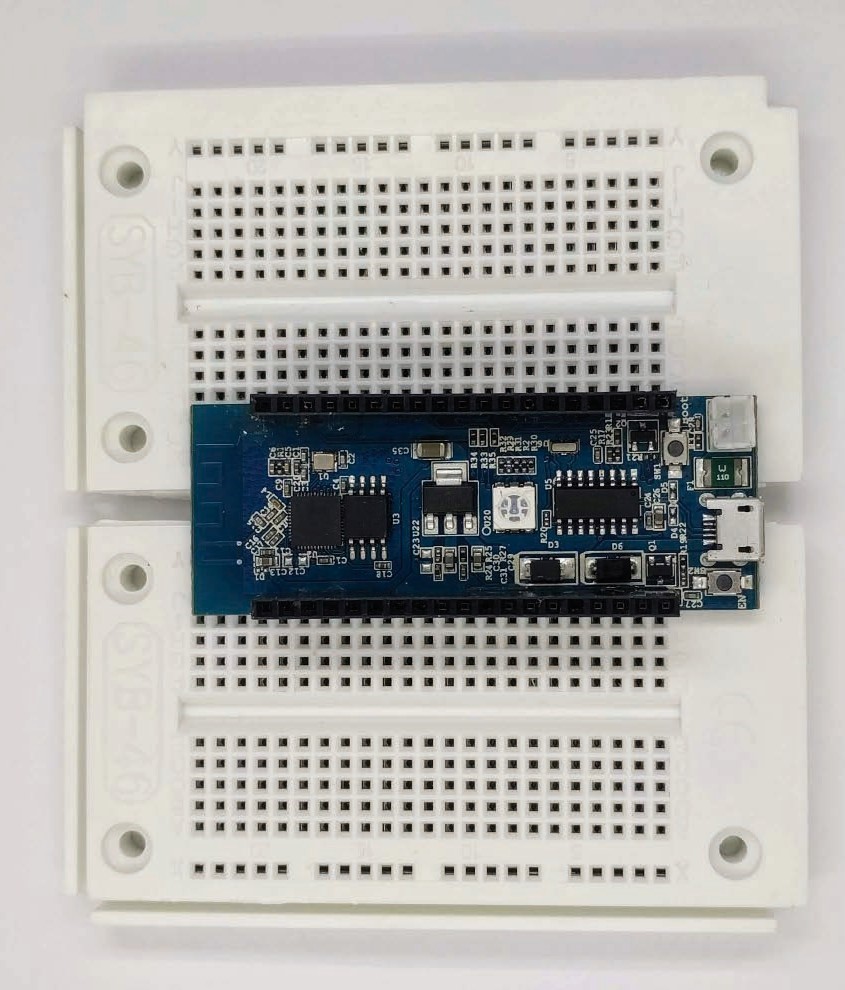
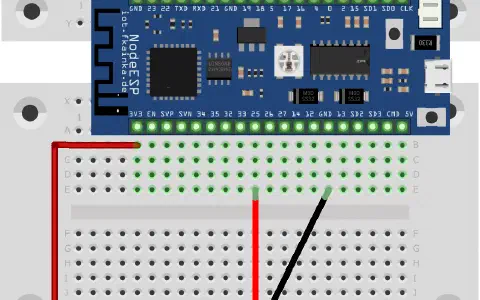
Today’s door reveals another breadboard. It can be plugged into the board of yesterday. The NodeESP board can now be placed on both boards together. However, this constellation will not work for everyone. Breaking off the side parts of the boards is the easiest solution. I have done this by fitting the boards into each other and then bending one until a side part broke off. I did the same thing with the other board. But you could use pliers, too. Without the side parts, you can place the boards closer to each other, and then there won’t be a problem with the grid. Simply plug the NodeESP board onto both boards as shown in the picture. This leaves enough room for other components. In today’s project, we will learn how to connect to the board from your PC without using the web browser.

Select today’s program on the configuration page. The board will restart. But you are not yet finished with the settings. On the configuration page there is another area called UPD Settings. There you will see the item IP (send). Perhaps the IP is already correct; most likely, however, you will need to enter your broadcast address manually here. In most cases, you simply copy your local IP, which you will find under Board Wifi Status located at the top, into the field and change the last 3 numbers after the dot with 255. Some home networks may use different approaches. If it gets complicated, use an online tool such as:
https://remotemonitoringsystems.ca/broadcast.php
or search through the comment section of today’s program for help. After you have confirmed with Submit, the board will restart as usual and will already send messages. Now we need a program on our PC, that allows us to receive these messages. We recommend the tool Packet Sender, which works with all common operating systems and can be downloaded from https://packetsender.com/download
Here you can do as you like, and either select the installer version or the portable version that you can start directly. When launching the program, Windows may ask for your firewall settings. Choose Home network and Allow access.
Below under the Packet Sender program UDP followed by the number 55056 should appear. If the number is not 55056, go to File/Settings in the Network tab and under Server Port enter UDP. This is the same port as set on the configuration page of our board.
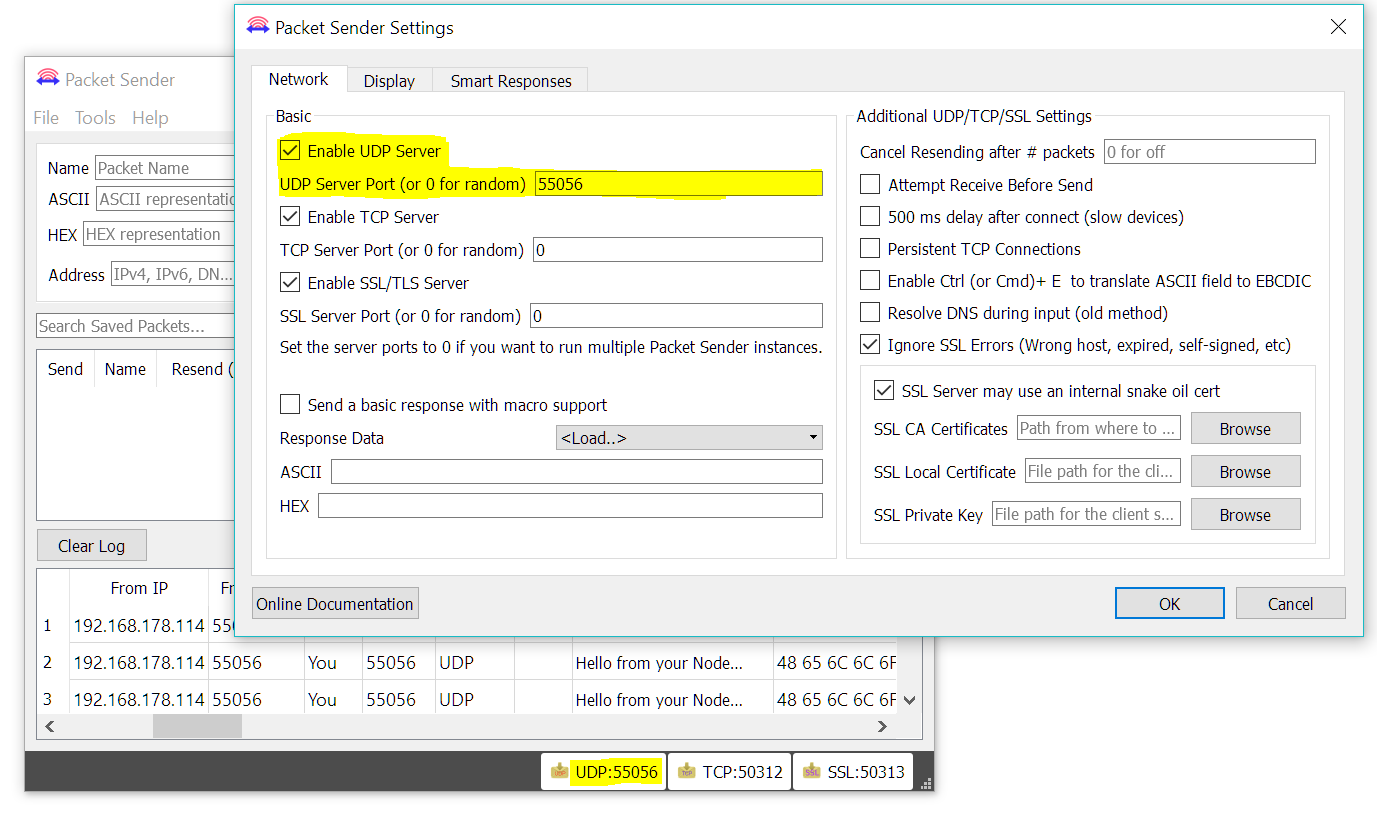
And indeed, after a short while, a message appears in the lower window and refreshed every five seconds. So now, you have successfully received a message from your board.
die Broadcast Adresse ist überprüft und der UDP Port eingestellt.
LG
Patrick