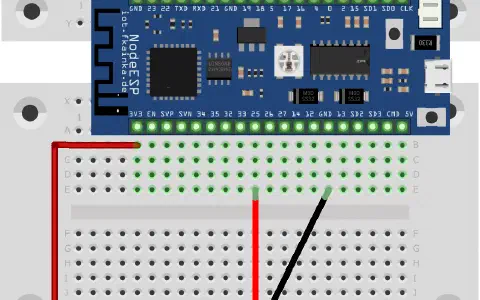
On the second day you will find a breadboard for the upcoming experiments hidden behind the door. I would recommend however, that you do not yet plug your NodeESP into the board. Let’s first look today at how we launch the programs preinstalled on the board and bring the board up to date.
Reconnect your board first to a power source. Wi-Fi data that you entered yesterday is still stored and the board should automatically connect to your Wi-Fi network. Then access the board page using the IP or mDNS name (http: //nodeesp.local/). Now, the first thing you do is searching for possible software updates. To do this, open the configuration page, click Advanced Settings at the bottom and click on Check for Firmware Updates.
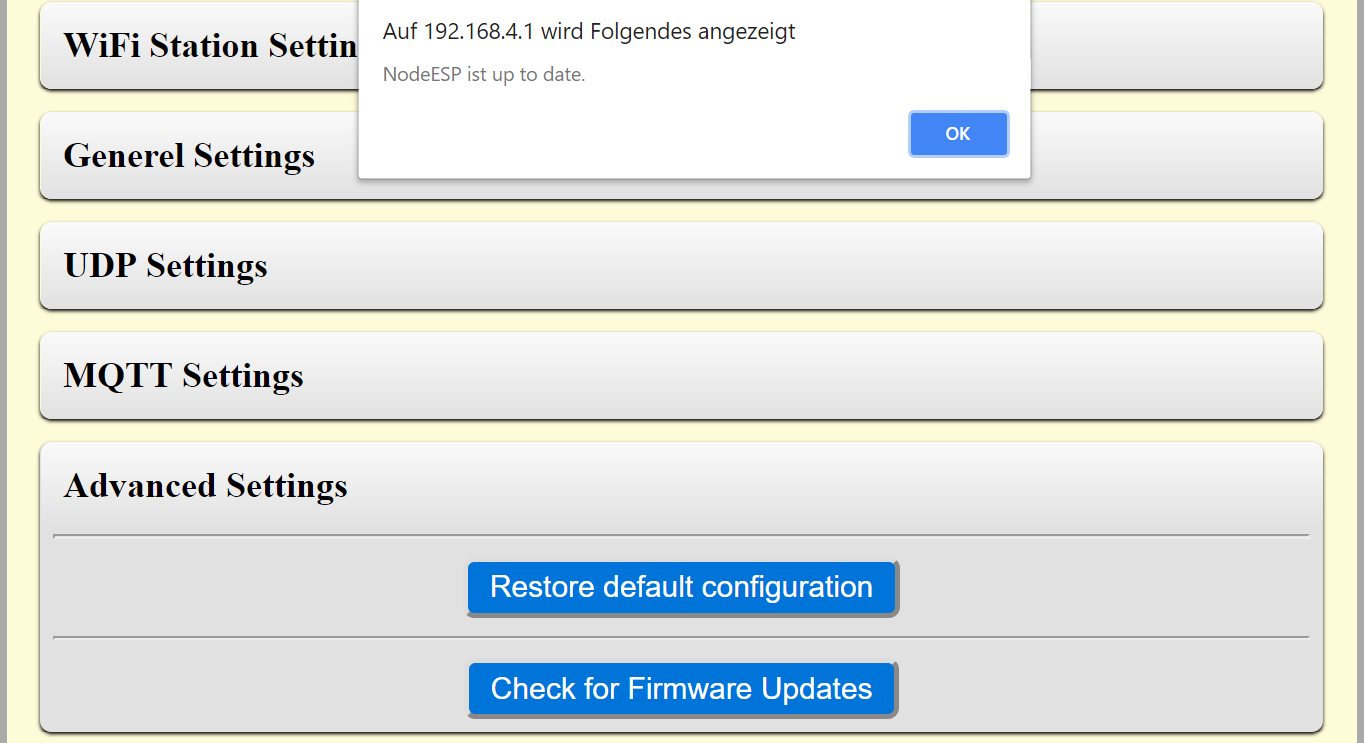
You will see a message on the configuration web page, if a new update is found. Confirm and then have a cup of coffee. The update process can take a while (up to 20 minutes). Continue, once the light on the board turns green. Check again for any updates. Normally, the board will now report that everything is up to date. If things go wrong, look at the instructions on the project website and what you can do to fix it.
Now we will deal with the preinstalled programs: On the configuration page you will see the item Application Settings where all programs are listed and an info box shows you which of those are currently active. First select IoT Adventscalendar 2018 in the top box and then today’s program (starting with IoT Calendar 2018 – Day 2). Confirm with Submit. The board will now restart with the selected program.

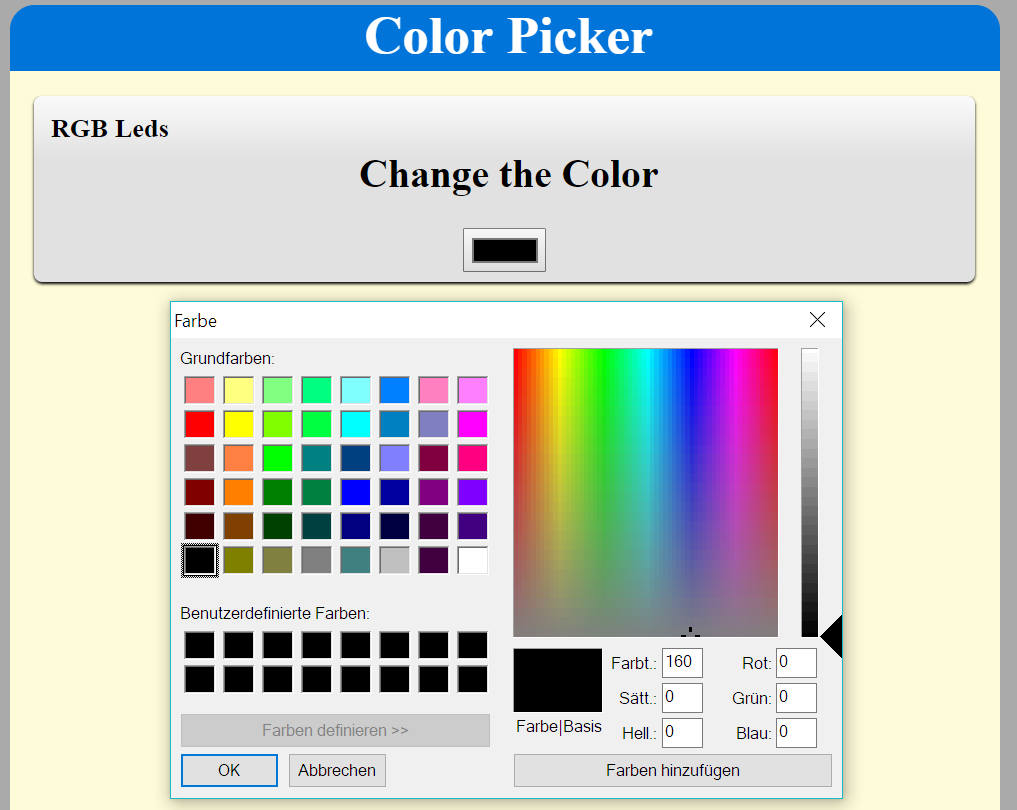
After reboot and once reconnected, go to the board’s main page. There is another link called Application Page. Follow this link to go to a webpage with a so-called colour picker element, which you can use to select colours. The selected colour is sent to the board and displayed by the onboard LED. Now you have a small, useful, coloured lamp – without having anything to assemble.
Aber wo ist denn das Listing zum spielen???