This time there’s a breadboard behind the door. On it, you can quickly and easily assemble the hardware layouts of the Advent calendar. Since only the NanoESP is available so far, we’ll start with it.
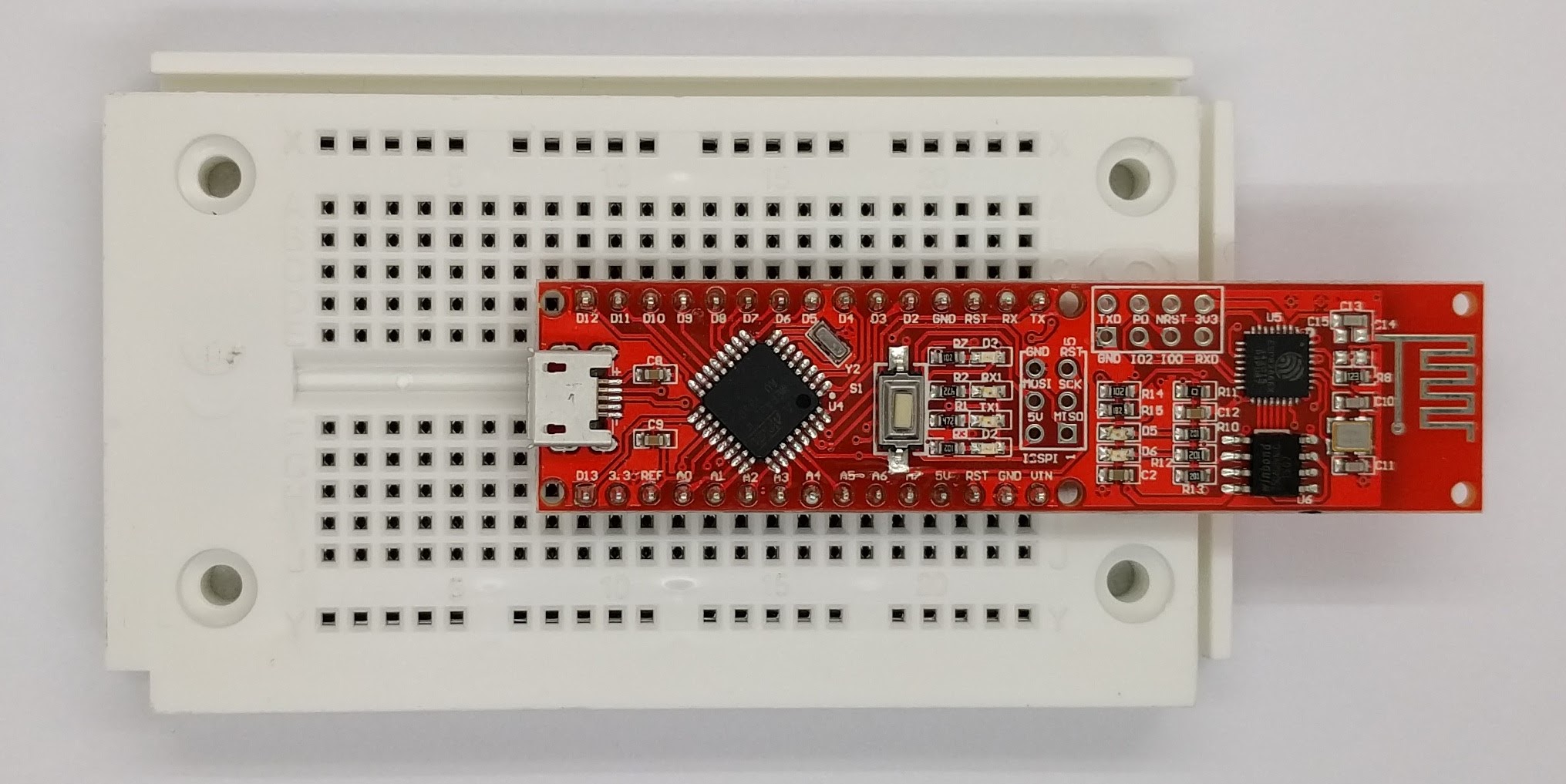
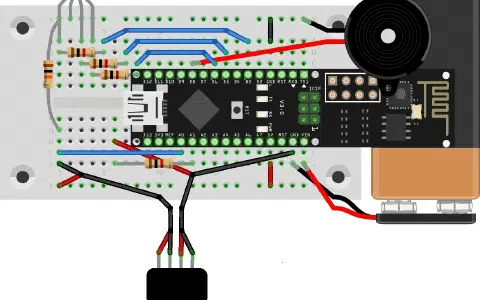
It’s best if you plug the controller into the breadboard as shown in the picture. That way, the greatest space remains free for experiments; the WLAN module sticks out behind past the breadboard. The micro-USB cable then hangs between the contact sides and is only a minimal disruption. The board needs to be pressed in gently until it touches the contacts.
Today we also want to deal with the software with which the board can be programmed. This is the Arduino development environment (Arduino IDE for short). You can download the latest version for your individual system at http://www.arduino.cc/en/Main/software and then install it. Please note that you should work with at least Arduino Version 1.6.5.
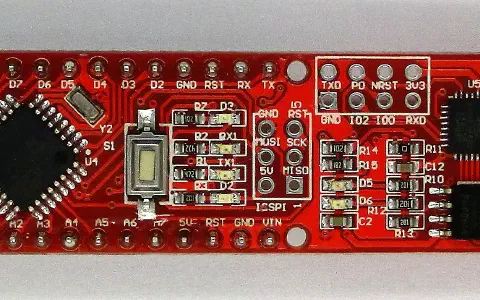
PProgramming occurs here in a somewhat simplified C/C++. You can now open an initial sample programme in the IDE by clicking File > Samples > 01.Basics > Blink. The programme causes the LED D3 on the board to flash in a one-second cycle. In order to execute it on the NanoESP, you first have to transfer it via the USB interface to the board. Before you do that, select the right board and the right communications port (COM for short) in the software:
- Under Tools > Board select “Arduino Nano”
- Under Tools > Processor select “ATmega328”
- Under Tools > Serial Port select the corresponding COM port
Then click the Upload button. The programme is now compiled and transferred to the NanoESP. You can follow the progress in the status bar below. During the upload, you can also see the two centre LEDs (TX1 and RX1) flashing rapidly. If everything was successful, the LED D3 on the board begins to flash in a one-second cycle. You’ve just successfully uploaded your first Arduino programme.
This was only a test of whether the board functions correctly in principle. Now comes the IoT part of today’s test. First, though, you still have to download something, namely the library, which will enormously simplify handling the board for you. You’ll find the latest version at
http:// iot.fkainka.de/library
Now you have to integrate this ZIP file into Arduino by selecting it under
Sketch > Integrate library > Add .ZIP library
You may have to restart the Arduino IDE so that you can find the sample programme under
File > Samples > NanoESP > Basics > Wifi_Scanner
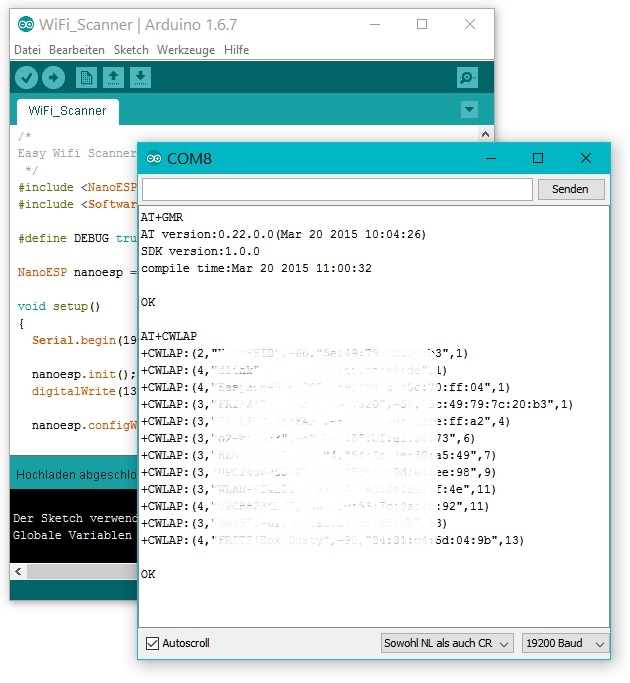
and open it. Now you have to upload this programme. Then open the serial monitor and set the baud rate 19200. After a short time, you will first see information about the firmware and finally a list of all WLAN networks in range of your NanoESP board.

klappt.
Paar Tipps: