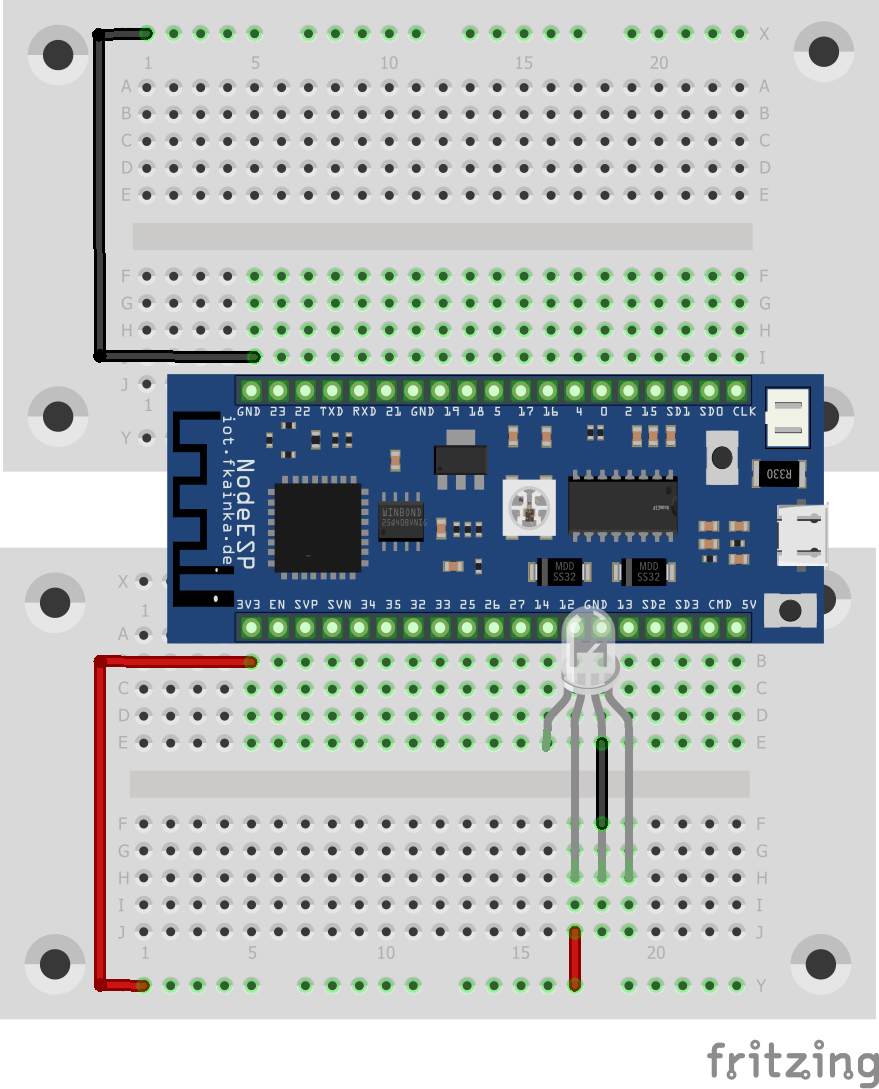
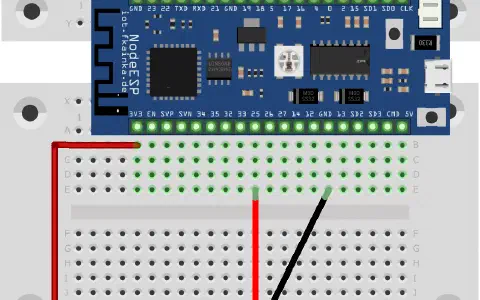
Today we have a very special LED waiting behind the door. It is an RGB LED with integrated controller (type PL9823, equivalent to WS2812) and with it you can now connect several LEDs in series and control them individually by means of a protocol. Today we will start by controlling one LED only. Here, an experiment that is almost customary in my Advent calendars fits in handy: the CheerLights project by Hans Schaaler. For all those who do not yet know the project: these are globally linked colourful lights which can be controlled simultaneously via Twitter commands. And here Node-RED fits in very well. The experiment today requires the following setup besides the program of today.

The LED is controlled by a set of commands. It is activated by the term Pixel. But first and foremost, we will learn today how we control all LEDs of the same colour as we are dealing with only one LED. In one of the coming experiments we will explain all the commands that can be used for assigning individual colours to the LEDs.
| Command in topic | Settings |
| {“cmd”:“set_pixel_hex”,“value”:"#FFFFFF"} | Sets all LEDs to the HEX colour value. |
| {“cmd”:“set_pixel_rgb”,“value”:“rgb(255,255,255)”} | Sets all LEDs to the RGB colour value. |
| {“cmd”:“set_pixel_hsv”,“value”:“hsv(120, 100%,100%)”} | Sets all LEDs to the HSV colour value. |
| {“cmd”:“get_pixel_hex”} | Displays current colour in the appropriate format, returns automatically when a colour is set. |
| {“cmd”:“get_pixel_rgb”} | |
| {“cmd”:“get_pixel_hsv”} |
The CheerLights project has a website (https://cheerlights.com/) where you can get some information about the project. Moreover, one of the subpages, Cheerlights API, has a bunch of options of how to obtain the actual colour value. We are using here the interface **http://api.thingspeak.com/channels/1417/field/2/last.json**which offers the current value as JSON value and in HEX format.
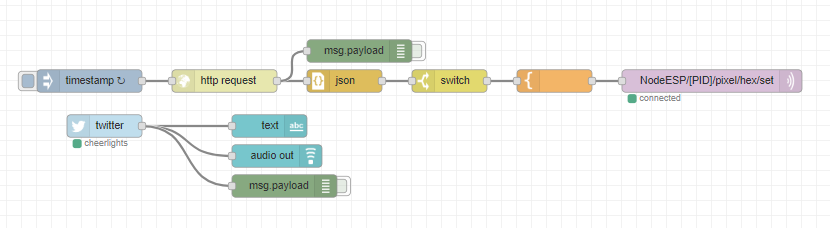
In terms of today’s flow, we just need to refresh this page every few seconds and extract the current value. It checks, if the value has changed. If so, the new colour is sent to the board. You can also configure the Twitter node with your Twitter data, if you have a Twitter account. The node will search for tweets with cheerlights text and reads the message to the GUI, where it is displayed.
But how can you change the colour? That is simple. Publish a Twitter message and by that change your colour and the colour of all other Cheerlights users. Basically, the message must contain #Cheerlights, @ Cheerlights or just the keyword Cheerlights followed by one of the predefined colours. The predefined colours include:
red, green, blue, cyan, white, warm white, purple, magenta, yellow, orange, pink
A tweet could look like this:
Testing my #cheerlights project on my #NodeESP with the colour blue.
And by that you have just given yourself and the world a new colour.
ich habe kein Twitter. Wie kann ich die Farbe der LEDs wechseln?