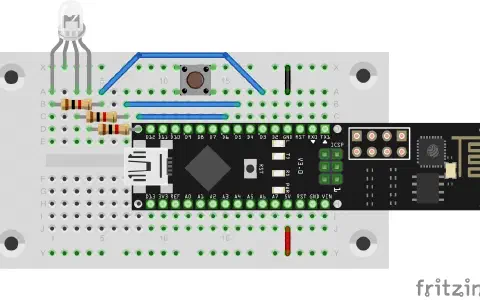
Behind today’s door is another cable. With the two cables it’s possible, for example, to place the RGB LED apart from the board. We’ll need the RGB LED today because the test is about a website with which you can adjust its colours. But that’s not the main aspect: To make the configuration of the NanoESP board especially easy not just for programmers, there is a configuration page through which the WLAN data of the module can be adjusted. But first to the set-up. You see it in the following picture.
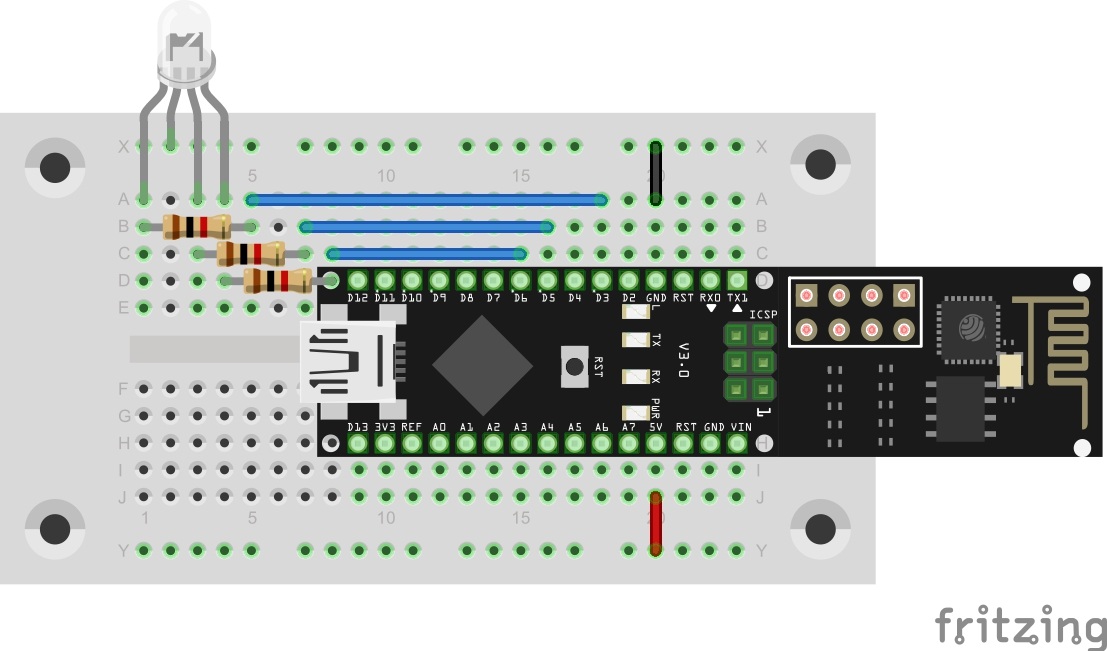
The sketch: A16_P19_ConfigRGB.ino
/*
TCP-Server for RGB-Control
Change SSID and PASSWORD.
RGB-Led (common cathode) on Pins 3,5,6
*/
#include <NanoESP.h>
#include <NanoESP_HTTP.h>
#include <SoftwareSerial.h>
#include "Websites.h"
//#define SSID "YourSSID"
//#define PASSWORD "YourPassword"
#define LED_WLAN 13
#define RED 3
#define GREEN 5
#define BLUE 6
#define GND 4
#define DEBUG true
NanoESP nanoesp = NanoESP();
NanoESP_HTTP http = NanoESP_HTTP(nanoesp);
void setup() {
Serial.begin(19200);
nanoesp.init();
pinMode(RED, OUTPUT);
pinMode(GREEN, OUTPUT);
pinMode(BLUE, OUTPUT);
pinMode(GND, OUTPUT);
digitalWrite(GND, LOW);
//! Only if you want to change the ACCESPOINT configuration
//nanoesp.configWifi(ACCESSPOINT, "NanoESP", "");
//! Only if you use a new Network
// nanoesp.configWifi(DUAL, SSID, PASSWORD);
//Dual Mode
nanoesp.configWifiMode(DUAL);
//delay(1000);
// Wait till Connected to WiFi
if (nanoesp.wifiConnected())digitalWrite(LED_WLAN, HIGH); else Serial.println(F("Error WLAN Connect"));
//Start TCP Server
if (nanoesp.startTcpServer(80)) Serial.println(F("TCP Server Activ")); else Serial.println(F("TCP Server Error"));
//Print IP in Terminal
Serial.println(nanoesp.getIp());
}
void loop() {
String method, ressource, parameter;
int id;
if (http.recvRequest(id, method, ressource, parameter)) {
Serial.println("New Request from id :" + String(id) + ", method: " + method + ", ressource: " + ressource + " parameter: " + parameter);
if (ressource == "/") {
http.sendFromFlash(id, index, sizeof(index));
nanoesp.closeConnection(id);
}
else if (ressource == "/config") {
http.sendFromFlash(id, config, sizeof(config));
nanoesp.closeConnection(id);
}
else if (ressource == "/setcolor") { //COLOR
nanoesp.closeConnection(id);
if (parameter != " ")
{
long number = (long) strtol( ¶meter[7], NULL, 16); //Convert String to Hex http://stackoverflow.com/questions/23576827/arduino-convert-a-sting-hex-ffffff-into-3-int
// Split them up into r, g, b values
int r = number >> 16;
int g = number >> 8 & 0xFF;
int b = number & 0xFF;
analogWrite(RED, r);
analogWrite(GREEN, g);
analogWrite(BLUE, b);
}
}
else if (ressource == "/setconfig") { //new Wifi-Configuration
nanoesp.closeConnection(id);
if (parameter != " ")
{ if (wifiConfig(id, GetRidOfurlCharacters(parameter))) {
Serial.println(nanoesp.getIp());
}
}
}
else if (ressource == "/eventssid") { //Wifi scanner
http.sendStreamHeader(id);
sendStreamData(id, "msg", "Scanning...");
ssidTransmit(id); //Scan for WiFi Networks in range and transmit
sendStreamData(id, "msg", "Done");
}
else {
http.sendFromFlash(id, error404, sizeof(error404));
nanoesp.closeConnection(id);
}
}
}
bool wifiConfig(int id, String parameter) { //get new WiFi Configuration
String ssid, pass, apssid, apass = "";
while (parameter.length() > 0) {
String varName = parameter.substring(0, parameter.indexOf('='));
parameter = parameter.substring(parameter.indexOf('=') + 1);
if (varName == "ssid") ssid = parameter.substring(0, parameter.indexOf('&'));
if (varName == "apssid") apssid = parameter.substring(0, parameter.indexOf('&'));
if (varName == "pass") pass = parameter.substring(0, parameter.indexOf('&'));
if (varName == "apass") apass = parameter.substring(0, parameter.indexOf('&'));
parameter = parameter.substring(parameter.indexOf('&') + 1);
}
bool success = true;
digitalWrite(LED_WLAN, LOW);
if (ssid != "" ) success &= nanoesp.configWifiStation(ssid, pass); //set new Station config
if (apssid != "" ) success &= nanoesp.configWifiAP(apssid, apass); //set new AccessPoint config
digitalWrite(LED_WLAN, success);
return success;
}
void ssidTransmit(int id) { //find and transmit wifis
nanoesp.println("AT+CWLAP");
nanoesp.setTimeout(5000);
int i = 0;
String ssids[10]; //max 10 ssids
//get 10 scanned SSIDs
while ((nanoesp.find("+CWLAP:")) && (i < 10)) {
nanoesp.find("\"");
ssids[i] = nanoesp.readStringUntil('\"');
i++;
}
nanoesp.find("OK\r\n");
//transmit ssids to browser (and terminal)
for (int x = 0; x < i; x++) {
Serial.println (ssids[x]);
if (!nanoesp.sendData(id, "event: ssid\ndata: " + ssids[x] + "\n\n")) Serial.println("error wifi event");
}
nanoesp.setTimeout(1000);
}
boolean sendStreamData(int connectionId, String event, String data) {
return nanoesp.sendData(connectionId, "event: " + event + "\n" + "data: " + data + "\n\n");
}
String GetRidOfurlCharacters(String urlChars) // Convert URL-charakters no normal for ssid
{
urlChars.replace("%0D%0A", String('\n'));
urlChars.replace("+", " ");
urlChars.replace("%20", " ");
urlChars.replace("%21", "!");
urlChars.replace("%22", String(char('\"')));
urlChars.replace("%23", "#");
urlChars.replace("%24", "$");
urlChars.replace("%25", "%");
urlChars.replace("%26", "&");
urlChars.replace("%27", String(char(39)));
urlChars.replace("%28", "(");
urlChars.replace("%29", ")");
urlChars.replace("%2A", "*");
urlChars.replace("%2B", "+");
urlChars.replace("%2C", ",");
urlChars.replace("%2D", "-");
urlChars.replace("%2E", ".");
urlChars.replace("%2F", "/");
urlChars.replace("%30", "0");
urlChars.replace("%31", "1");
urlChars.replace("%32", "2");
urlChars.replace("%33", "3");
urlChars.replace("%34", "4");
urlChars.replace("%35", "5");
urlChars.replace("%36", "6");
urlChars.replace("%37", "7");
urlChars.replace("%38", "8");
urlChars.replace("%39", "9");
urlChars.replace("%3A", ":");
urlChars.replace("%3B", ";");
urlChars.replace("%3C", "<");
urlChars.replace("%3D", "=");
urlChars.replace("%3E", ">");
urlChars.replace("%3F", "?");
urlChars.replace("%40", "@");
return urlChars;
}
(The former Arduino Create embed is no longer available; the code is taken from the download of all sketches.)
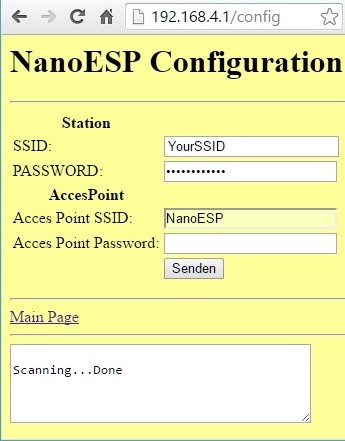
When you’ve loaded the programme in the board, you can call up the module’s webpage. Because you’re acting today as if the board didn’t already know your WLAN data, the path through the access point is useful. So connect to the NanoESP network. After connecting, call up the IP address 192.168.4.1 in the browser. You reach the main page of the board, through which you can adjust the colours of the RGB LED. But follow the link to the configuration page.
Now at the bottom of the configuration page, you’ll see a text box, in which the text “Scanning …” appears after a short time. The board now searches for networks in range and conveys the networks with the strongest signals through the connection to the website. You now see the message “Done” in the text box. In the field “SSID” you can now select your network. If it wasn’t found, e.g. because your network is hidden, you can also enter the name manually. In the text field underneath comes the network password.
In the lower boxes you can also enter another name for the access point network and set a password (minimum eight characters). But be careful: If you enter the wrong home network data and give the access point network a password that you then forget, you’ve got a problem. Then you first have to upload another programme with the right network data or an open access point before you can access the web server of the board again.

Es erscheint kein Scanning…Done
RGB auf Seite 1 kann ich einstellen.
Beide IP unter Chrome das gleiche Problem.