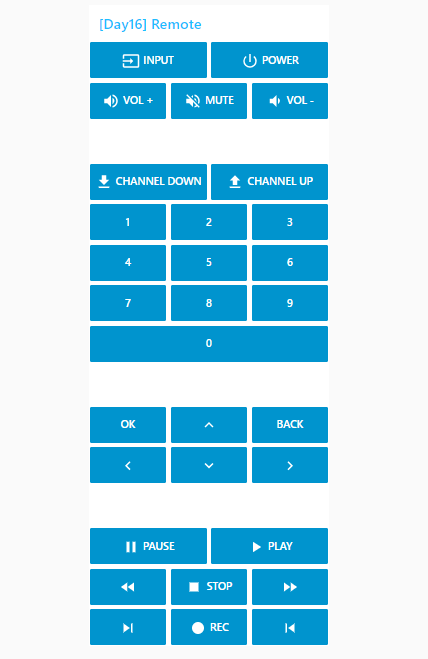
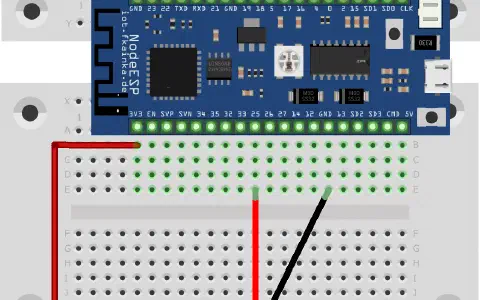
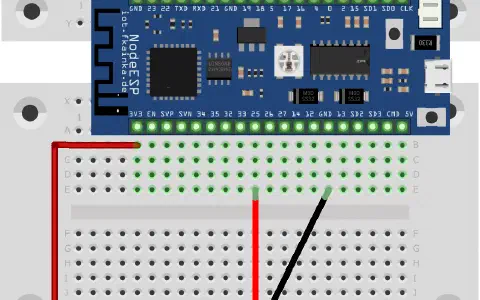
The door today reveals the counterpart to yesterday’s component, namely an IR diode. Now you can build a real remote-control for your TV and control it conveniently via smartphone and website. We will use the following setup.
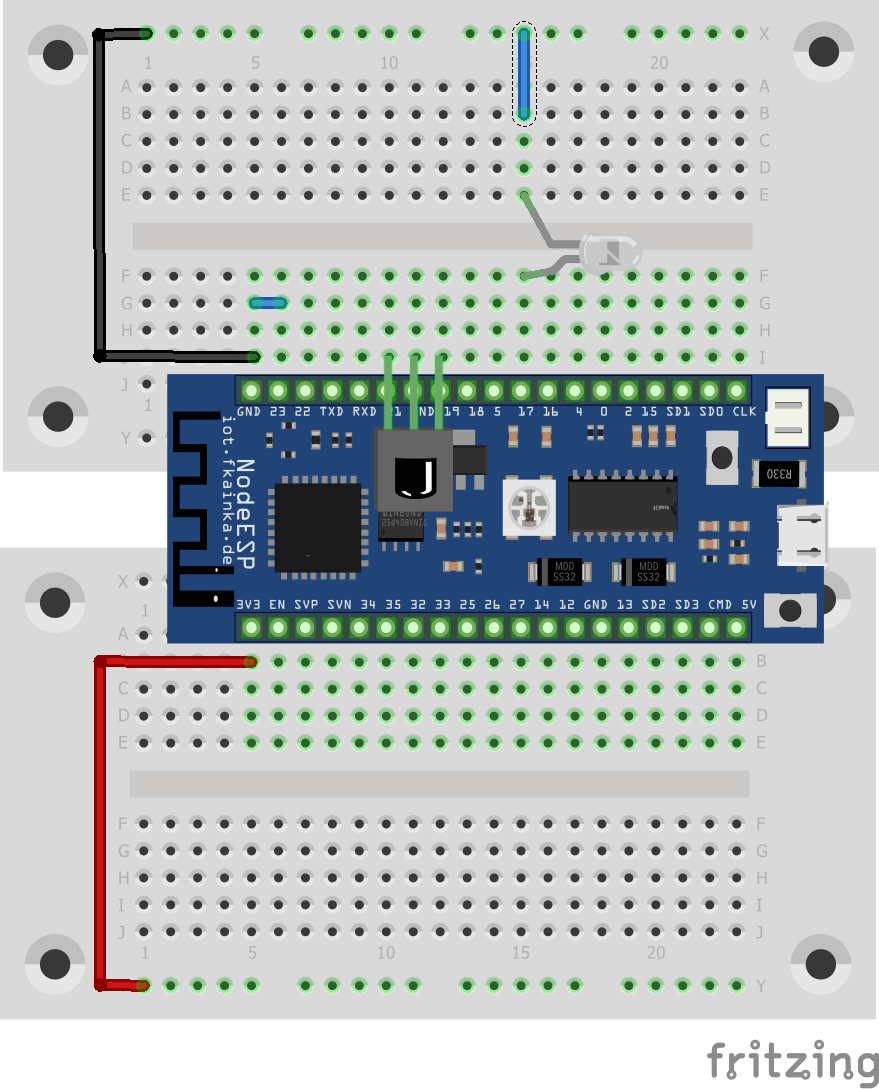
Select the program for today. The board will start again in headless mode; the board’s website will not be available but you will have the board’s MQTT feature. To switch to default mode, remove the jumper on pin 23 and restart the board.
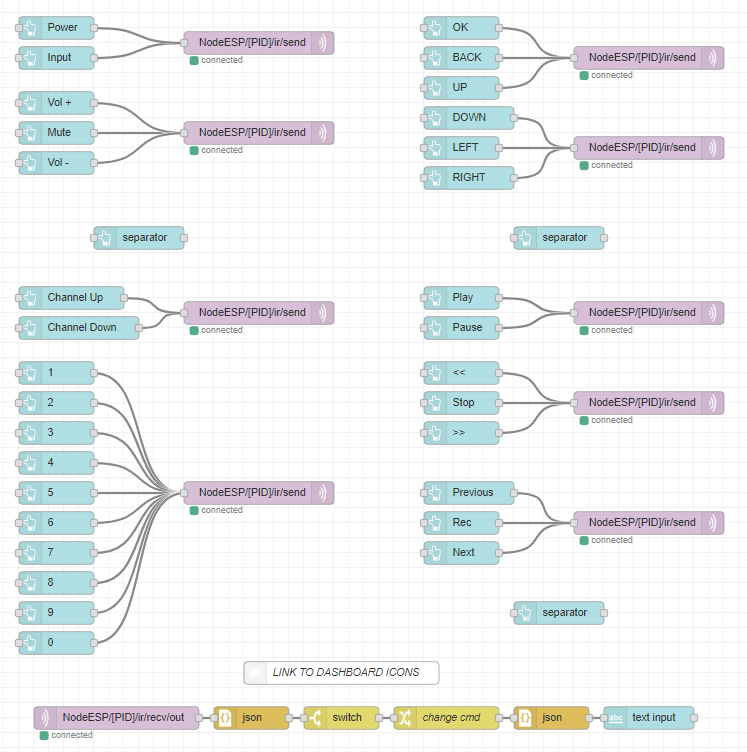
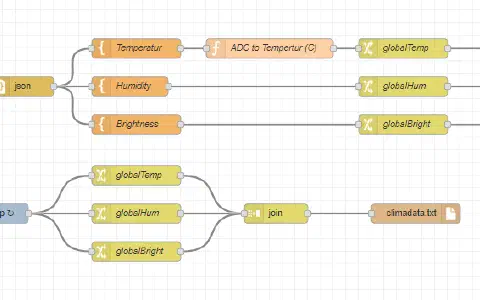
Our flow today looks rather complicated; however, basically these are just all UI buttons writing to the same topic. But before you import and start the flow, rewrite all topics to your personal topic using the “Replace all” trick. Again, disable all previous flows. Now start the flow and switch to the UI page. You will see a bunch of buttons that are not yet calibrated to your TV. Go to the second tab labelled Day16 Receive IR Codes. The page looks a bit unexciting because it has only a text box, but it is very useful. Point now a remote control at the receiver and press a key and a text will appear in the window that may look like this:
{“cmd”:“ir_send”,“type”:3,“value”:551494365,“length”:32}
The text was received by NodeESP/[PID]/ir/recv/out and contains the data of the received code. Very few small things were changed by the flow. On the one hand repetition codes are filtered out and on the other hand, the command was changed from ir_recv to ir_send. This allows you to basically just copy the text and insert it into the payload area of a button. If pressed, the button sends the command with the data of the code to the board at once, which will send the code via IR diode to the TV. Like that you are able to hardcode and create your own remote code by code.
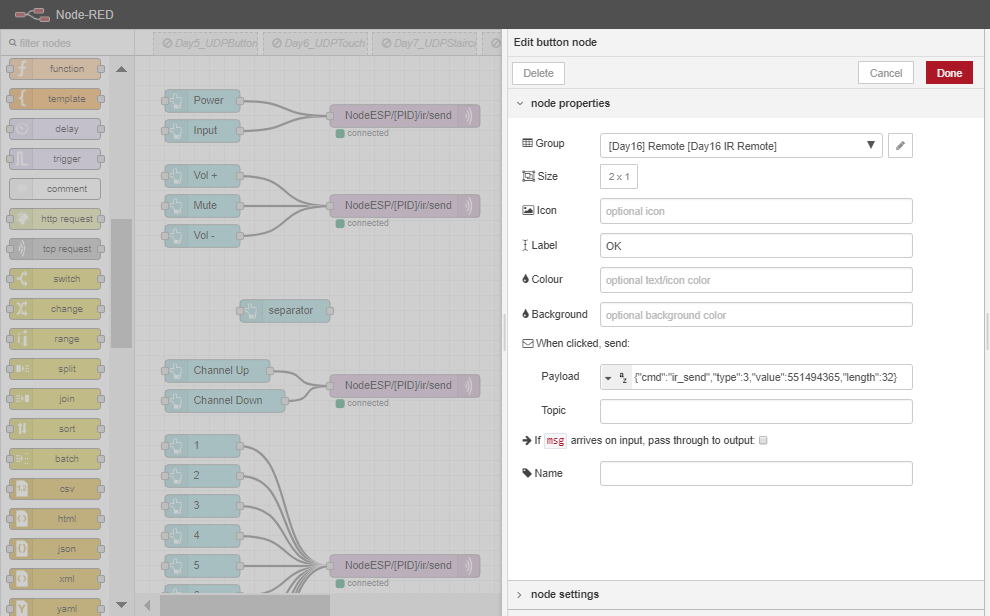
Note: The GUI layout is based on an average modern remote. Icons on the buttons indicate its function. You can find a list of useful buttons on the website https://klarsys.github.io/angular-materi****al-icons/.

Mit dem Sat-Receiver leider nicht.
Mit den Codes muss man testen, der erste ist nicht immer der richtige.