Since the Blynk platform was the central point of our projects over the last few days, now we’re coming to a totally new subject: the NanoESP as web server. You’ve already gotten a first impression of it in the test for the first day. In the coming days, we’ll see what all else is possible.
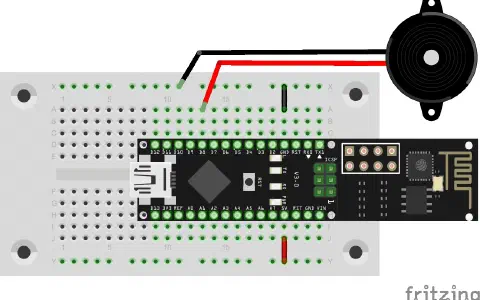
Behind today’s door is a special two-core cable with which you can connect e.g. even LEDs or sensors outside the board. For today’s test, however, no hardware layout is necessary at all. You only need the programme and a browser.
The sketch: A16_P15_Webserver.ino
/*
  TCP-Server example
  Change SSID and PASSWORD.
*/

#include <NanoESP.h>
#include <NanoESP_HTTP.h> //special library for http-connection
#include <SoftwareSerial.h>
#include "Websites.h" //websites in a special file as progmem

#define SSID "YourSSID"
#define PASSWORD "YourPassword"

#define LED_WLAN 13

NanoESP nanoesp = NanoESP();
NanoESP_HTTP http = NanoESP_HTTP(nanoesp); //init http library with an instance of nanoesp

void setup() {
  Serial.begin(19200);
  nanoesp.init();

  //! Only if you want to change the ACCESPOINT configuration
  //nanoesp.configWifi(ACCESSPOINT, "NanoESP", "");

  //! Only if you use a new Network
  // nanoesp.configWifi(DUAL, SSID, PASSWORD);

  //Dual Mode
  nanoesp.configWifiMode(DUAL);
  //delay(1000);

  // Wait till Connected to WiFi
  if (nanoesp.wifiConnected())digitalWrite(LED_WLAN, HIGH); else Serial.println(F("Error WLAN Connect"));

  //Start TCP Server
  if (nanoesp.startTcpServer(80))    Serial.println(F("TCP Server Activ")); else   Serial.println(F("TCP Server Error"));

  //Print IP to Terminal
  Serial.println(nanoesp.getIp());
}

void loop() {
  String method, ressource, parameter;
  int id;

  if (http.recvRequest(id, method, ressource, parameter)) { //Incoming request, parameters by reference

    Serial.println("New Request from id :" + String(id) + ", method: " + method +  ", ressource: " + ressource +  " parameter: " + parameter);

    if (ressource == "/") { //index page
      http.sendFromFlash(id, index, sizeof(index)); //send website from website.h
      nanoesp.closeConnection(id); //close connection so browser knows website transmission is complete
    }
    else if (ressource == "/lib") {
      http.sendFromFlash(id, lib, sizeof(lib)); //send website from website.h
      nanoesp.closeConnection(id); //close connection so browser knows website transmission is complete
    }
    else if (ressource == "/pinout") {
      http.sendFromFlash(id, pinout, sizeof(pinout));  //send website from website.h
      nanoesp.closeConnection(id); //close connection so browser knows website transmission is complete
    }
    else {
      http.sendFromFlash(id, error404, sizeof(error404)); //send website from website.h
      nanoesp.closeConnection(id);//close connection so browser knows website transmission is complete
    }

  }
}
(The former Arduino Create embed is no longer available; the code is taken from the download of all sketches.)
Download the programme and program it on the board. You might be wondering why you don’t have to enter any WLAN data today. The reason is that the board, or more precisely the WLAN chip, still has your WLAN data stored from the previous test. A new function of the library now waits for a restart until a connection to the known WLAN has been made. If you’re using a new WLAN, you need to delete the comment characters before the line
nanoesp.configWifi(DUAL, SSID, PASSWORD);
so that the new data can be adjusted. The same is true for all subsequent days. There’s something else new today: The board is used in dual mode. This means that the board both connects to your home WLAN network and generates its own access point. You can thus access the board in two ways.
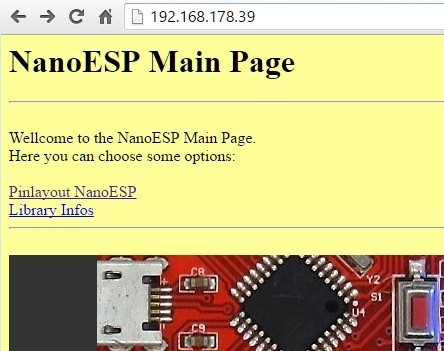
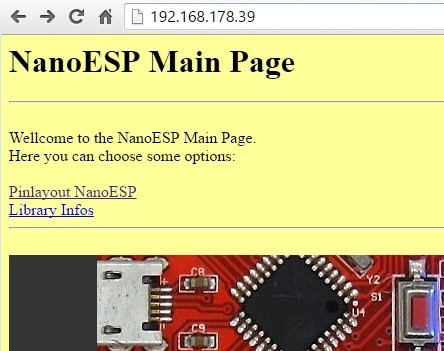
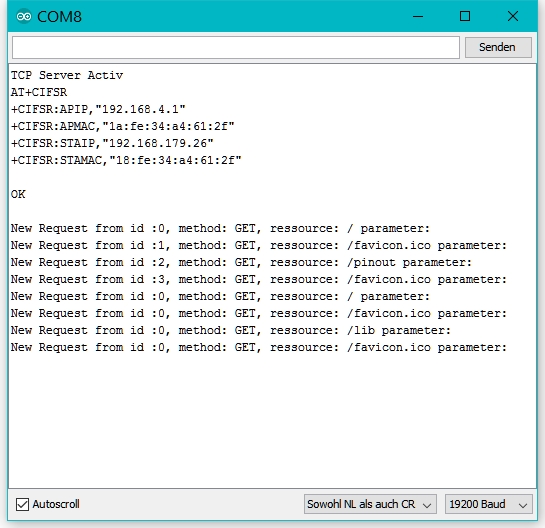
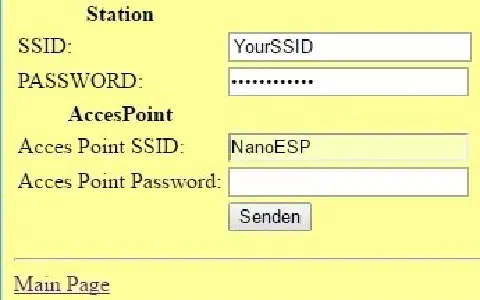
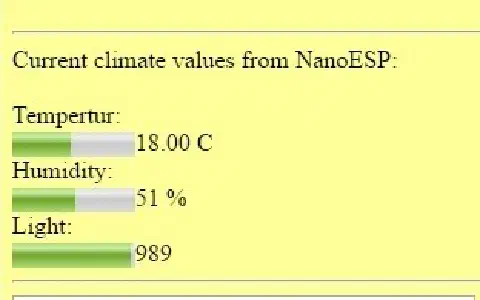
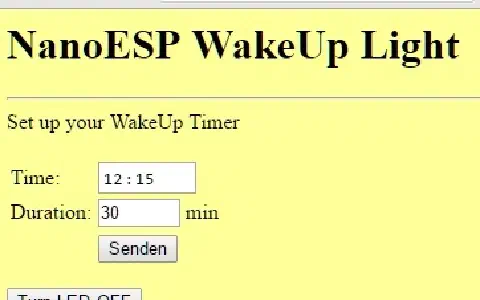
After the upload, two IP addresses also appear simultaneously on the serial monitor this time. The address that’s after +CIFST:APIP is that of the board in the access point WLAN. The one after +CIFST:STAIP is the one that the board has been assigned by the router. Because your computer is probably already connected to the home network, you should enter the second IP address in your browser. A main page appears through which you can reach other pages via links, all of which are also stored on the board. You can follow the calling up of a page on the serial monitor.
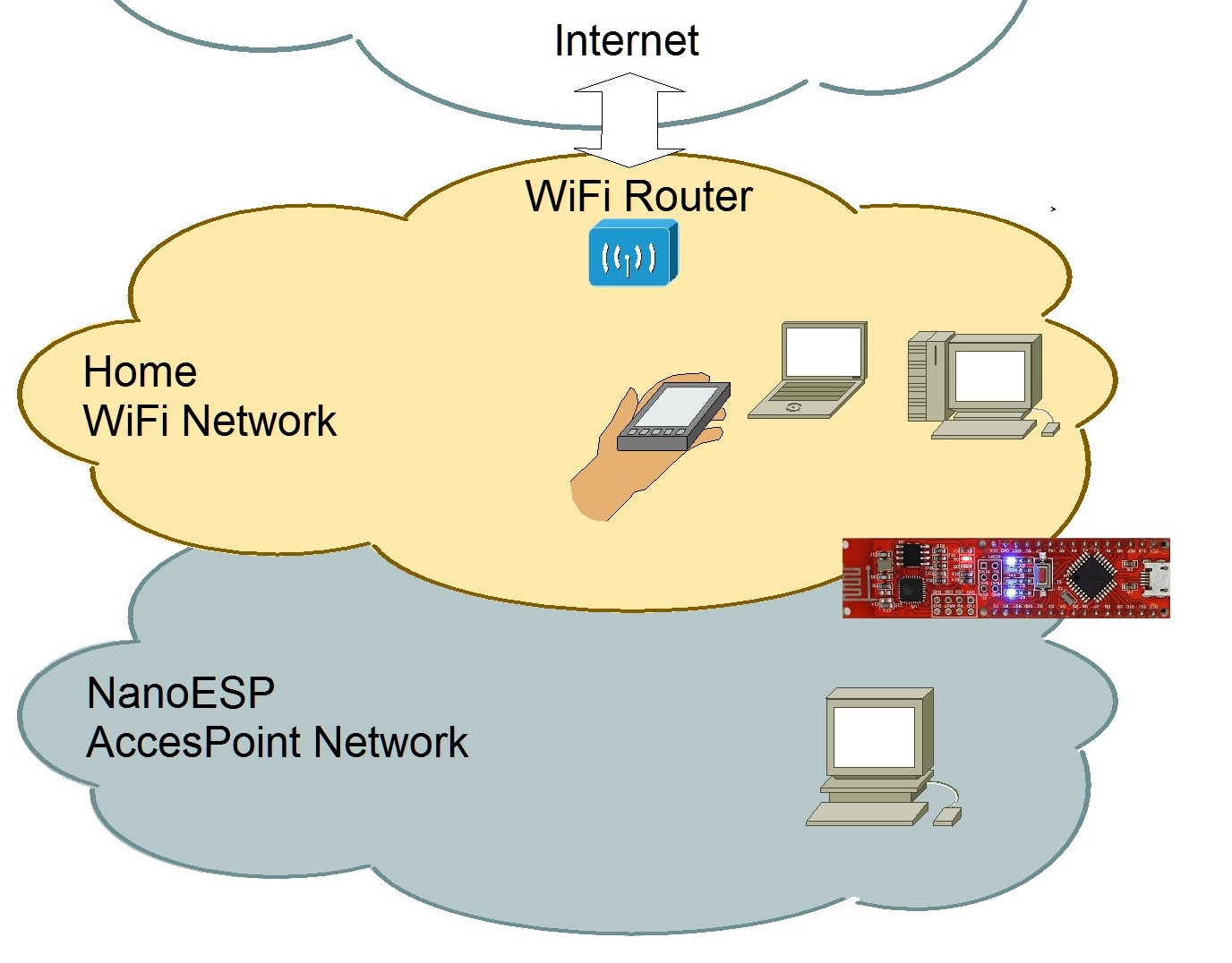
If you now want to connect your PC to the NanoESP’s own WLAN, you have to call up the access point IP address in the browser. The pages are the same, with the exception that no pictures are displayed. The reason is that the PC has no connection to the Internet through this network and thus the images, as external resources, can’t be loaded. The advantage of this network mode, however, is that you don’t need a router as a way station but can access the board directly. Both methods thus have their advantages and disadvantages.
Arduino: 1.6.13 (Windows 7), Board: "Arduino Nano, ATmega328"
C:\Users...\Documents\Arduino\A16_P15_Webserver\A16_P15_Webserver.ino:6:21: fatal error: NanoESP.h: No such file or directory
#include
^
compilation terminated.
exit status 1
Fehler beim Kompilieren für das Board Arduino Nano.