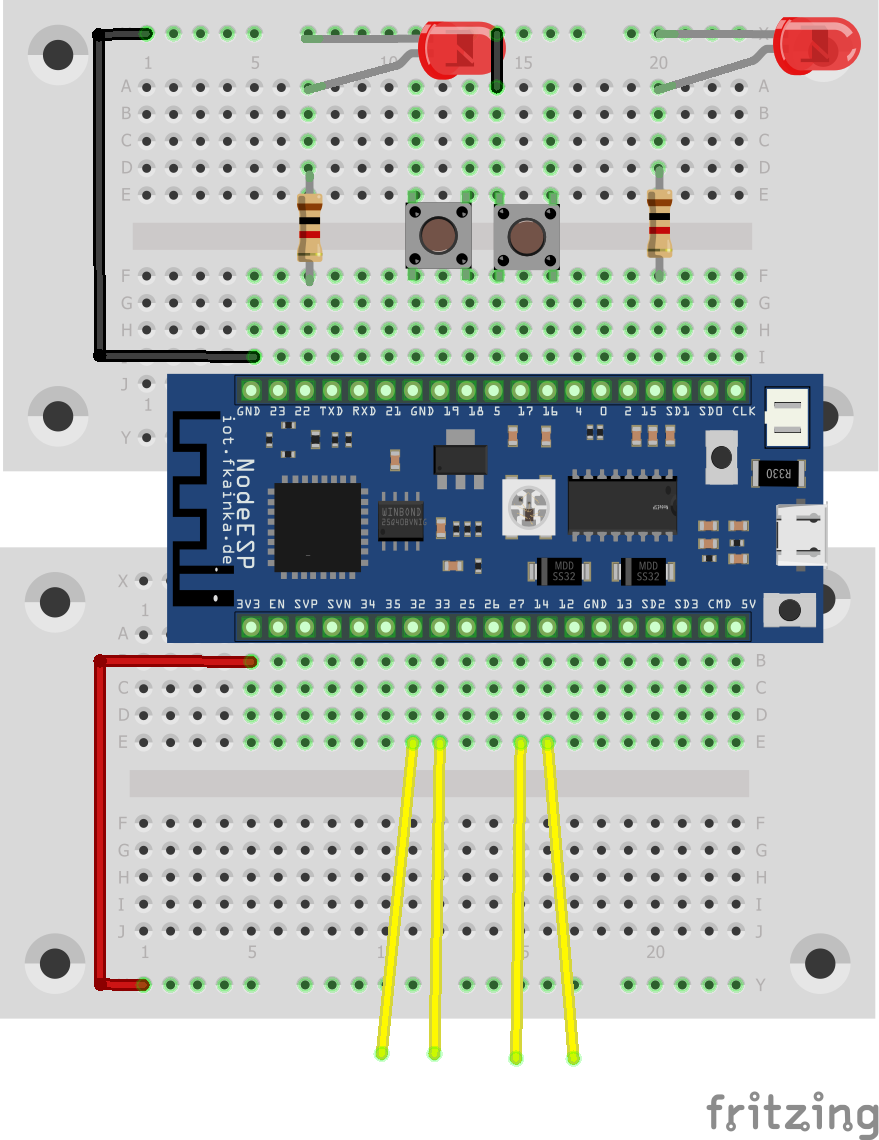
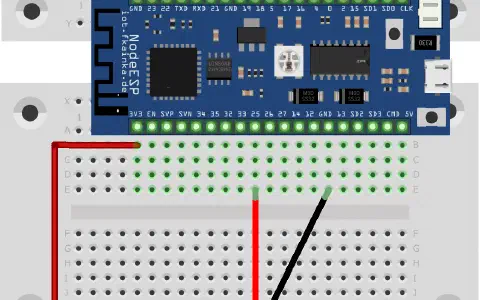
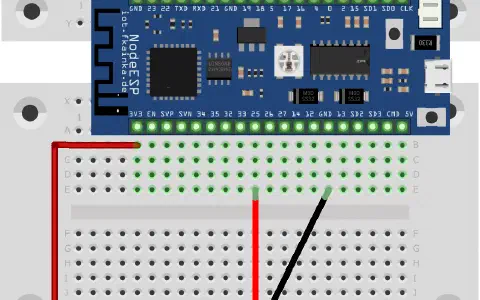
The door of day 14 reveals another LED. Now we have two LEDs with resistors and two buttons and 14. Tag cables, enough to build a complex lighting system. We will use the following setup:
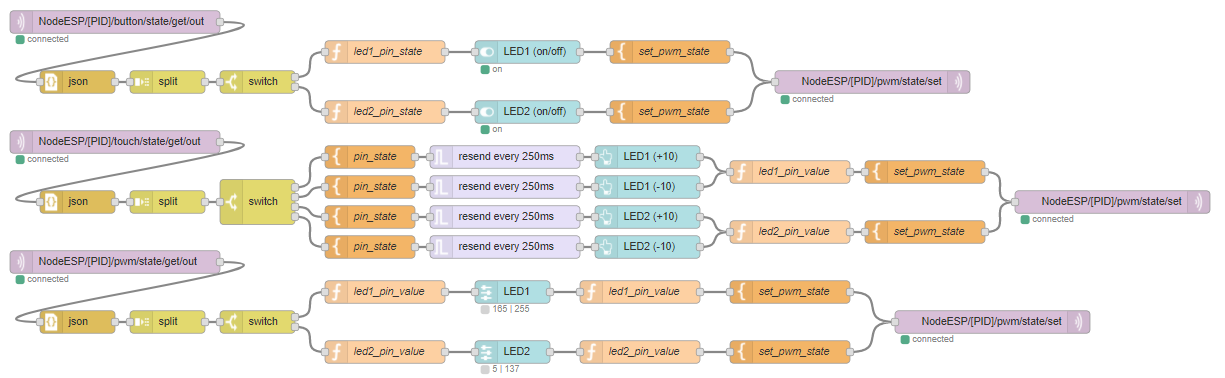
Enable today’s program and install today’s flow. Don’t forget, replace [PID] with your personal ID and the easiest way is using the trick with the Editor.
The LEDs in the program you just enabled are set as PWM LEDs. This means that you can change the brightness of the LEDs. The values range from 0 to 255. Beside that however, you can still switch LEDs on or off like digital outputs. Use the following commands:
| Command in topic | Settings |
| {“cmd”:“set_pwm_state”, “LED1”:255} | The LED is set to maximum brightness. You can see it only when the LED is on. |
| {“cmd”:“set_pwm_state”, “LED1”:0} | The LED is set to the minimum brightness (the LED is not on). |
| {“cmd”:“set_pwm_state”, “LED1”:true} | The LED is activated and the last brightness is set. You will immediately notice any changes in brightness. |
| {“cmd”:“set_pwm_state”, “LED1”:“ON”} | |
| {“cmd”:“set_pwm_state”, “LED1”:false} | The LED is deactivated. You will notice a change in brightness only after activating the LED again. |
| {“cmd”:“set_pwm_state”, “LED1”:“off”} |
These status changes can be sent via the out topic or NodeESP/[PID]/pwm/state/set. In case of a status change, the current state will also be published via the topic
NodeESP/[PID]/pwm/state/get/out
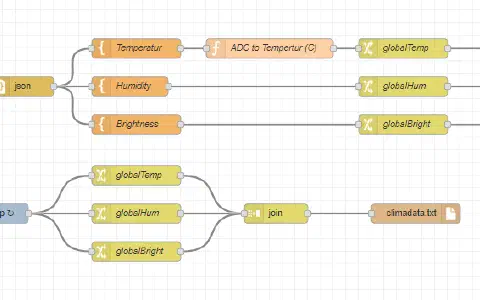
In today’s program we have two buttons and four touch buttons activated, which function according to the method we already know. The Node-RED flow today is a bit bigger, because we have an UI button for every button and every setting.

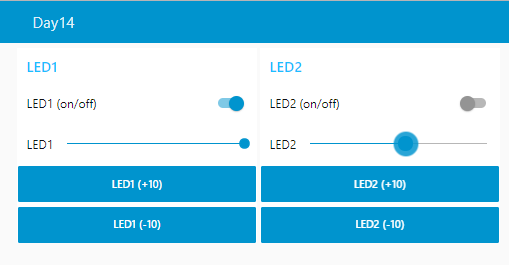
The user interface already provides some hints how the experiment today will work. The two LEDs simulate two dimmable lamps in a home. They are switched on or off with the two buttons on the board or via the web interface. The brightness can be adjusted using the UI controls. The buttons below are used to change the brightness by +10 or -10. The touch buttons have the same function. If you touch the wire pictured on the left in the setup figure, you will decrease the brightness of the LED on the left-hand side over time. The wire on the very the right increases the brightness. The two remaining wires work for the right LED in the same way. You can also change the brightness, if the LED is not on. The change will become noticeable only after you turn the LED on. The function is still very useful in case, you want to adjust the brightness of the lamp depending on the time of day, for example
15 comments
Comments are closed. These comments were posted on the former WordPress site (mostly in German).
auch das funktiniert wunderbar. Danke.
Mein Problem mit den Touch Drähten war, daß das ESP-Board nicht ganz in den
Steckboards eingesteckt war. Eigentlich wir im Projekt Tag 3 beschrieben. Aber ich dachte
es reicht so - nur die Touch Pins sind halt sensibler.
Habe heute die Seitenteile bei den Steckboards rausgebrochen (wie im Tag 3 beschrieben) und
jetzt kann man das ESP-Board tiefer reinstecken und jetzt gehts auch mit den Touch Drähten…
Viele Grüße
Martin Klein
auch hier nach dem FW Update 16.12.2018
Ich hänge leider ein wenig hinterher aber habe heute Tag 14 probiert und auch bei mir funktioniert alles super. Nun habe ich aber doch eine Frage.
Ich benötige genau diese funktion um 3 LED-Stränge zu dimmen. Da es knapp 30 LED-Module sind, benötige ich ein externes Netzteil. Ich habe nun den pin 15 aus dem heutigen Aufbau mit dem Gate meines Mosfets verbunden ( Ich hatte leider bei Fritzing neinen nodeesp32)
Nun zur Frage: Led ein / Aus funktioniert dimmen ebenfalls jedoch schalten die LED`s nie komplett aus. Weder bei 0 noch bei AUS. Sie bleiben immer auf einem kleinen Wert eingeschaltet. Hat jemand eine Idee/Lösung für mich?
Ich tippe mal auf einen mit zu geringem Ugs(th) (->Schwelle für die Gatespannung, ab der er anfängt zu leiten). Ist die Schwelle zu niedrig, sperrt der MOSFET bei 0V noch nicht komplett. Bei der Auswahl des MOSFETS mußt du darauf achten, einen zu nehmen, der für Logiclevel gedacht ist.
Bsp. für einen, der funktionieren dürfte: IRLZ24.
Ich würde in der Schaltung zur Sicherheit auch noch einen kleinen Widerstand - ~75 Ohm sollten reichen - am Gate einsetzen. Der Strom, der fließt, bis das Gate "geladen" ist, ist zwar nur kurz, fließt aber bei PWM doch oft. Der Widerstand schütz den Ausgang des uC.
Wo kann man den Threshold einstellen?
Die Button von Tag 6 haben funktioniert, also sollte es nicht am Board liegen, oder?
Der Rest funktioniert, auch mit dem MQTT.
Woran kann das liegen?
Die zwei Buttons und die vier Touch-Buttons am Board lassen sich nicht verwenden. Fast immer, wenn man sie bedient, macht das NodeESP einen Reset (danach erst mal Synchronisierungsschwierigkeiten zwischen NodeESP und Node-RED). Die Bedienung über das Node-Red-Dashboard funzt.
Die anderen Experimente ließen sich bisher imm er zum Laufen bringen.
HAT JEMAMD ÄHNLICHE NEGATIV-ERFAHRUNG GEMACHT?
Ich habe ja so irgendwie den WLAN-Traffic in Verdacht - aber aus bekanntem Grund nur mal so aus dem Bauch raus spekuliert.
Die die Taster und Steuerung über UI funktionieren auch einwandfrei.