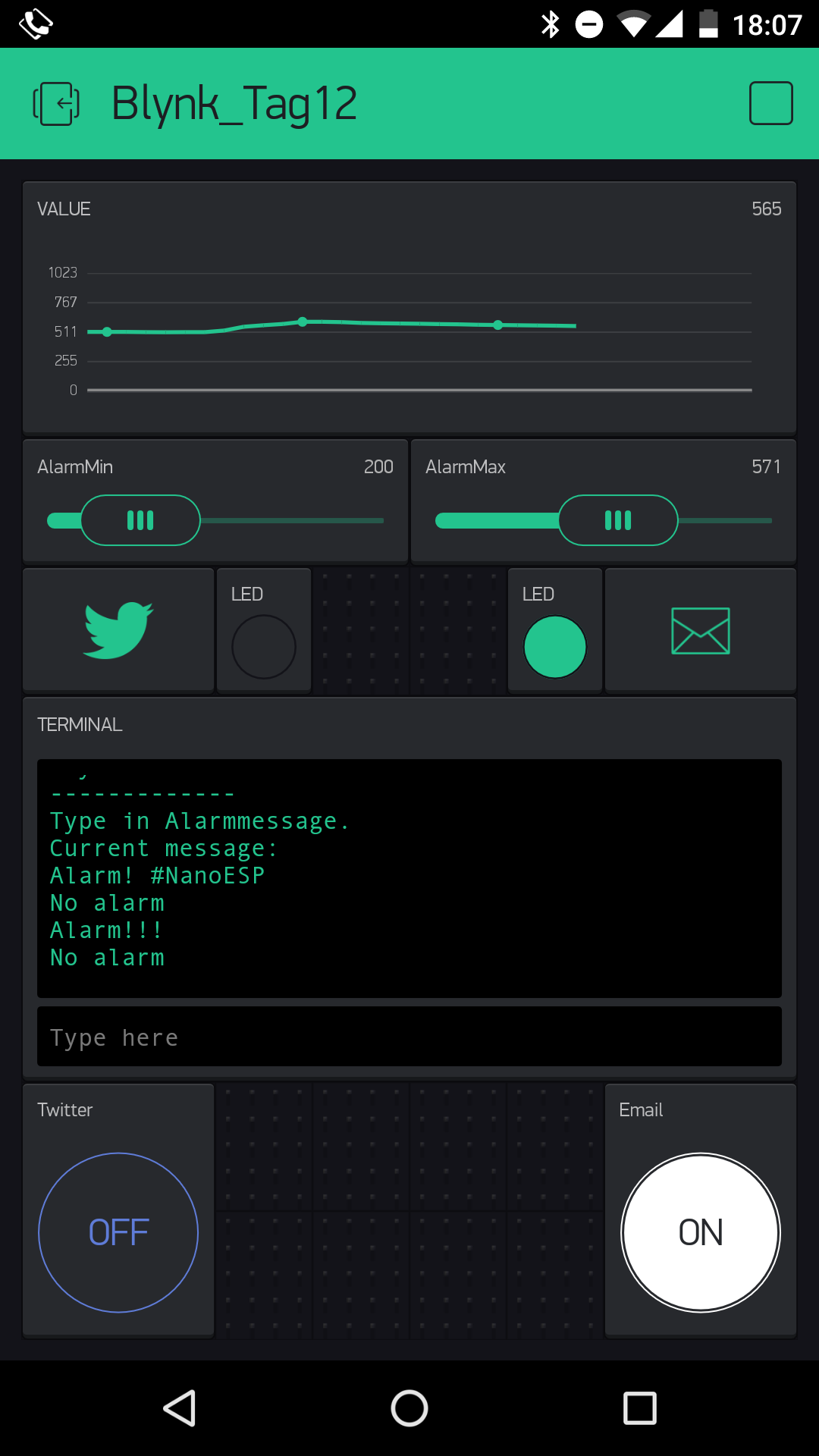
Behind today’s door, you’ll find a phototransistor. This is a sensor with which the brightness can be measured. You’ll do that today, but in addition to simple measurement, the project also sounds an alarm as soon as limit values that you’ve pre-set in the app are exceeded. So that everything will function, you have to connect the sensor with a voltage divider circuit at Pin A0, as shown in the picture below. Pay attention to the correct polarity of the phototransistor (short leg to VCC). It does also work the other way round, but not nearly as sensitively.
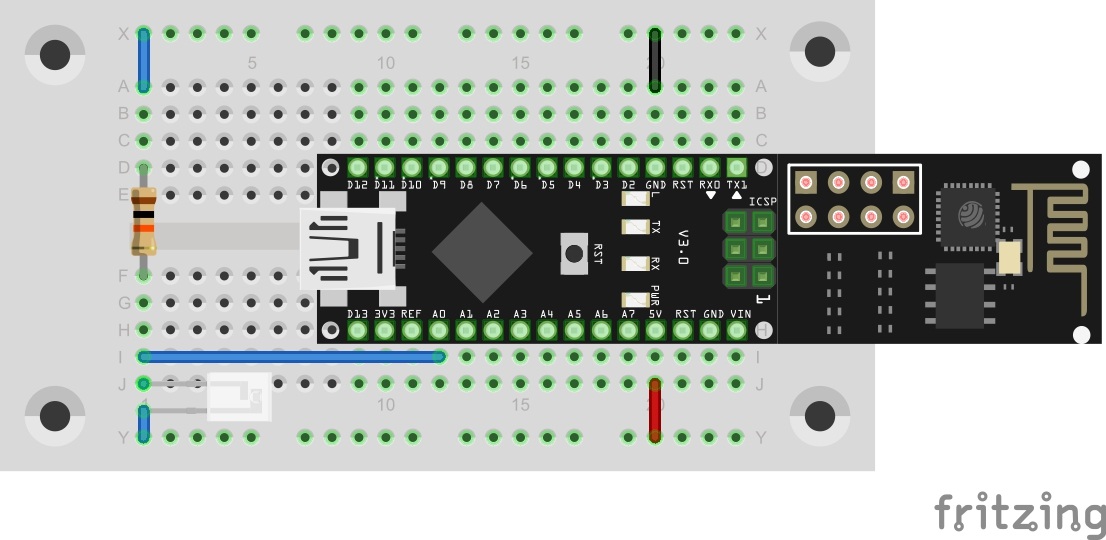
The Blynk interface looks pretty full today. Many different functions are realised with widgets. Through one of them, represented by the Twitter bird, you can connect your Twitter account to the project. This is one of the channels through which you can receive an alarm message.
The sketch: A16_P12_Blynk8_LightSensor.ino
/*
  Blynk 8: LightSensor
  Change ssid, password, token and email
*/
char ssid[] = "YourSSID";
char password[] = "YourPassword";
char token[] = "YourToken";

char email[] = "Your@Email.com";
char subject[] = "Alarm NanoESP";
String  alarmMsg = "Alarm! #NanoESP";

#define BLYNK_DEBUG
#define BLYNK_PRINT Serial    // Comment this out to disable prints and save space
#include <ESP8266_SoftSer.h>
#include <BlynkSimpleShieldEsp8266_SoftSer.h>

// Set ESP8266 Serial object
#include <SoftwareSerial.h>
SoftwareSerial EspSerial(11, 12); // RX, TX

ESP8266 wifi(EspSerial);

int alarmValueMin;
int alarmValueMax;
boolean alTwitter;
boolean alEmail;

boolean alarm = false;

WidgetTerminal terminal(V1);

void setup()
{
  // Set console baud rate
  Serial.begin(19200);
  EspSerial.begin(19200);

  Blynk.begin(token, wifi, ssid, password);
}

void loop()
{
  Blynk.run();
  compValue();
}


BLYNK_CONNECTED() {
  //Sync all values and write MSG to terminal widget
  Blynk.syncAll();

  terminal.println(F("Blynk v" BLYNK_VERSION ": Device started"));
  terminal.println("-------------");
  terminal.println("Type in Alarmmessage.");
  terminal.println("Current message:");
  terminal.println(alarmMsg);
  terminal.flush();
}


BLYNK_WRITE(V1) //Terminal: get new alarm msg
{
  alarmMsg = param.asStr();

  terminal.println("Message saved: ") ;
  terminal.println(alarmMsg) ;

  terminal.flush();
}

BLYNK_WRITE(V2) //AlarmValueMin
{
  alarmValueMin = param.asInt();
}


BLYNK_WRITE(V3) //AlarmValueMax
{
  alarmValueMax = param.asInt();
}

void compValue() { //compare values to max/min
  int currValue = analogRead(A0);

  if (alarm == false) {
    if ((currValue < alarmValueMin) || (currValue > alarmValueMax)) {
      //Alarm
      terminal.println("Alarm!!!") ;

      //Twitter if twitter alarm active
      if (alTwitter) {
        Blynk.tweet(alarmMsg + " " + currValue);
        terminal.println("Tweet send");
      }
      //E-mail if E-mail alarm active
      if (alEmail) {
        Blynk.email(email, subject, alarmMsg + " Value: " + currValue);
        terminal.println("Email send");
      }

      terminal.flush();
      alarm = true;
    }
  }
  else {
    if ((currValue > alarmValueMin) && (currValue < alarmValueMax)) {
      //deactivate alarm
      terminal.println("No alarm") ;
      terminal.flush();
      alarm = false;
    }
  }

}

BLYNK_WRITE(V4) { //Email alarm activation
  alEmail = param.asInt();
  Blynk.virtualWrite(V7, param.asInt() * 255); // LED on/off
}


BLYNK_WRITE(V5) // Twitter alarm activation
{
  alTwitter = param.asInt();
  Blynk.virtualWrite(V6, param.asInt() * 255); // LED on/off
}
(The former Arduino Create embed is no longer available; the code is taken from the download of all sketches.)
There’s something more to do in the Arduino programme today, too. In addition to WLAN data and token, you can enter an email address today. That’s the other channel through which an alarm message is sent.
If you start the interface now, you’ll already see a row of measured values scrolling above the topmost element. You can follow the progression of values with the line. If you pass your hand over the sensor, the measured values become significantly lower. Using the sliding switch directly below the measured values, you can set limit values that must not be exceeded or fallen below. At the bottom, there’s also a blue and a white button. With these, you can activate or deactivate the reporting via Twitter or via email. The LED next to the respective symbol shows the current status. If a measured value leaves the allowed range, the system goes into an alarm state and sends a message. A terminal in the centre also gives information about current events. You can also set a new message text using the terminal. Thus you’re always up to date on whether e.g. your plants are getting enough light.

Ich brauch n Haus, in dem ich sowas vernünftig einbauen kann :)