There is a cable set again hidden behind the door today. We will need it in the next few days when the setups become more complex.
Over the past few days we have sent most of our data via UDP. This protocol is very convenient; on the one hand it has a small overhead (data is sent in addition to the actual application data) and on the other hand, it is a broadcasting system and can thus send data to several devices simultaneously. But today we will learn about a second protocol that plays a major role in IoT. This is the message protocol MQTT (Message Queue Telemetry Transport) and it was specifically developed for machine-to-machine communication (M2M). The reason that this is such a brilliant protocol is due to its compactness and simplicity when it comes to exchanging data between devices such as control data, measurement data or text. Compared to HTTP, the overhead is very small. That is why embedded devices such as microcontrollers like our NodeESP can process the data well.
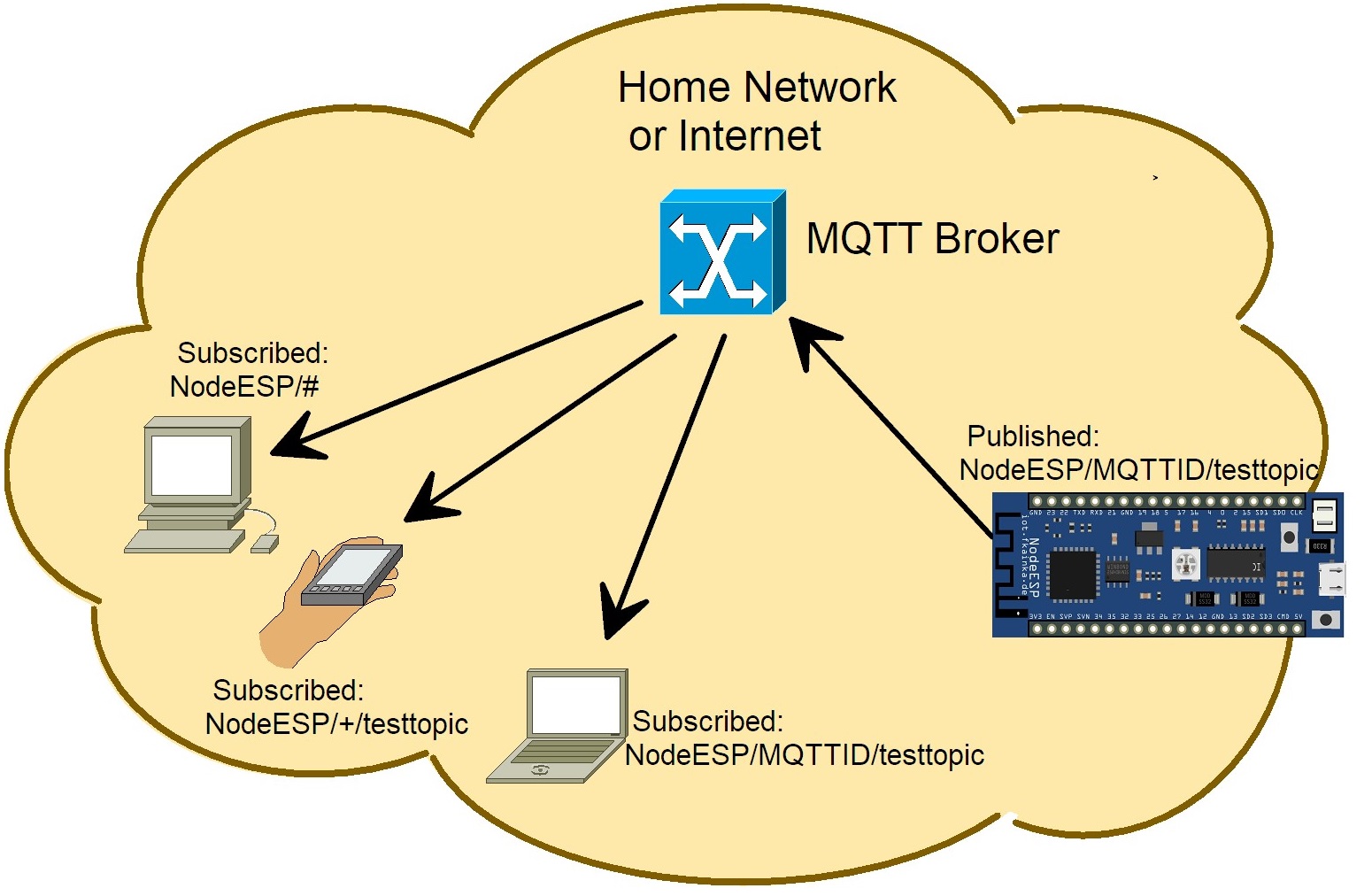
A so-called Broker forms the basis for communication. A broker is a server application that processes all the messages. A device like our NodeESP can connect to the broker and publish messages and also send them to the broker. Another device can then subscribe to certain topics and will instantly receive all new messages from the broker published on these topics.

Topics are structured hierarchically, whereby subtopics are separated by /. And then there are the wildcards. You can subscribe to several topics at the same time using the signs + or #. If you subscribed to MyHome/+/Temperature you would receive the topics MyHome/Kitchen/Temperature and MyHome/ Bathroom/Temperature all together for example. “Plus” will replace only one topic level and “hash” will replace them all. You would receive all messages posted under all subtopics of MyHome if you subscribed to MyHome/#. A message can be just about anything: from plain text to readings to simple 1/0 light switching commands.
We don’t need to set up hardware today. We will start with some basic tests. Go to the settings on the configuration page. Most certainly you have already noticed the area with MQTT Settings. Here you will find already properly preconfigured settings. We have set up a server especially for the Advent calendar project as the broker address, namely broker.fkainka.de. But you can also set up a broker yourself on your Raspberry Pi. I recommend the open-source software Mosquitto. The client ID is generated using the board’s MAC address. This ID is globally assigned to one single device across all servers. As a MAC address should be unique in the world, it is very suitable as an ID here. You don’t need a username and password for the test broker.
Test the connection by clicking on the Test Connection button below. The colour of the area next to it should change to green, if the connection to the broker was established successfully. If this won’t work, it may be that the server is down and you need to change the broker. An alternative freely available broker is for example broker.mqttdashboard.com.
Once you have tested the basic connection, you can now set up the program of today. Then go to the page
https://www.hivemq.com/demos/websocket-client/?
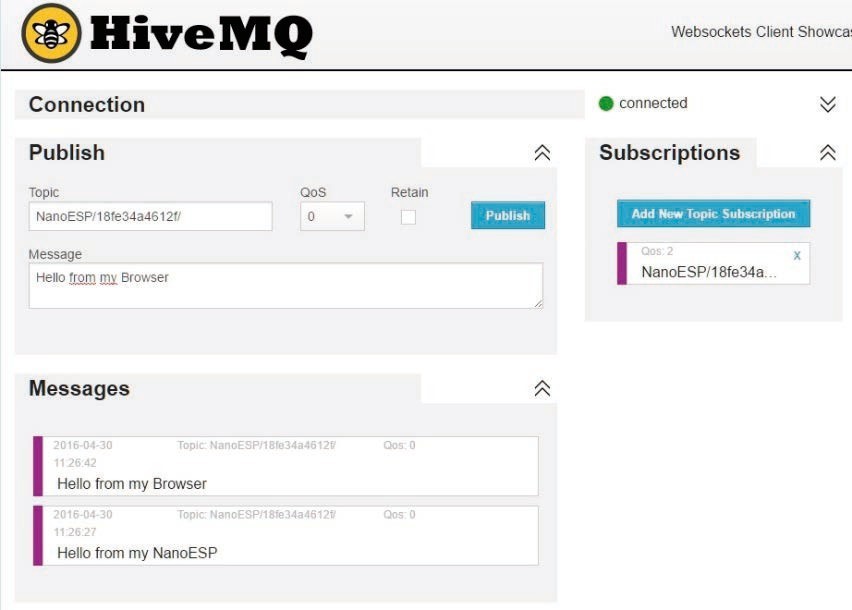
and click Try the websocket client. You will see a log on screen to an MQTT broker with WebSocket support. Under Host, enter a broker, here we use broker.fkainka.de, and then connect. The screen you are seeing above opens next. You can now subscribe to your own personal topic by clicking on Add New Topic Subscription. The topic consists of the term NodeESP and the client ID. For my board this was for example:
NodeESP/240AC48178E4/
Any MQTT communication from and to the board will start with this topic. From now on I will shorten the client ID part using [PID] which stands for “personal ID”. Of course, you will need to replace this part with your own client ID. Experiment with receiving all communication from the board using the topic
NodeESP/[PID]/#
When you reset the board, you will see a message soon after telling you that the board has established a connection to the broker. This message is written to the topic NodeESP/[PID]/status and by subscribing with # you will also receive it. Now you can send your first message to the board. To do this, in the Publish area enter your personal topic plus the subtopic testtopic into the Topic field. In my case:
NodeESP/[PID]/testtopic
Enter any message into the Message field. You can also leave the field blank. Then click Publish and a moment later you will receive two messages in the Messages area. One is a welcoming text and was published under the NodeESP/[PID]/testtopic/out topic. The second message is also welcoming text but as JSON string including command key, and was published under the NodeESP/[PID]/out topic.
These two messages are the result of the board converting the topics into the known command format and then evaluating them. The answers appear in a topic that is composed of the command out, in our case that is.../testtopic /out and at the same time also in the NodeESP/[PID]/out channel.
The equivalent to the out topic is the in topic, where you can directly publish commands in JSON format. For example, if you wrote to the NodeESP/[PID]/ topic the JSON string {“cmd”:“testtopic”}, you would get the same answers as in your first experiment. This means that you can send a command either via a topic or via the in-channel as a JSON object. Don’t be surprised to find out that some well-known commands such get_wifi_status etc. won’t work. The reason is that these commands may contain sensitive data and should not be sent over a public broker.
The connection to the board via MQTT is now established. Tomorrow we will take a closer look and learn what we can do with it.
https://iot.fkainka.de/day-20-mqtt-message-queue-telemetry-transport
Hier wird noch mehr zu MQTT erklärt. Der Kalender 2016 basiert verwendet aber ein NanoESP und nicht das NodeESP.