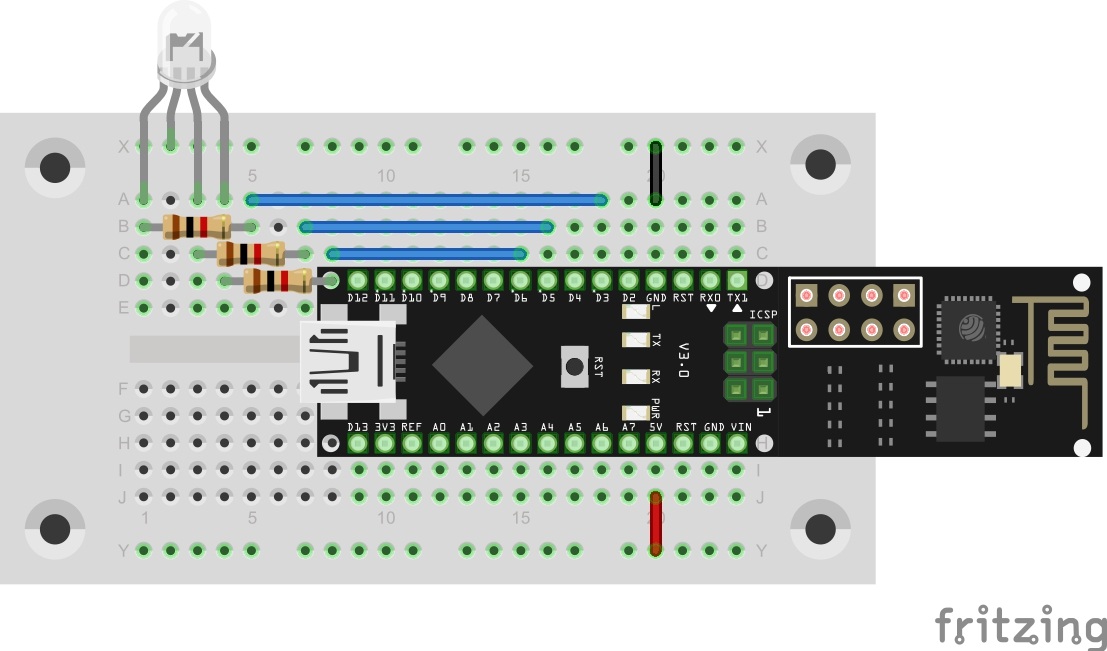
Behind today’s door is a 10-kohm resistor, but we don’t need it yet today. Instead, the set-up from yesterday’s test works today as well. In this project, you’ll build a day-night lamp that changes colours at specific times. Thus you can have a bright light shining during the day, while at night only a dim red serves as emergency lighting for a bit of orientation.
The sketch: A16_P11_Blynk7_DayNight.ino
/*
Blynk 7: DayNight
Change ssid, password and token
*/

char ssid[] = "YourSSID";
char password[] = "YourPassword";
char token[] = "YourToken";

#define BLYNK_DEBUG
#define BLYNK_PRINT Serial    // Comment this out to disable prints and save space
#include <ESP8266_SoftSer.h>
#include <BlynkSimpleShieldEsp8266_SoftSer.h>

// Set ESP8266 Serial object
#include <SoftwareSerial.h>
SoftwareSerial EspSerial(11, 12); // RX, TX

ESP8266 wifi(EspSerial);

boolean isDay;

void setup()
{
  // Set console baud rate
  Serial.begin(19200);
  EspSerial.begin(19200);

  Blynk.begin(token, wifi, ssid, password);
}

void loop()
{
  //all events are handled by functions below
  Blynk.run();
}


BLYNK_CONNECTED() {
    //Sync all states when reconnected
     Blynk.syncAll();
}


BLYNK_WRITE(V1) //DayTimer
{
 if (param.asInt()== 1){
    Blynk.virtualWrite(V0,1);
    Blynk.virtualWrite(V7,0);
    isDay = true;
    Blynk.syncVirtual(V3);
 }
}

BLYNK_WRITE(V4) //NightTimer
{
  if (param.asInt()== 1){
    Blynk.virtualWrite(V0,0);
    Blynk.virtualWrite(V7,1);
    isDay = false;
    Blynk.syncVirtual(V8);
 }
}

BLYNK_WRITE(V0) //Day
{
  if(param.asInt()==1)
  {
    Blynk.virtualWrite(V7,0);
    isDay = true;
   Blynk.syncVirtual(V3);
  }
}

BLYNK_WRITE(V7){ //Night

if(param.asInt()==1)
  {
    Blynk.virtualWrite(V0,0);
    isDay = false;
    Blynk.syncVirtual(V8);
  }
}

BLYNK_WRITE(V3) // change color Day
{
  if (isDay){
     analogWrite(3, param[0].asInt()); // getting first value
     analogWrite(5, param[1].asInt()); // getting second value
     analogWrite(6, param[2].asInt()); // getting N value
  }
}

BLYNK_WRITE(V8) //  change color Night
{
  if (!isDay){
     analogWrite(3, param[0].asInt()); // getting first value
     analogWrite(5, param[1].asInt()); // getting second value
     analogWrite(6, param[2].asInt()); // getting N value
  }
}
(The former Arduino Create embed is no longer available; the code is taken from the download of all sketches.)

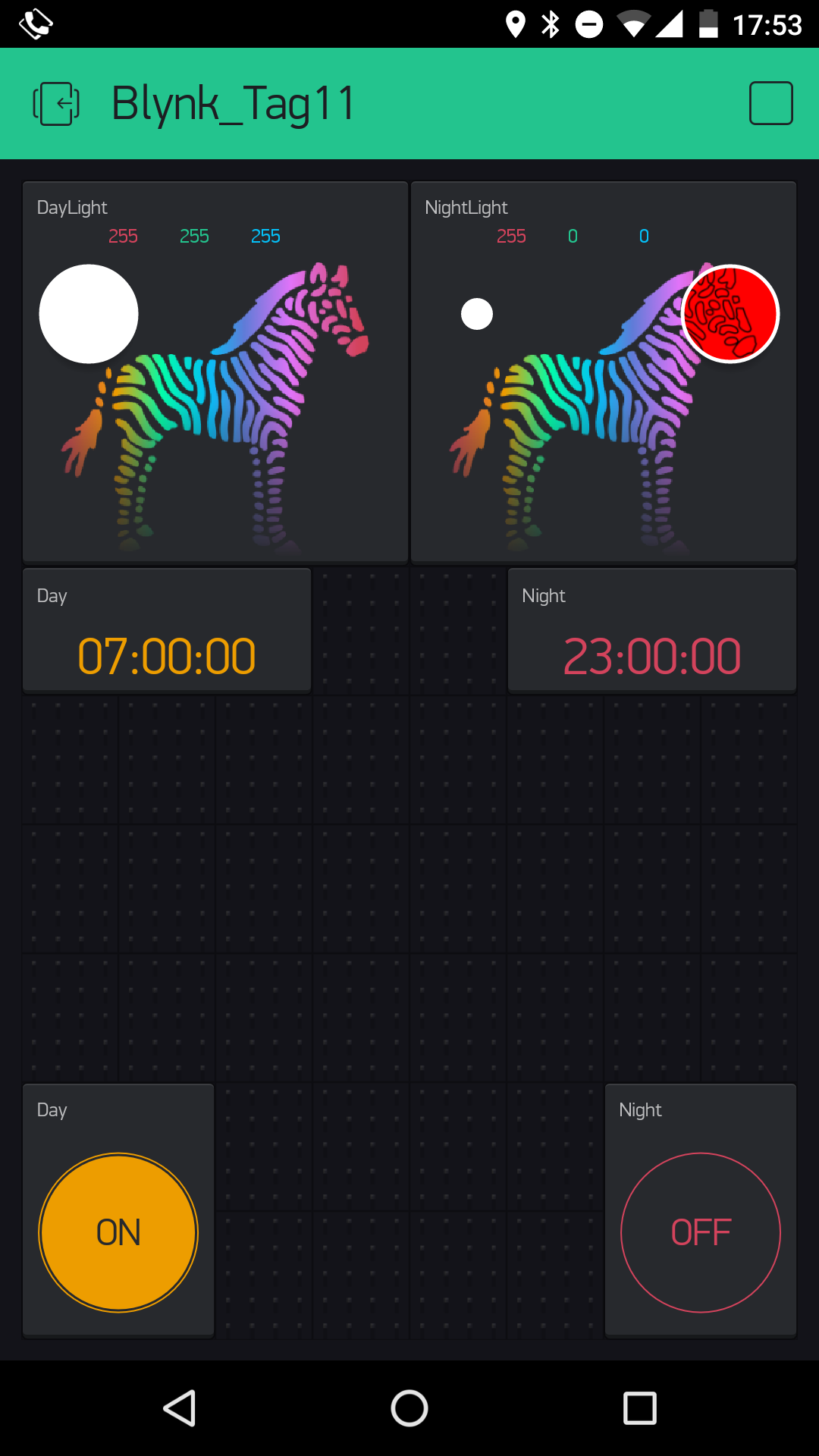
When you’ve transferred the Blynk interface via QR code and downloaded today’s programme, changed it and uploaded it to the controller, you can already get started. On the Blynk interface, you see two ZeRGBa elements, which are labelled “DayLight” and “NightLight.” When you switch to day or night mode with the outside buttons below the ZeRGBa elements, the corresponding colour of the element is shown. But you can also automate the switch between day and night mode. To do this, tap one of the two timer elements directly below the colour selection elements. Here, while the interface is not started, you can select a time at which the mode should be switched. All you have to adjust is the start time. The same applies for the other timer element. At the selected time, the mode switches over, and the LED changes from the day colour to the night colour or vice versa. You don’t even have to have the app open at those times. The Blynk server regulates the switch-over automatically.

langsam nervt es.
wozu jeden tag ein Türchen öffnen wenn man mit dem Inhalt nix anfangen kann ?!?!?