Behind today’s door is the reason for the many 1-kohm resistors. Namely, what you find there is a so-called RGB LED RGB stands for red-greenblue, since this LED is actually three LEDs that can be connected through a common cathode. By varying the brightness of the individual LEDs using PWM, you can generate almost every colour conceivable.
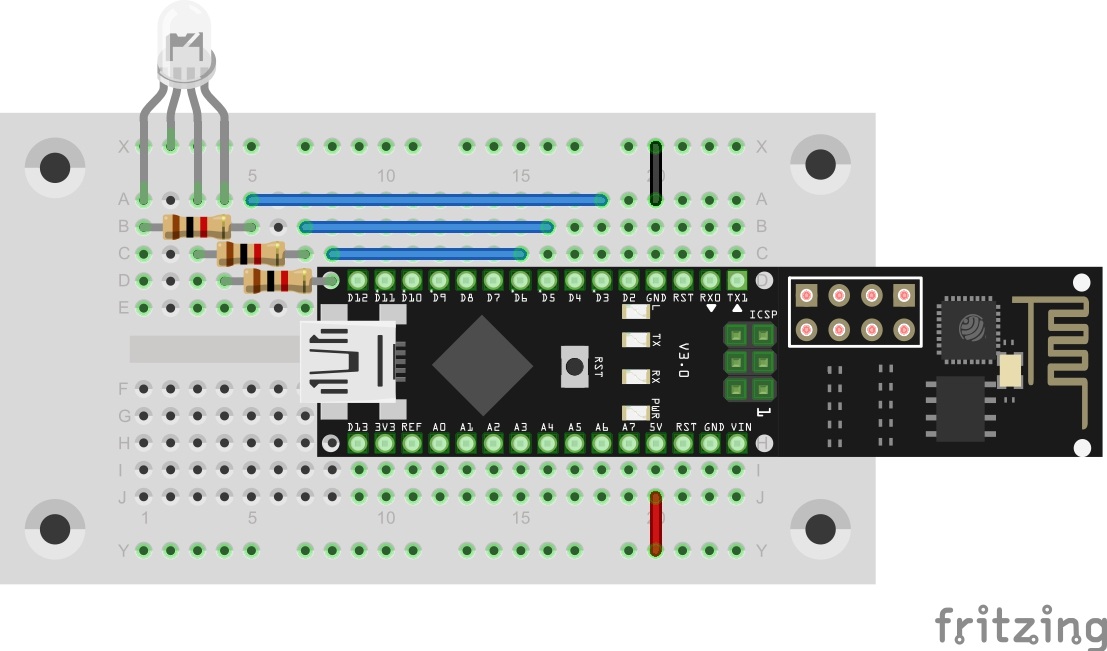
You can see the layout of today’s circuit in the following figure. Note that the somewhat longer leg (the cathode) must be plugged into the GND contact strip.
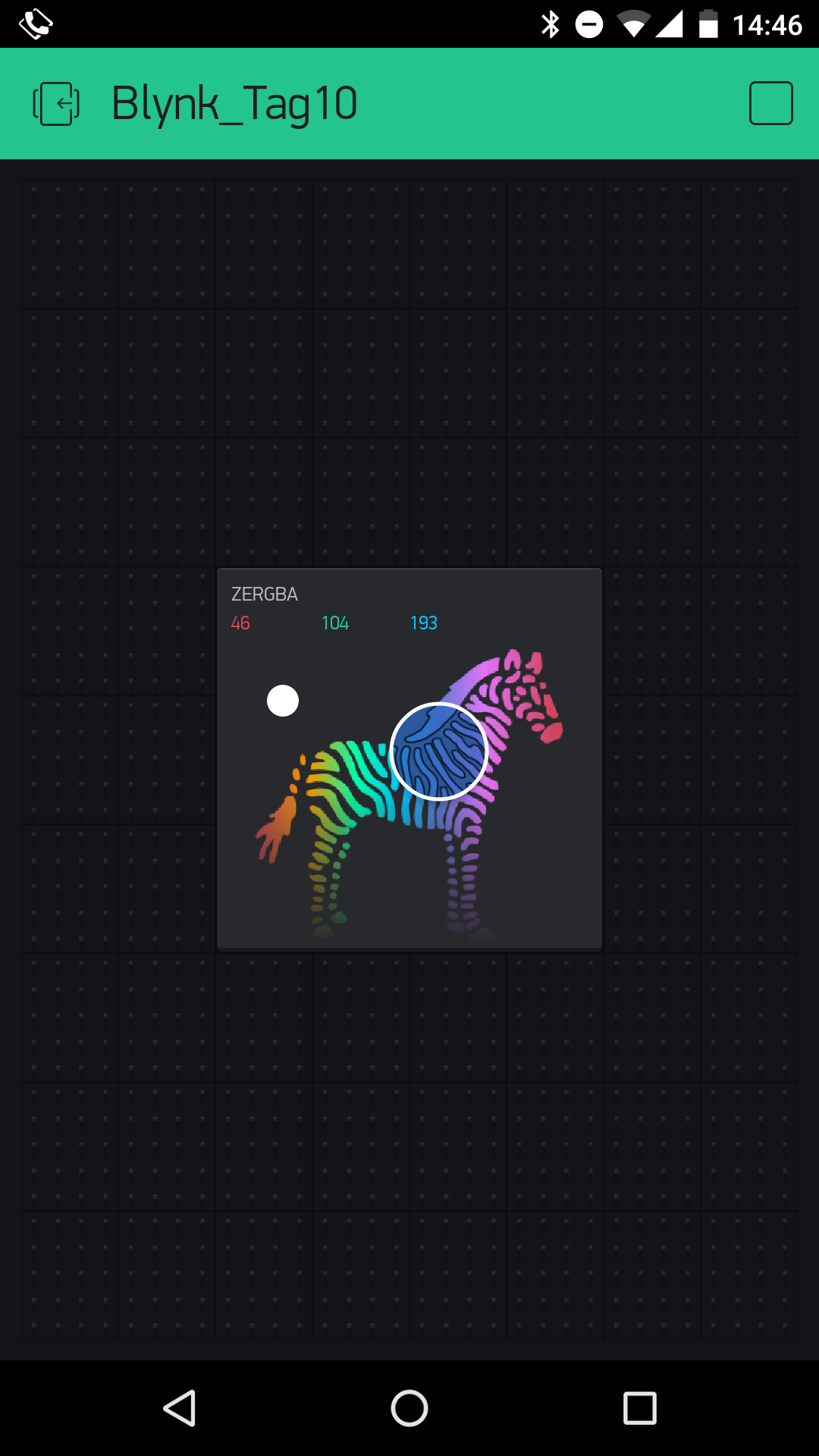
In the Blynk app, a totally new element comes into play today, namely the ZeRGBa element (combination of Zebra and RGB). You can already see roughly how it works from the colourful design. You can either insert the element in your own new project and adjust the pins manually (red at D3, green at D5 and blue at D6) or load the interface of the test as usual via QR code. Whichever way you choose, don’t forget to enter the new token in the programme, which you can download as usual from below:
The sketch: A16_P10_Blynk6_RGB.ino
/*
Blynk 6: RGB
Change ssid, password and token
*/

char ssid[] = "YourSSID";
char password[] = "YourPassword";
char token[] = "7c5cc35bf1b54058b232f6392b847519";

#define BLYNK_DEBUG
#define BLYNK_PRINT Serial    // Comment this out to disable prints and save space
#include <ESP8266_SoftSer.h>
#include <BlynkSimpleShieldEsp8266_SoftSer.h>

// Set ESP8266 Serial object
#include <SoftwareSerial.h>
SoftwareSerial EspSerial(11, 12); // RX, TX

ESP8266 wifi(EspSerial);

void setup()
{
  // Set console baud rate
  Serial.begin(19200);
  EspSerial.begin(19200);

  Blynk.begin(token, wifi, ssid, password);
}

void loop()
{
  //the controll of the RGB-LED is done by Blynk automatically
  Blynk.run();
}
(The former Arduino Create embed is no longer available; the code is taken from the download of all sketches.)
When you have uploaded the programme with your data and the interface has started in the app, you can move the circle in the ZeRGBa widget. You see that the colour of the circle changes. At the same time, the colour of the RGB LED on the board changes. So you can have fun playing around and trying out various colours. You can even get white if you move the circle to the top left corner. The three numbers above also give the current PWM value of the pins D3, D5 and D6. This time, too, you can conceivable use the programme for a living room lamp with mood lighting that can be controlled via app.

43 comments
Comments are closed. These comments were posted on the former WordPress site (mostly in German).
nachdem man das Zebra auf "merge" änderte genauso. Und nachdem "send on release" on und zurück auf split und "off" tut sich überhaupt nichts mehr (LED aus).
half auch nicht das progam umzuladen.
Kann man die Blynk knöpfe grösser machen? ist ja ziehmlich fummelig darauf was zu verschieben.
Mein Zebra war etwas sendefaul. Es hat nur ca. bei jedem 3. Loslassen gesendet. Zumindest ist nur dann etwas im Log auf dem COM des nanoESP angekommen. Jetzt habe ich "send on release" abgeschaltet und jetzt sendet es bei jeder Bewegung. Das ist besser.
Wenn Du übrigens den "split" auf "off" stellst, dann werden nicht mehr 3 einzelne Nachrichten "aw???" (analog write, port, wert) geschickt, sondern eine kombinierte message, die dann der Controller auswerten muss. Wenn das der nano nicht macht, dann geht die Info verloren. Deswegen ist die RGB-LED bei Dir wohl dunkel.
Das ZeRGBa-Widget habe ich gegen 3 Slider getauscht. Ein vierter Slider ist für die Blink-Geschwindigkeit. Und ein Schalter, um die LED als solche zu an- und auszuschalten.
Die D6 ist dann bestimmt auch an der Versorgung angeschlossen. Die ist aber nicht so penetrant hell. Die würde ich so lassen.
Bei mir nur eine einfache LED mit 2 Anschlüssen. Pfennigartikel meint ihr, die richtige sollte in jeder Bastelkiste vorhanden sein?!
Das mag zwar stimmen, doch bei dem Preis für den Kalender und manch Käufer hat nur den Kalender und will sich dem Thema widmen.
Paul
For further help you will have to specify what "doesn't work anymore" means.
Diese werden dann im Code ausgelesen. Siehe auch : http://docs.blynk.cc/#blynk-main-operations-send-data-from-app-to-hardware
Mit analogWrite(3, valRed); wird dann auf der Hardware der Pin für 'rot' gesetzt.
Der vierte Slider macht einen Delay: delay(valDelay);
Dabei kann der Slider von 0-1000 gesetzt werden.
Aber bei einem 50 Euro Adventskalender (von Conrad!) sollte man schon erwarten, dass dieser GUTE QUALITÄT UND NICHT B-WARE enthält.
Ich finde das ist eine FRECHHEIT.
Also dann doch den Hotspot über Datenvoumen des Handys eingerichtet und siehe da alles ohne Probleme.
Somit bin ich jetzt wieder up to date. Ich freu mich ;)
Paul
eine einfache Möglichkeit zum Blinken suche ich auch. Dürfte ich den Code mal sehen?
Gruss
Cubiator
pic.twitter.com/HrKOvl6EoP
int valRed=100; // Startwert Rot
int valGreen=0; // Startwert Grün
int valBlue=0; // Startwert Blau
int valDelay=250; // Blinkpause
int button1 = 1; // Status Button = On
bool isFirstConnect = true; // Nach Reset holt sich die Hardware den Status der App
void loop()
{
Blynk.run();
if (button1 == 1) // falls die LED überhaupt leuchten soll
{
setPins(valRed, valGreen, valBlue);
delay(valDelay);
}
// falls blinken soll, oder der Button auf 'Off' ist
if (valDelay != 0 | button1 == 0)
setPins(0, 0, 0);
delay(valDelay);
}
void setPins(int r, int g, int b)
{
analogWrite(3,r);
analogWrite(5,g);
analogWrite(6,b);
}
BLYNK_WRITE(V0) // Red
{
valRed = param.asInt();
}
BLYNK_WRITE(V1) // Green
{
valGreen = param.asInt();
}
BLYNK_WRITE(V2) // Blue
{
valBlue = param.asInt();
}
BLYNK_WRITE(V3) // Delay
{
valDelay = param.asInt();
}
BLYNK_WRITE(V4) // on/off
{
button1 = param.asInt();
}
BLYNK_CONNECTED()
{
if (isFirstConnect)
{
Blynk.syncAll();
isFirstConnect = false;
}
}
Wenn ich aber die Oberfläche in der App starten wiil, erhalte ich immer den Kommentar "Device is offline". und es klappt nichts. Das Smartphone ist aber mit dem WLAN verbunden. Was mache ich falsch?
bei mir funktioniert der PIN D5 nicht, keine grüne Farbe.
Verwende ich den PIN D9 im Aufbau und der App leuchtet die grüne Farbe korrekt auf.
Selbst folgende Codeanpassung um die grüne Farbe gleich nach dem Start leuchten zu lassen zeigt keine Wirkung.
#define GREEN 5
void setup()
{
// Set console baud rate
Serial.begin(19200);
EspSerial.begin(19200);
pinMode(GREEN, OUTPUT);
analogWrite(GREEN, 255);
Kann das an einer alten Library liegen?
Für mich scheint das Board defekt.
Hat noch jemand das Problem?
Das Board habe ich auch 2 Mal angerufen und wieder auf das Steckboard gesteckt.
Ich probiere heute Abend das Board einen Pin Versatz einzustecken.
Was kann man da machen?
I am connected to the WiFi as the days before.
What could help us out?
bei mir funktioniert jedes Projekt gottseidank auf anhieb.
Nun habe ich aber seit dem es um Analoge Werte mit dem Board geht ein kleines Problem. Und zwar sobald ich egal bei welchem Analog experiment den Wert ändere tut es das auch auf dem Board aber nur für ein paar Sekunden danach bricht die verbindung ab und auf meinem Handy wird angezeigt "Your Arduino Nano is not in the Network" und nichts funktioniert mehr. Nach ein paar Sekunden steht dann wiederrum die Verbindung. Hat einer von euch eventuell eine Ahnung woran dieses Verbindungsproblem liegt? Danke im Vorraus:)
Wende mich jetzt an Conrad.
konntest du dein Problem lösen oder hängst du immer noch genauso fest wie ich? Es liegt wohl an der aktuellen Blynk App…
#include no such file or directory