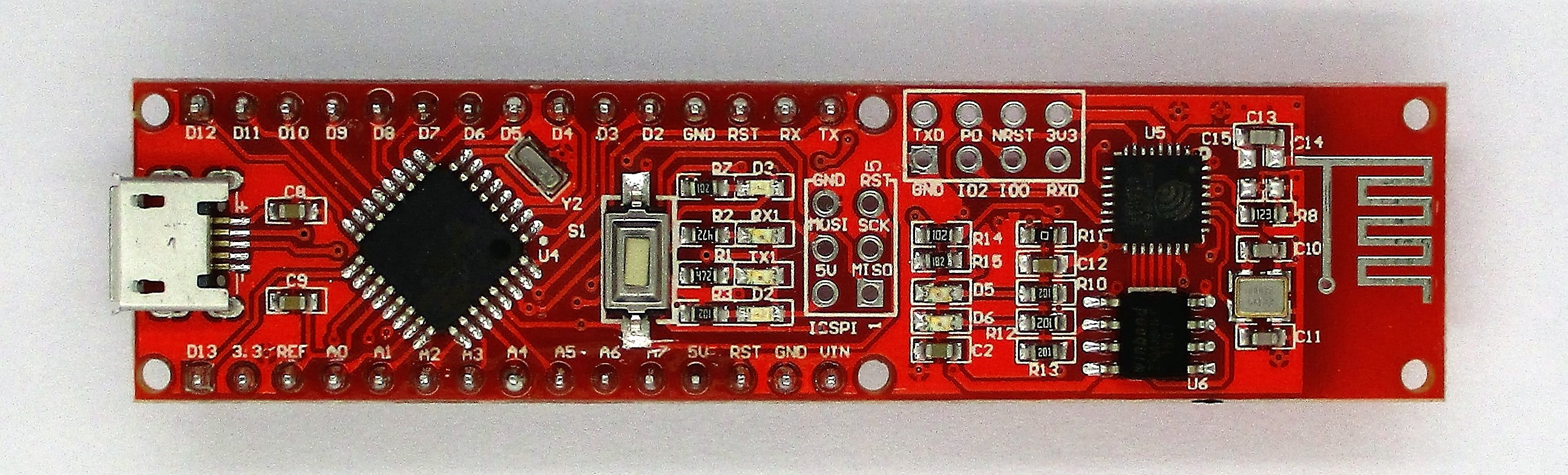
It’s the first of December and thus time to open the first door. Behind it is arguably the most important element of the calendar: the NanoESP board. This Arduino-compatible controller with WLAN function is at the centre of the 24 tests.

To s briefly, it can be said that the board is most likely a cross between a board similar to an Arduino Nano and a WLAN module with the name ESP8266. The communication between the two elements runs through a serial port generated via software, which is connected to Pins D11 and D12. You should thus avoid these pins with your own projects.
So that you can successfully program your board, you first need to install the driver. You’ll find it on the page:
There are versions for different operating systems there. In the Windows version, there is a setup.exe file in the ZIP folder that you have to execute. In the window that then appears, simply click on “Install”.
After the installation, you can now connect the board to the PC for the first time. The PC should automatically find the driver, while the two Power LEDS (D6 and D2) light up on the board. The third LED (D3) flashes first. If the LEDs light up but the PC does not recognise any new hardware, check whether you’re actually using a USB data cable. You see, there are also cables that are intended only for charging devices like smartphones but don’t enable data communication. You can also look in Device Manager to see whether the device has been correctly recognised and installed.
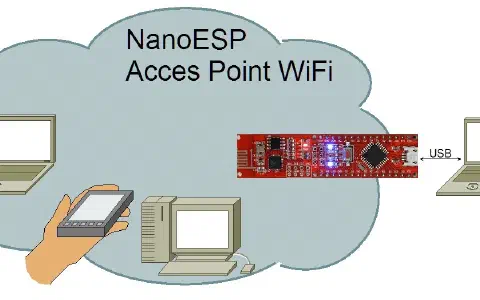
The driver is now installed, and in the meantime the third LED should also have stopped flashing and remain constantly lit. That’s the sign that the initialisation of the board was successful. Now you should also be able to spot something else, namely that a new open WLAN exists within your reach. The WLAN bears the name NanoESP. In today’s practical test, you should connect to this WLAN. If the PC asks about the type of connection, you should select the option “Home network.” In this way, the communication with other devices isn’t blocked. When you are connected to the WLAN, you can open a browser of your choice and enter the following in the address bar:
192.168.4.1
This is the IP address of your board. The page that now loads for you to see is a small website that is sent from the board to your PC. This is an Easter egg, which is a hidden function. The first test is a function test and at the same time offers a glance at a potential use of the board as a web server. But more on that later.
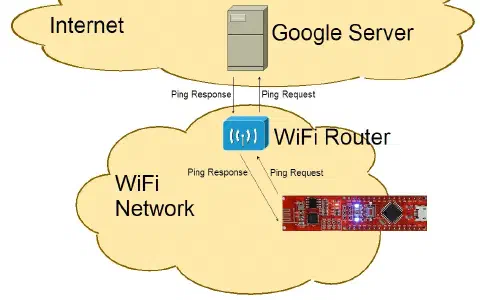
76 comments
Comments are closed. These comments were posted on the former WordPress site (mostly in German).
:-(
auf der Easter-Egg Seite steht in der Überschrift ein s zuviel. Aber sonst alles super!
Der PC erkennt das Netzwerk "NanoESP" und kann sich mit ihm verbinden.
Aber beim Aufruf der Seite 192.168.4.1 erscheint
Interessting…
You weren't supposed to find this page.
Since you seem to be a curios person
reconnect to your WLAN and click the link below
to find out if you are the only one.
The password you'll need is:
ifoundit
fkainka.de/secret
Und nun weiß ich nicht weiter.
Jemand eine Lösung ?
…wenn ich hinter den Türchen, am besten nur, das Kabel gefunden hätte, hätte ich gesagt: "Warum denn das? So was hat doch jeder im Dụtzend zu Hause rumfliegen und das in einer anständigen Qualität"
Ist halt davon abhängig was man für Endgeräte nutzt und was man so alles damit anstellen mag.
Würde grundsätzlich aber auch sagen, jeder hier hätte sicher auch 50 cent mehr für den Kalender ausgeben, wenn dafür auch das Kabel einfach dabei gelegen hätte.
Bei mir funktioniert alles bestens und die Mittagspause bringt mich gleich in Weihnachtsstimmung. Mädchen stehen halt voll auf bunte Lichter ;)
wäre das das richtige Kabel?
https://www.kab24.de/computer/datenkabel-ladekabel-micro-usb-spiral-anschlusskabel-1m-schwarz.html
https://github.com/jimaobian/CH34x_Install_V1.3/blob/master/CH34x_Install_V1.3.zip
https://github.com/adrianmihalko/ch340g-ch34g-ch34x-mac-os-x-driver
Danke!
die Verbindung von NanoESP Board und PC per WLAN funktioniert bei mir. Allerdings kommt bei Eingabe der IP in die Adressleiste von Firefox: "Fehler: Verbindung fehlgeschlagen".
Kann mir vielleicht jemand helfen?
tolle Idee mit der geheimen Webseite. Heute haben schon 803 Personen ihren nanoESP gefunden! Happy 1. Dezember!
Ich habe folgende Probleme: Der NanoESP lässt sich vom Laptop anpingen unter 192.168.4.1 und antwortet innerhalb von 2 ms. So weit so gut.
Aber im Webbrowser erhalte ich immer "Seite nicht gefunden" bei der Eingabe von 192.168.4.1
Beim iPhone klappt es auch nicht. Nur auf meinem Android Smartphone. Woran kann das liegen?
Hat jemand einen Tipp?
Viele Grüße und noch mal Danke an fkainka für dieses phantastische Bastelkit und die informative Webseite.
Bei mir läuft's auch und ich freu' mich schon auf morgen :D
Dort gibst Du folgendes ein:
sudo make
Danach gibst du ein:
sudo make load
FERTIG
Bei mir funktionierte der Treiber https://github.com/jimaobian/CH34x_Install_V1.3/blob/master/CH34x_Install_V1.3.zip
und für den Zugriff auf das Modul ging Safari nicht, dafür Firefox.
Viele Grüße
Nummer 1175
die Treiberinstallation war nicht ganz so einfach. Für mein 64-bit Windows 10 musste ich erst das DRVSETUP64.exe nach CH341SER (also eine Etage höher) kopieren und dort ausführen. Jetzt habe ich den USB-SERIAL CH340 als COM3, ich denke, dass ich den noch brauchen werde :-)
VG
Tommi
Jemand noch eine Idee?
Grüße
Jens
Jemand noch eine Idee?
Grüße
Jens
Bei mir hat alles nach Anleitung funktioniert. Nach Treiberinstallation und Neustart des Rechners leuchteten sofort alle 3 LEDs. Beim Aufrufen der 192.168.4.1 in Safari mußte ich die IP nach erstem erfolglosen Warten nur nochmal eingeben und dann war ich doch auf der Website.
Ich bin mit OSX 10.11.3 und Safari 9.0.3 unterwegs.
Danke und Gruß.
Ich frage mich wie ich das NanoESP-Board unter Windows 8 als Heimnetzwerk einrichten kann. Es würde mich freuen, wenn mir jemand helfen könnte.
Danach wurde der ISP-Stecker eingelötet und die Fuses und das Programm gesichert.
Gib das Passwort ein: ifoundit
Enjoy!
Gruss,
-Alex
Danke paul
trotz Deiner Methode mit der Installation des Treibers erkennt meine Arduino-IDE das Bord nicht. Wenn ich versuche den Treiber (auch mit DRVSETUP64 statt mit SETUP) zu deinstallieren bekomme ich die Meldung "No Device is found"
Hoffe jmd weiß was ich falsch gemacht habe
MfG Schrotti
unter WIN 10 64 BIT Home kann ich mich leider nicht mit dem NanoESP per Wlan verbinden. Es erscheint die Meldung: Keine Verbindung mit dem Netzwerk möglich.
Unter Android läuft es problemlos. Hat jemand eine Idee woran es liegen könnte.
Vielen Dank und einen schönen Advend.
ich bin zwar ein wenig spät dran, weil ich erst neu einen iMac bekommen habe und mich erst mit diesem vertraut machen wollte, hoffe aber trotzdem, dass mir jemand helfen kann:
Ich habe den alternativen Treiber installiert und das Board angeschlossen. Bei mir blinkte D3 nicht sondern leuchtet von Anfang an rot. Unter Netzwerke wird das Board auch angezeigt, ich habe WLAN gewechselt aber jetzt lädt der Browser nicht, was kann ich machen?
Danke im Voraus ;-)
hier meine Lösung für meinen nanoESP
Ich hatte Probleme am Tag 4. Zuerst funktionierte das Einloggen ins Heimnetz, dann auf einmal nicht mehr.
Nach einigem Probieren und viel Lesen habe ich dann an den Anschlußpins des WLAN-Moduls ( 8er Block Löcher ) einen 220 uF Kondensator von 3V3 nach GND geschaltet.
Seitdem läuft der nanoESP zuverlässig.
Im Internet findet man auf vielen Seiten die Aussage, dass die Stromversorgung kritisch ist, das war anscheinend auch bei mir das Problem.
Gruss
Kurti
"error: implicit declaration of function ‘interruptible_sleep_on’ [-Werror=implicit-function-declaration]
interruptible_sleep_on( &priv->delta_msr_wait );
^
cc1: some warnings being treated as errors"
Obwohl ich alles genau so wie beschrieben gemacht hab. Arbeite mit Ubuntu
gruss
andrei