In today’s project, data are exchanged between the board and the PC through the WLAN for the first time. The prerequisite for this is that your computer has a WLAN adapter. The UDP (User Datagram Protocol) is used. Another program on the PC-side ensures successful receipt of the messages.
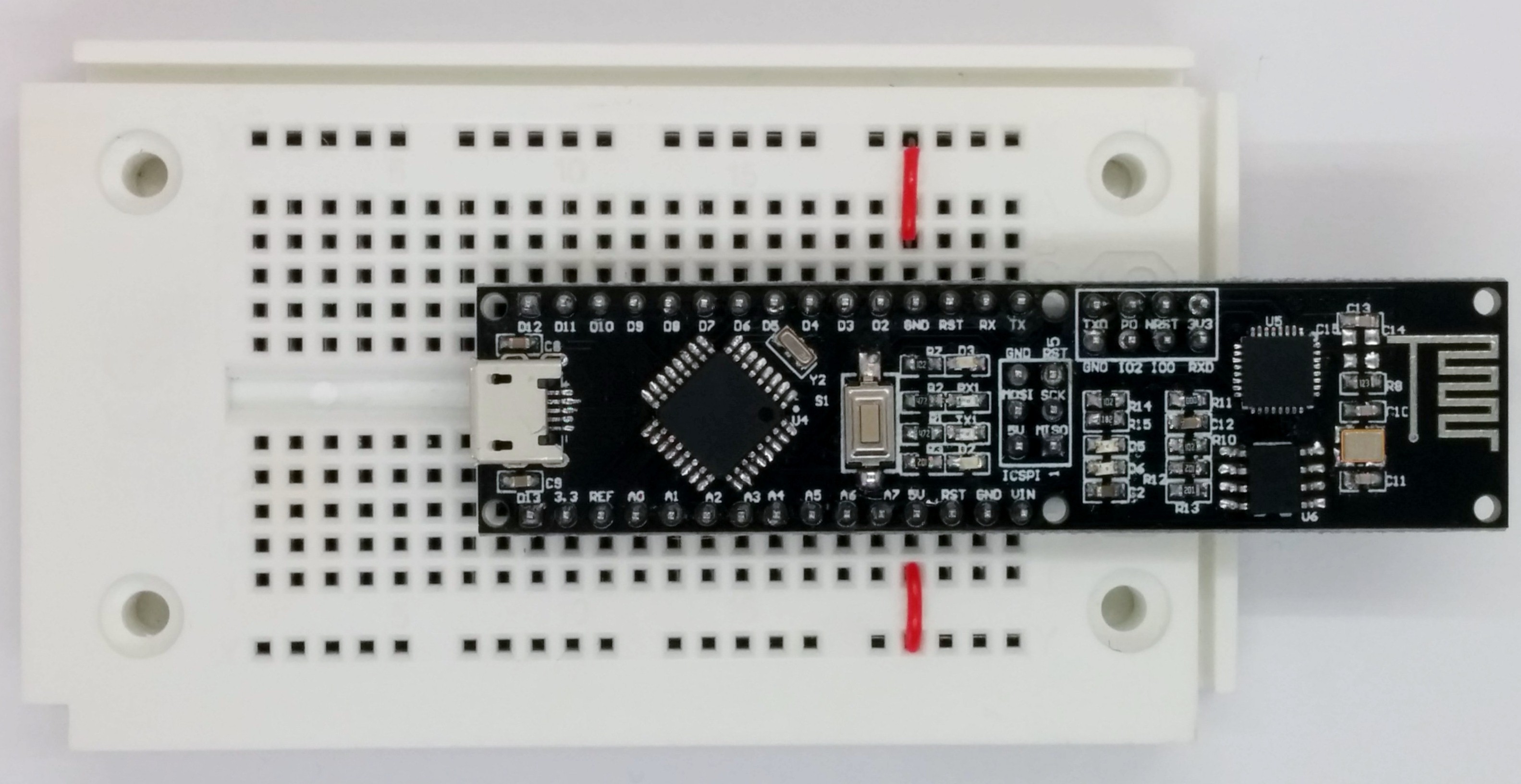
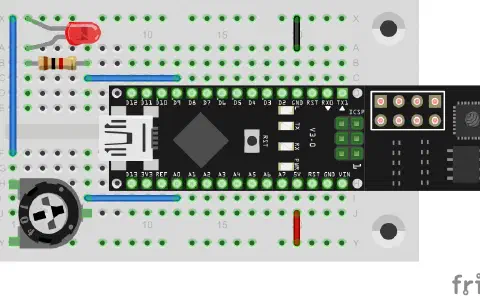
Behind the third door of the calendar, you can find an insulated cable that you will need to build circuits. To prepare for later experiments, you can place the supply lines ground and VCC on the outer tracks.
The program: Day3_UPDBasics
When you load the program onto the controller, the controller is configured as an access point and you should see an open network called NanoESP. Before connecting to the network, first download another program from the Internet. In my experiments, I used the programme Packet Sender by Dan Nagle which you can download from the following link:
After loading and installing the program, you can connect your PC to the open network of the NanoESP. Ensure that the firewall recognises the network as a home network, to avoid blocking data. Your computer should now have the IP 192.168.4.2. You can check this by sending the command
AT+CWLIF
to the module via the serial monitor. This command shows all computers connected to the access point with IP and MAC addresses.
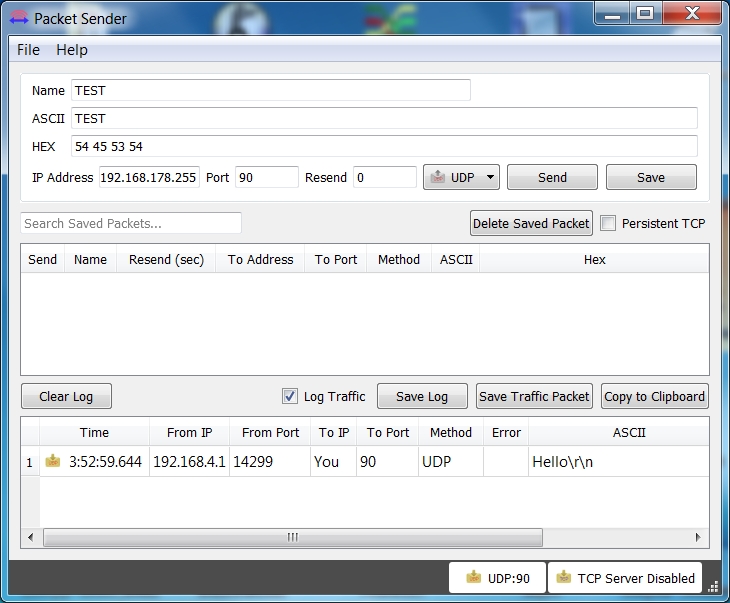
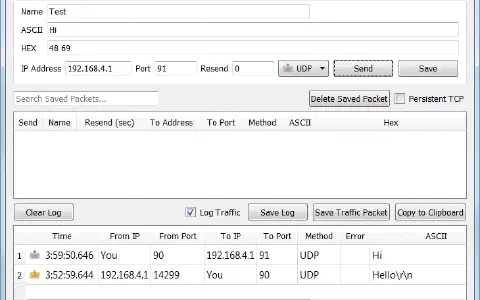
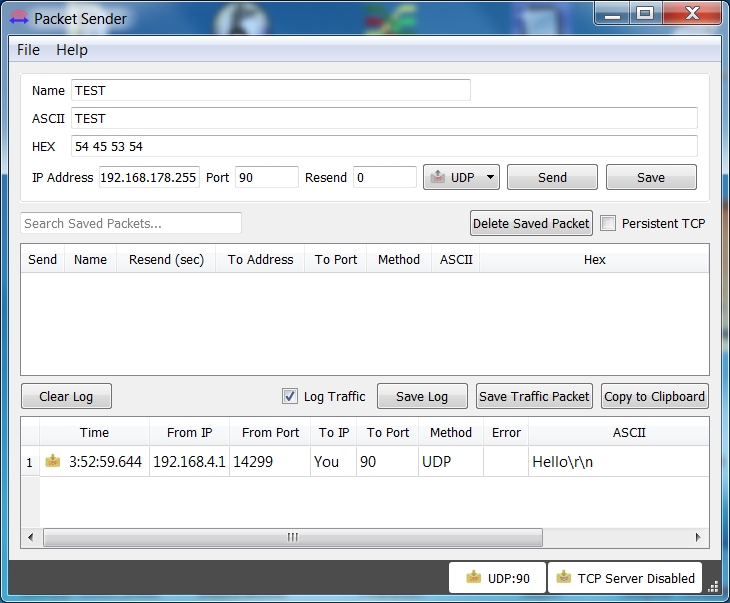
Start the program Packet Sender; set the UDP server port to 90 in Settings->Network and click the check box “Enable UDP Server”. Usually, the lower left should say UDP:90. If it does not, you need to restart the software once.
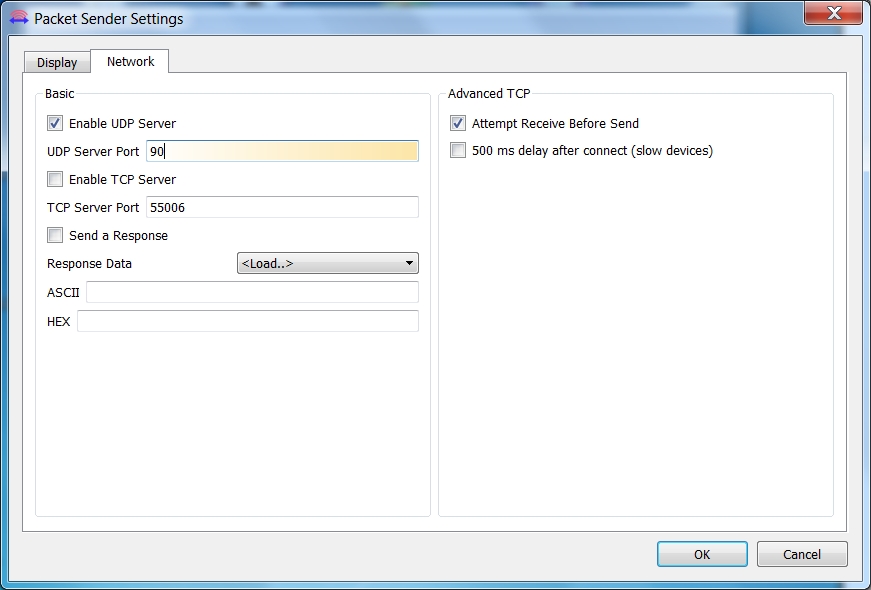
! Attention: Some MAC-Users reportet a bug in the PacketSender-Software. This bug doesn’t allow you to change the ports. If you have problems with this bug you can change the ports in the Arduino program. All you have to do for todays project is to change the line 55 from
succes &= sendCom(“AT+CIPSTART="UDP","192.168.4.2",90”, “OK”); //UDP-Server
to
succes &= sendCom(“AT+CIPSTART="UDP","192.168.4.2",5505”, “OK”); //UDP-Server
The program on the computer is now used as UDP server, while the controller is set as UDP client. The differentiation between client and server is not clear in the UDP protocol, but in this case it means that you will send data from your controller to the computer.
To send data, use the command:
AT+CIPSEND=7
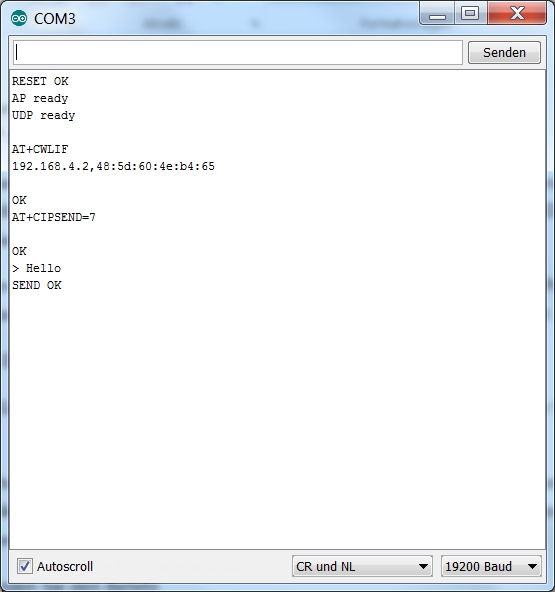
The 7 means the number of characters to be sent. The character > is returned. This means that you can now send your message. Enter Hello and confirm with Enter again. The module returns SEND OK, although you have only entered five characters. This is because after your input Carriage Return and New Line are sent as well, i.e. two characters more that you need to include in your message length calculation.

When you switch back to the Packet Sender and look at Log Traffic there, you can see the receipt of the message. In the ASCII view, you will even see the two enclosed characters, represented by \r and \n. Therefore the first communication between board and PC via the WLAN has been successful.


Mein PC ist über LAN im Netz. Offensichtlich benötige ich aber für die folgenden Tage einen WLAN-Adapter, wenn ich die Experimente durchführen möchte. Zwei Fragen: