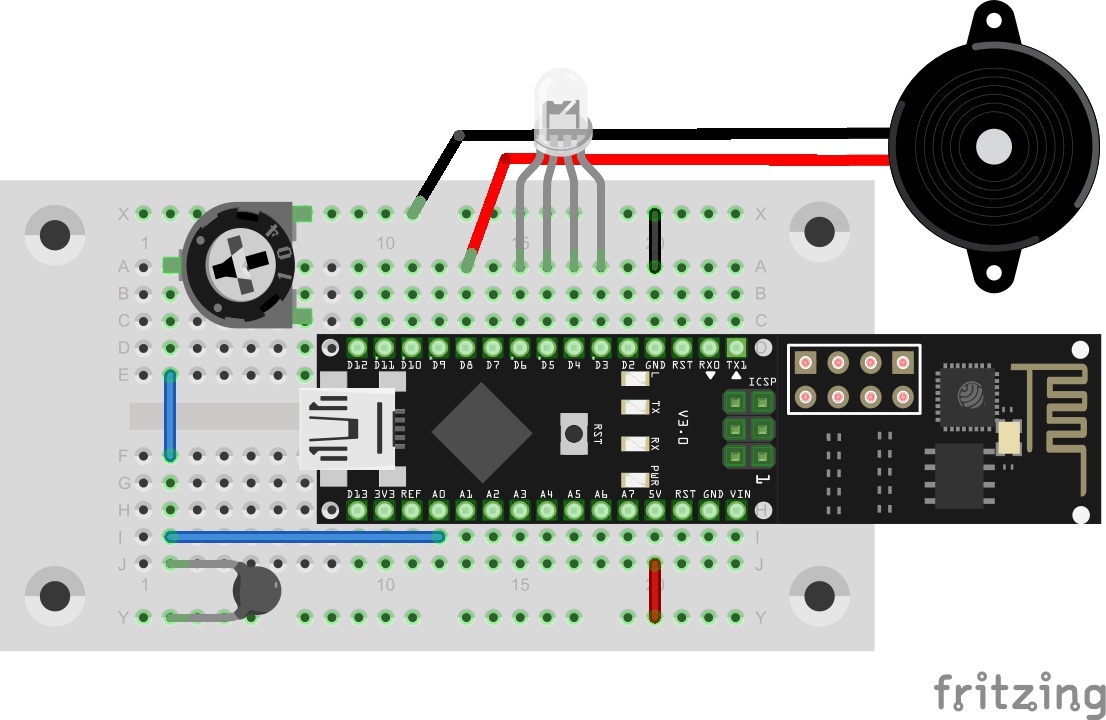
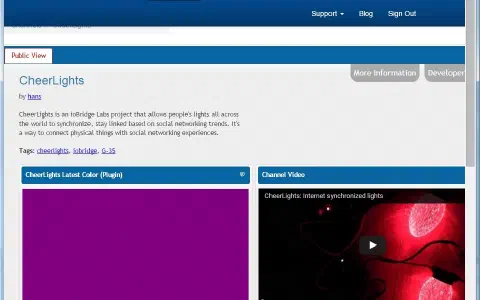
The final project consists of several elements you have been introduced to in the course of the advent time. One function is the Cheerlights function presented the day before. You can also receive the current colour of the Cheerlights project and display it with the RGB-LED. The board is also used for long-term monitoring of the temperature. At the same time, the board is used to emit an alarm sound when the temperature exceeds a specific value, e.g. because there is a fire. As a last function, the board can be used as a Christmas bell, by making it play the song Jingle Bells with a time-controlled TalkBack command. All in all, today’s project is an all-rounder for the Christmas tree.
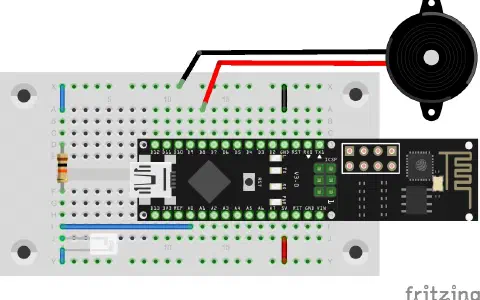
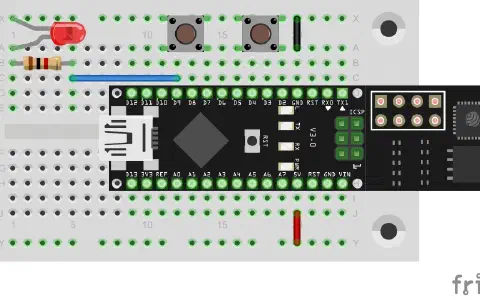
Behind today’s door, there is another rather exciting sensor: an NTC (negative temperature coefficient). It changes its resistance depending on the temperature. It is a good idea to revisit some of the older experiments while using the temperature sensor. Today’s setup consists of quite a few elements. The potentiometer is also used again, to permit fine reconciliation of the NTC. Alternatively, you can also use the 10-kΩ-resistor, but will then be unable to perform fine tuning.

The program: Day24_Christmas
The final program must combine the many different elements. The ThingSpeak page is very important again. Among others, the threshold monitoring of the NTC is assumed by a ThingSpeak app. From there, the alarm action is performed, i.e. sending a Twitter message and inserting a TalkBack command that trips the alarm on the controller. The Time-Control app of the ThingSpeak page can also be used to specify a time at which the Jingle-Bells song will call the family to the tree, or at which the music is to wake you up the next morning.
In the first step, you need to set a new channel on the ThingSpeak page. You can name it FireAlarm, for example. Field1 is then given the name Temp. Under API keys, you will find the first key that you need to enter for the ThingSpeakKEY. This ensures transmission of the current temperature.
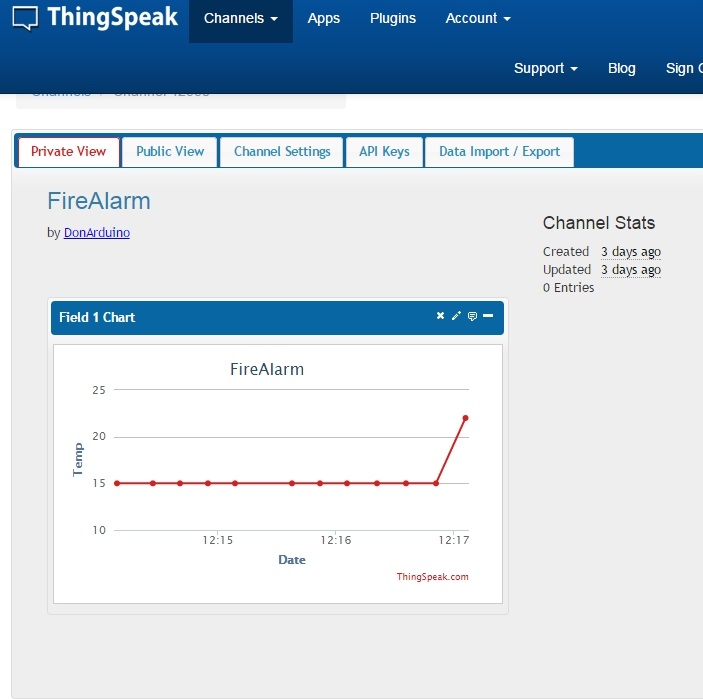
As a second step, you should generate a new TalkBack element. You can name it, e.g. Alarms. You can also have the commands logged in the channel FireAlarm. You need to enter the API key after TalkBackKEY and the ID after TalkBackID. Now you can also send commands to the board. You can also enter commands manually by clicking the Add a new Command in the TalkBack overview of the Alarm channel and then enter either Alarm or Jingle under Command String. You do not need to enter the position, since the command is automatically saved in the first location. You can now upload the program and test whether the transfer of the current temperature value works and whether the board executes the commands. In this place, it will also help to calibrate the NTC via the potentiometer with a room thermometer.
Generally, this would be a full project already. However, the bonus functions are still missing. They no longer need to be performed in the programme, however, but only on the ThingSpeak page. For this, go to Apps and then select React. React can be used to react to specific events. Click New React to create a new React function and enter the following values:
Name: FireDetect1
Condition Type: Numeric
Test Frequency: On Data Insertion
Condition: If Channel
FireAlarm
field 1 (Temp)
is great than
40
Action: ThingTweet
then tweet:
Fire Alarm on the #NanoESP! Temp: %%trigger%%C #ThingSpeak #IoT
Using Twitter Account
[Twitter Account]
Options: Run action only the first time the condition is met
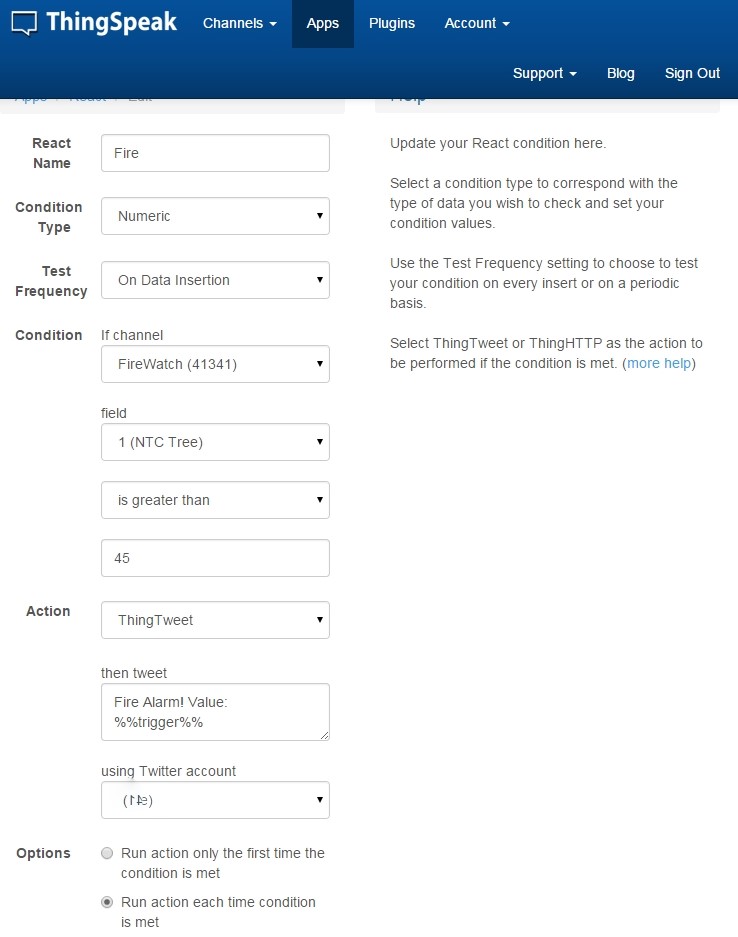
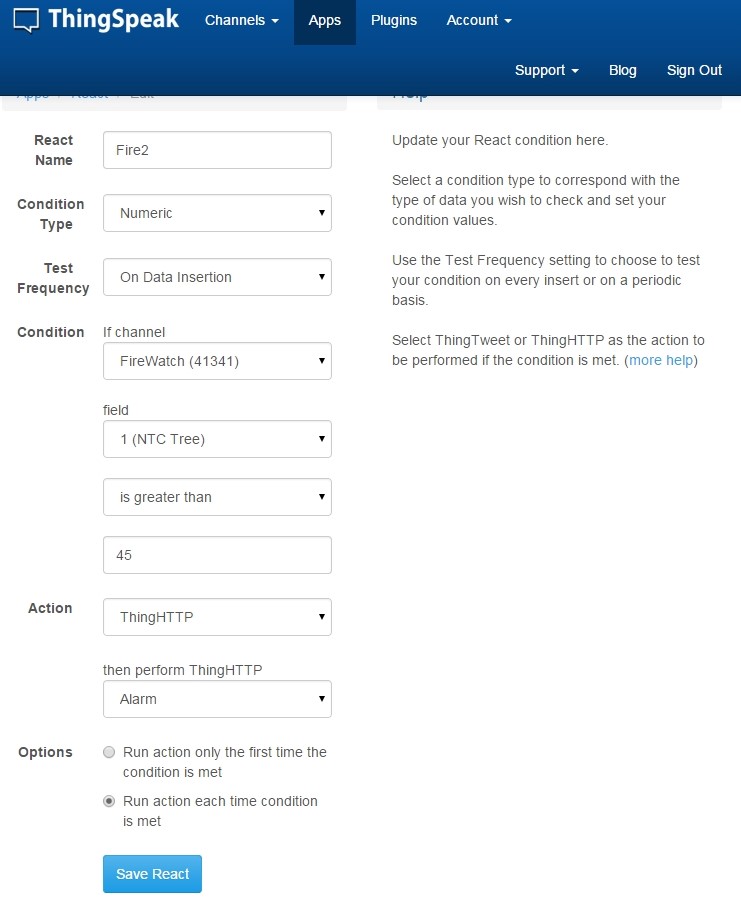
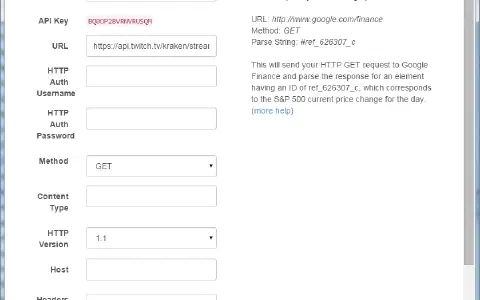
Save React saves the settings. Thus, the first step of monitoring is already made. If the value is exceeded, ThingSpeak will send a Twitter message via your account. For the second step, insertion of the alarm command, you need to reach a bit more deeply into your sleeve. The function is not supported automatically. ThingHTTP is, however, supported. Therefore, click Apps and then ThingHTTP. Create a new element there and set the following:
Name: Alarm
URL: [https://api.thingspeak.com/talkbacks/YOUR TALKBACK ID]/commands
Method: POST
HTTP Version: 1.1
Host: api.thingspeak.com
Headers:
Body: api_key=[YOUR TALKBACK ID]&command_string=Alarm&position=1
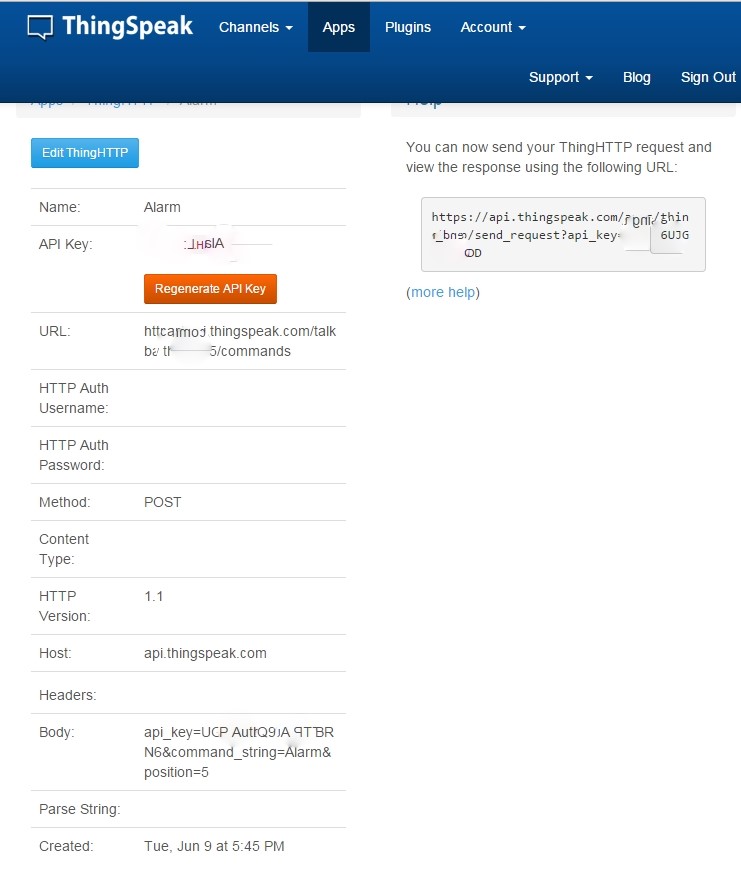
Ensure that you replace [YOUR TALKBACK ID] and [YOUR TALKBACK KEY] in the URL and the body part by your TalkBack-ID and your TalkBackKEY. Now you can create another React element which contains the same parameters as the first one, but with the change that you will now select ThingHTTP under Action and there the item Alarm. Thus, you have ensured that an alarm sounds when the critical value is exceeded.
As a last function, you can set up a time-controlled Jingle Bells. For this, click TimeControl under Apps and create a new element, e.g. with the name Bell. Make the following settings there:
Name: Presents
Frequency: One Time
Time Zone: Berlin
Run At: 2015-24-12 7:00 pm
Fuzzy Time: ± 0 minutes
TalkBack: Alarms, add command: Jingle
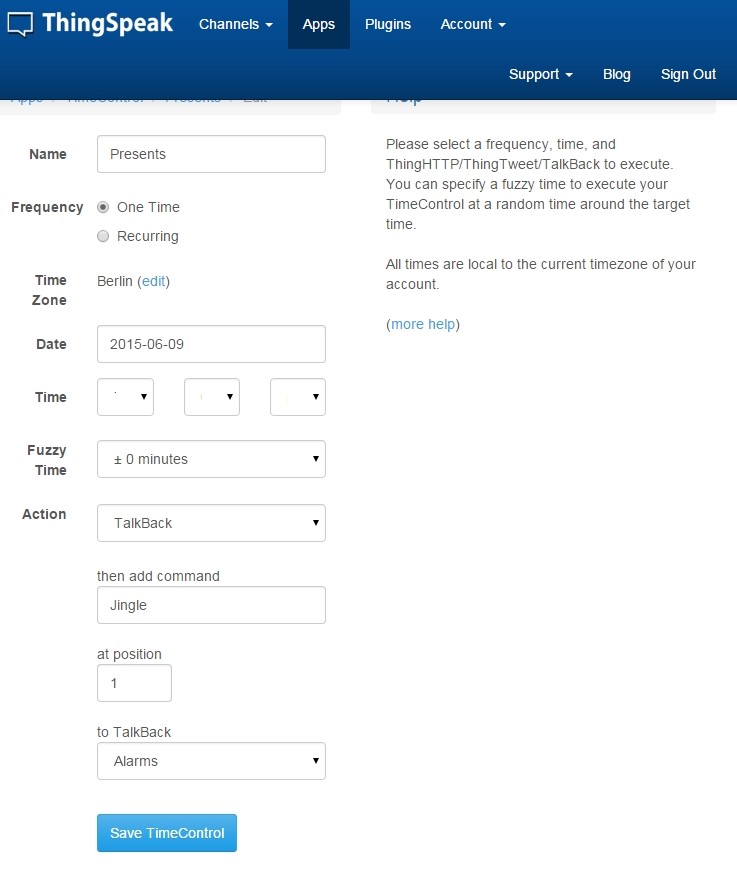
For a first test, it is recommended to select a time in a few minutes. If this has worked, you can set the proper time.
You can also turn the project mobile with the 9-V battery clip or a rechargeable battery bank. When hiding the board in the tree, so that only the RGB-LED points out of the branches in a fitting location, the ambience is not unnecessarily impaired either. Right on time at 7 PM, all family members will be called to the tree by the sounds of Jingle Bells.
I wish you a Merry Christmas!
#define SSID "[Your SSID]" //* Name des Heimnetzes / Router
#define PASSWORT "[Your Password]" //* Passwort des Heimnetzes / Router
#define ThingSpeakKEY "[Your Key]" //* Write API Key FireAlarm
#define TalkBackKEY "[Your Key]" //* API Key TalkBack Alarms
#define TalkBackID "[Your ID]" //* ID des TalkBack Alarm