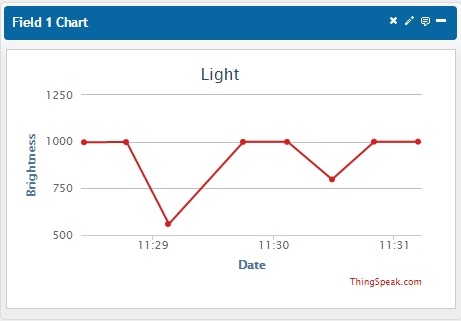
In the last days of the advent time, we will deal with an entirely new subject: the website ThingSpeak. This website has been specifically developed for the subject of Internet of Things and contains various practical functions for you.
Before you tackle the setup and programme as usual, you need to set up an account on the website
Log in with your user data under the item Sign In. You can see a website that shows your channels. Since you have no channels yet, this site will look rather empty. Click New Channel and assign a name, e.g. Light. In this project, you will measure brightness. In the item Field1, you can now assign a name to the field, e.g. Brightness. All other fields can be left empty for now.
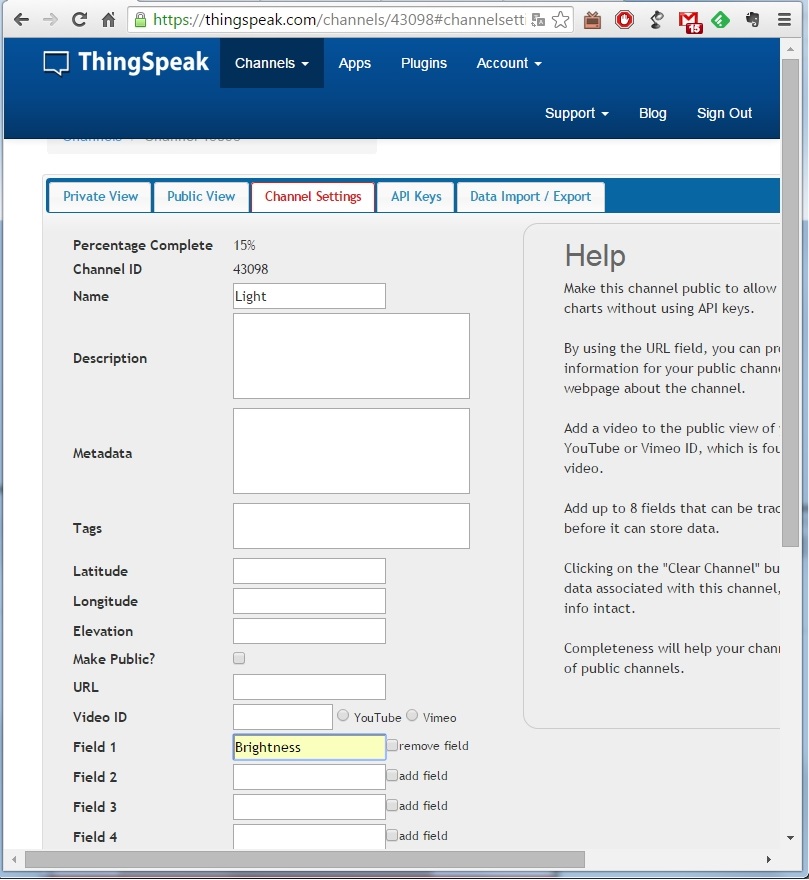
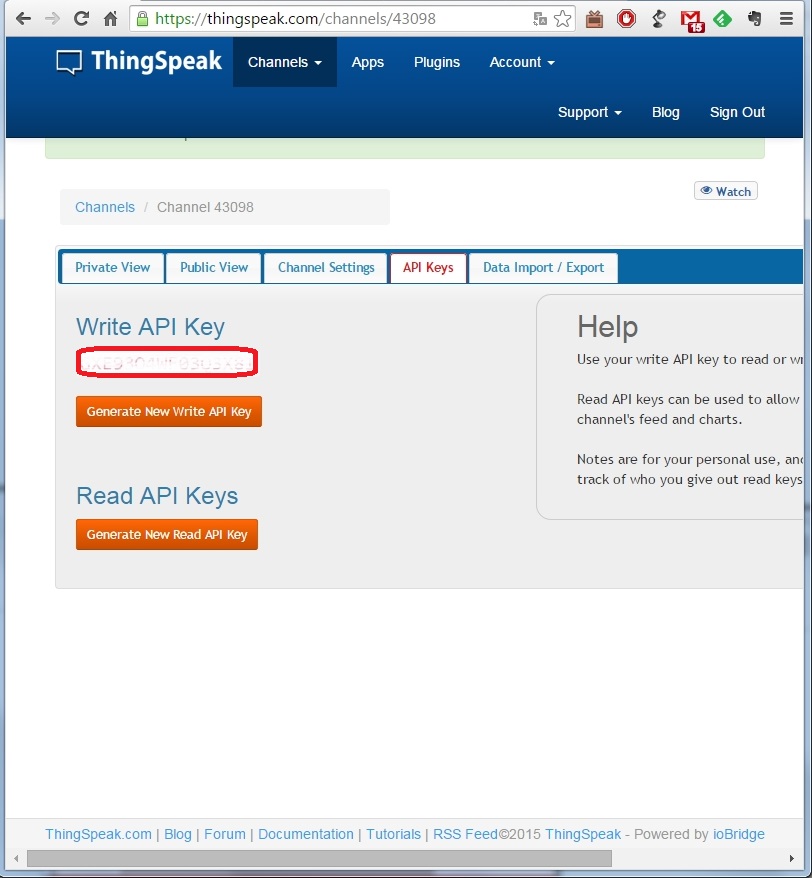
Click Save Channel to save your settings. You will be forwarded to the page of your channel, on which you will only see an empty chart. Click API Keys in the tab above. The sequence of numbers and letters that you will find in the item Write API Key will be needed in a moment.
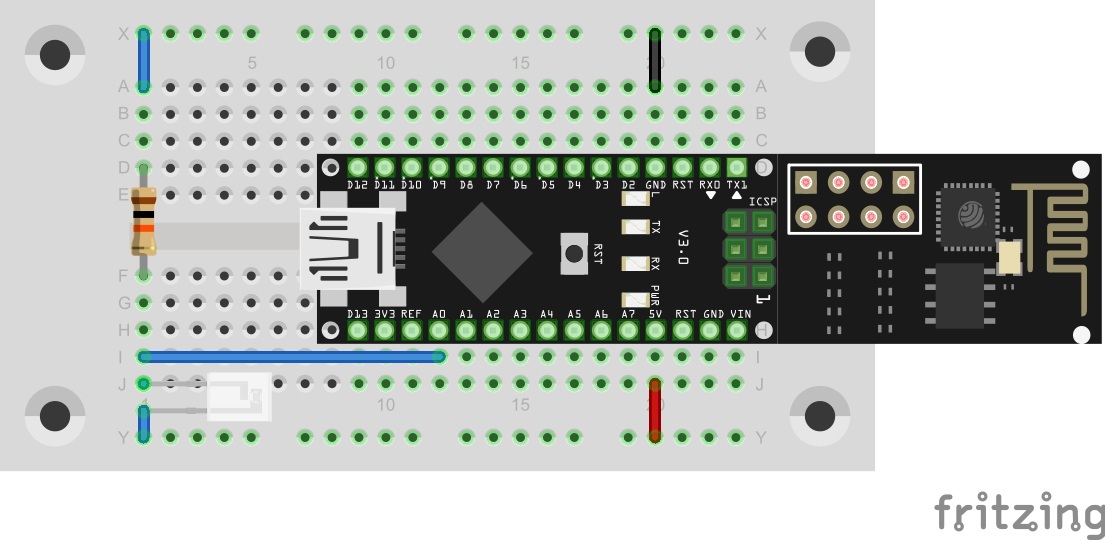
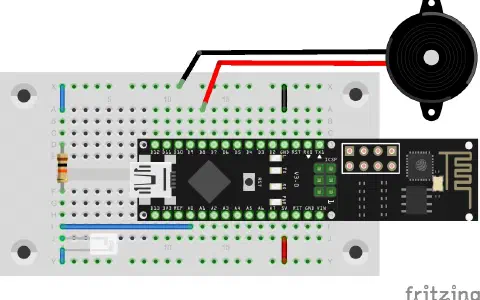
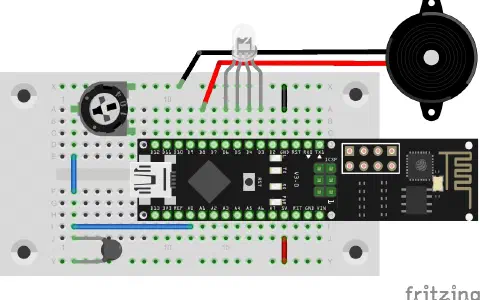
You will find another cable behind today’s door. You can now also place three-legged parts such as the IR reception module, outside of the plug board. Today’s experiment is structured identically as the one from the 15th day. A voltage divider with 10-kΩ-resistor and photo transistor permits measuring the current brightness.
The program: Day19_ThinkSpeak1
Today’s program measures the brightness, similar to the programme from day 15 . In contrast to the past experiment, however, the data will be sent directly to the ThingSpeak page. This page will not only save the data, but also present them well-structuredly in a chart. It is a very practical function for a measuring station with long-term monitoring.
For the program to be able to send to the website, you need to enter the above API key in the program first under the item ThingSpeakKEY in addition to your WLAN data. It is recommended to open the Serial Monitor after uploading. Usually, an update-send message should accompany successful transmission. On the ThingSpeak page, you can now click the tab Private View of your channel again. There, you can see the chart of your channel, which receives new data every 15 seconds.

Bei Halogenlampen ist die Helligkeit dagegen fast konstant.