In the previous experiments, we dealt with the subject of TCP and access to web servers a lot. Today, the module is to act as a web server of its own for the first time.
Behind the door of the 11th day, there is a special cable that will be very useful soon. A special setup is not necessary today, since the program works similarly to the serial monitor programme of day one.
The program: Day11_TCPServer
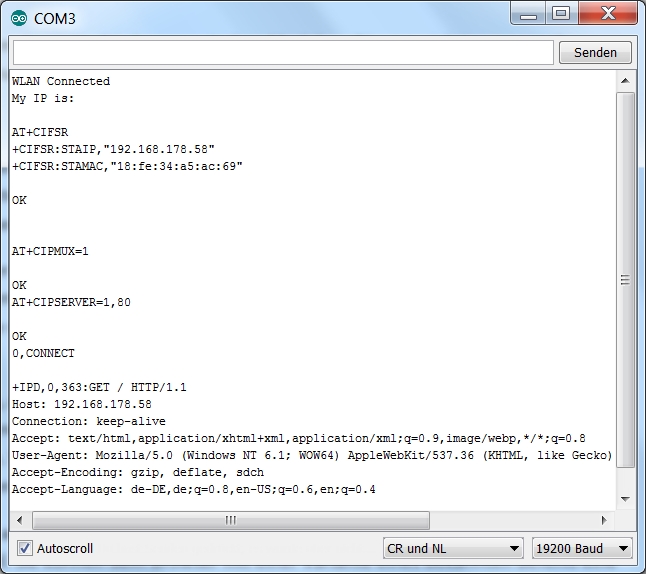
Change the WLAN data as before and load the program onto your board. Then start the monitor. It may take a few seconds before the message that the board is connected appears. When the success message has appeared and the IP of the module is displayed, you can start with the first command in the Serial Monitor:
AT+CIPMUX=1
This command permits multiple connections to the module. You can then access the web server from several computers. Use the next command to start the web server:
AT+CIPSERVER=1,80
The parameter 1 means that the server is being started. 0 terminates a server again. The number 80 represents the port under which the server can be reached. HTTP requests sent by the browser are generally sent through port 80.
You can now open a browser of your choice and enter the IP of your module into the address bar and call it. The browser initially shows a loading message, but the Serial Monitor will show a change. You can see a request query similar to the one you have sent out manually before.

The browser now waits for a response, and will show a loading sign until then, or until the connection is interrupted due to time-out. You can send a message to the browser with a version of a familiar command:
AT+CIPSEND=0,7
The parameter 0 indicates the client to which the message is to be sent here. This is necessary because multiple connections are permitted and several clients may therefore also be connected. The second parameter, here 7, again indicates the characters to be sent. > appears, and you can enter a simple
Hello
and send it out with Enter. Nothing will change in your browser at first. You need to close the connection before this can happen. For this, use the command:
AT+CIPCLOSE=0
Now you can see a Hello in the browser. You have implemented the first webserver application.
16 comments
Comments are closed. These comments were posted on the former WordPress site (mostly in German).
Vielen dank.
nein gemeint ist ein normaler Browser vom PC, z.B. Chrome, Firefox etc, mit dem auf das Modul zugegriffen wird. In die Adressleiste des Browser wird dann die IP des Moduls eingetippt.
Wenn du den NanoESP mit deinem Wlan Router verbindest und es erfolgreich war, sende das Modul über den Seriellen Monitor seine IP Adresse.
Was können Fehler sein?
Benutzt einen anderen Browser, bei mir hat es bei Safari nicht funktioniert in Firefox schon
Gruß Marc
Erster Tag wo es schon beim erstenmal störungsfrei funktioniert hat.
Komisch, dass im seriellen Monitor nichts angezeigt wird :-/
Sicher, dass Du AT+CIPMUX=1 und AT+CIPSERVER=1,80 angegeben hast und die Richtige IP verwendest?
Welchen Browser verwendest Du?
habe es mit Chrome und sehr vielen Anläufen mal kurz ans laufen bekommen. Mein Eindruck ist, dass die Verbindung zwischen Browser und Modul nicht lange genug stabil ist, um die manuellen Eingaben im Serial Monitor ausreichend schnell durchführen zu können. Wenn dem so ist: Gibt es eine Möglichkeit, die Verbindung über mehrere Sekunden bis hin zu Minuten zu stabilisieren?
Irgenwelche Ideen ?
Gleiches Problem auch bei TAG 15 (mit dem Helligkeits-Server), auch keine Reaktion im Browser
OK ich bin spät dran… :-)
Ich kann leider den NanoESP nicht erreichen. Als client um ins Web zu gehen hatte ich nie ein Problem gehabt. Alles Funktioniert ganz normal und auch meine Fritzbox sagt mir das da ein Gerät im Netz hängt (PC-[IP-v4]). Aber weder der web-browser noch ein ping kommt durch. Andere Geräte in meinem Heim-Netzwerk erreiche ich alle über ping. Was kann das sein?
Matthias
P.S.: Auch die WLAN P2P Verbindung aus den ersten Tagen hatte funktioniert.
Beim Tag 11 ist mit OSX definitiv Schluss. Chrome und Safari können keine Verbindung mit dem Nano aufbauen.
Sehr unschön ist auch, dass der Nano den Mac immer mal wieder abstürzen lässt. Das habe ich noch nie erlebt. Der unsignierte Treiber ist wohl nicht stubenrein.
Nach vielem Herumprobieren ist mein Urteil nun leider "Daumen nach unten".