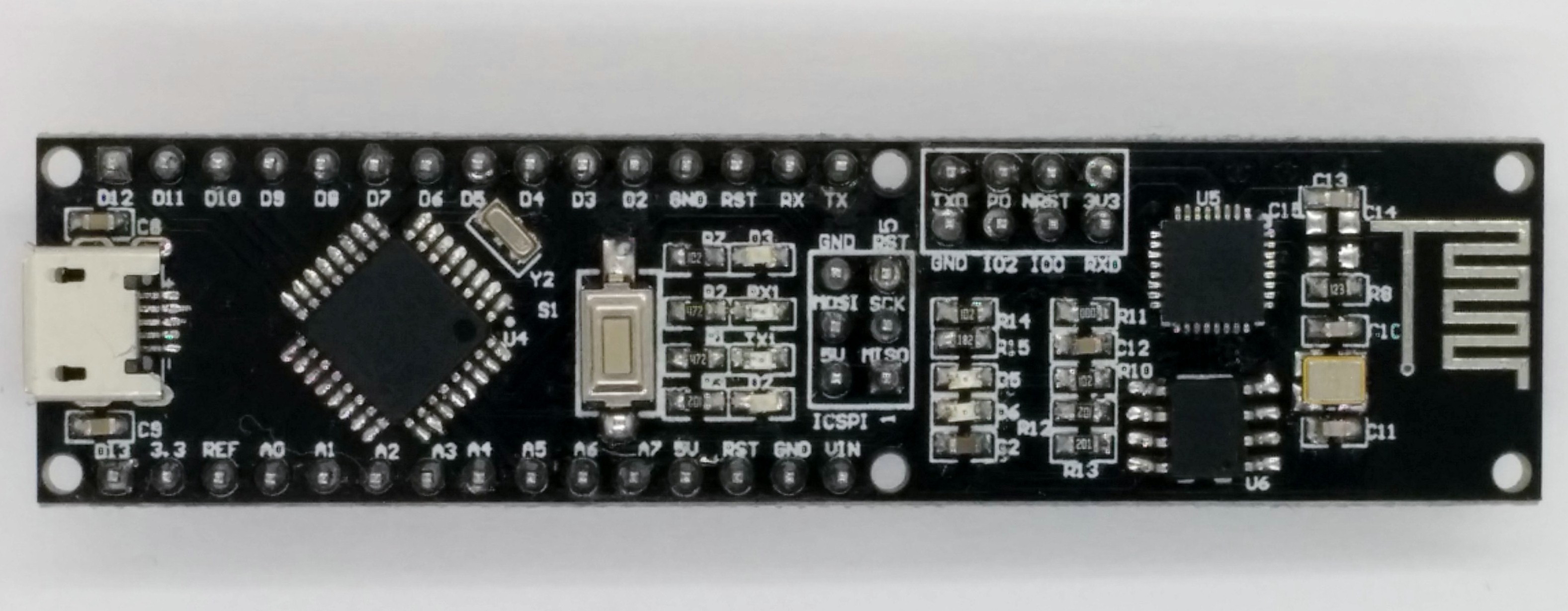
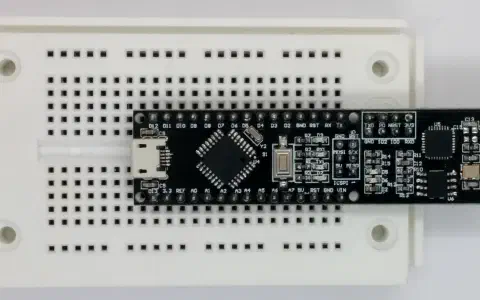
It is the first day of December and thus time to open the first door. Behind the door, you will find the most important part of this calendar: the Arduino™-compatible NanoESP-board with integrated WLAN module that this calendar is about.

As you can see quite well on the PCB, the board is made up of two components. The left half is an Arduino™-compatible micro controller system that can be compared to the Arduino™ Nano. The right part is the WLAN module with the designation ESP8266. These two components communicate via a serial interface generated by software. The Arduino™-side rather acts as the boss, forwarding the commands to the WLAN module. Some of these commands will already be tried out today on the first day.
The program: Day1_SoftwareSerial
The Arduino™-software is used as the developing environment. The current version can be found on the website:
arduino.cc
I have worked with Arduino™-versions 1.6.4 – 1.6.5. Older versions may cause problems. For some Linux versions, there is currently only a very old version. Advice on how to solve this and other problems can be found on the website. In the Arduino™ software, you need to select Arduino™ Nano as a board and the serial port. Then you can upload the program.
Today’s download is a very simple program that does nothing but pass on all data received through the serial hardware interface of the
microcontroller to the ESP controller via a self-defined software interface. The entire thing works in the opposite direction as well. As you can see in the source text, the two connections of the software interface are pins 11 and 12. They should not be used as GPIO-pins in your own projects. You also need the SoftwareSerial library. The library is pre-installed in most Arduino™ versions, but if not, you should download it via the Manager.
After the program has been uploaded, you can start the serial monitor of the Arduino™ interface. Before you can start, two important settings must be made to the Serial Monitor, i.e. the baud rate must be set to “19200” in the lower right corner and the setting “CR and NL” must be made in the box to its left.
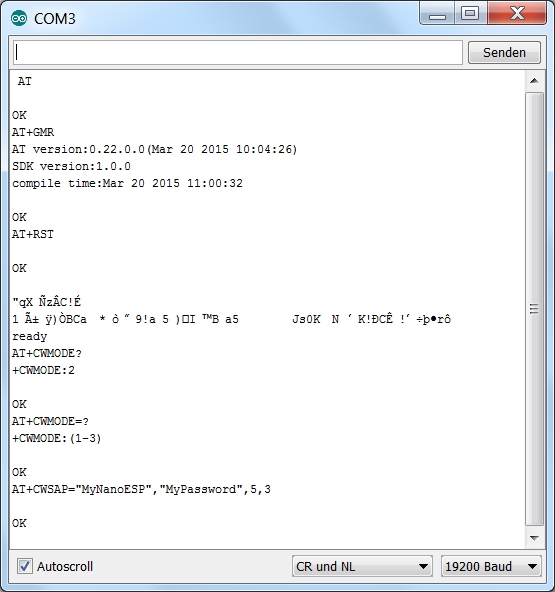
After setting, you can see a message, i.e. an AT and a few lines, followed by OK. The command AT was sent to the ESP module by the microcontroller and the module answered OK. You can see by this that the module works and is ready for use.
You can test this again by sending the command
AT
by serial monitor. The uploaded program again passes on the command to the ESP module, which in turn answers OK. The next command that you can test is:
AT+GMR
This command outputs the current firmware and version number. The command
AT+RST
resets the module. You will see a few illegible characters on the terminal first, followed by ready, which says that the module is now ready. Use
AT+CWMODE
to specify the WLAN mode. There are three options: Mode 1 is the station mode. This means that you can log into a present WLAN in the module. Mode 2 is the AccessPoint mode. This means that you can log on to a WLAN provided by the module with a WLAN-capable device. Mode 3 is dual mode. You can both log on to a present WLAN with the module and make a direct connection to another device. Test the AccessPoint mode by specifying mode 2 with the command
AT+CWMODE = 2
and then using the command
AT+CWSAP=”MyNanoESP”,”MyPassword”,5,3
to set the parameters for the access point. You can then find the network MyNanoESP e.g. with a WLAN-capable computer, and connect with the password MyPasswort. When the connection has been successfully established, you can use
AT+CWLIF
to display the connected device with IP and MAC address.
You can now also test station mode by first switching modes with
AT+CWMODE=1
You can have all available WLAN networks in range with the command
AT+CWLAP
You can use
AT+CWJAP=“MySSID“,“MyPassword“
to connect to your network, with MySSID and MyPassword being replaced by your network name and your password. It may take quite a while until the connection is established, but the end will be confirmed with OK. The first connection has now been established.
Richtig ist AT+CWJAP="MySSID","MyPassword". Auch unbedingt beachten: vor und hinter dem Text darf kein Leerzeichen stehen.