Day 14: Long-term temperature measurement

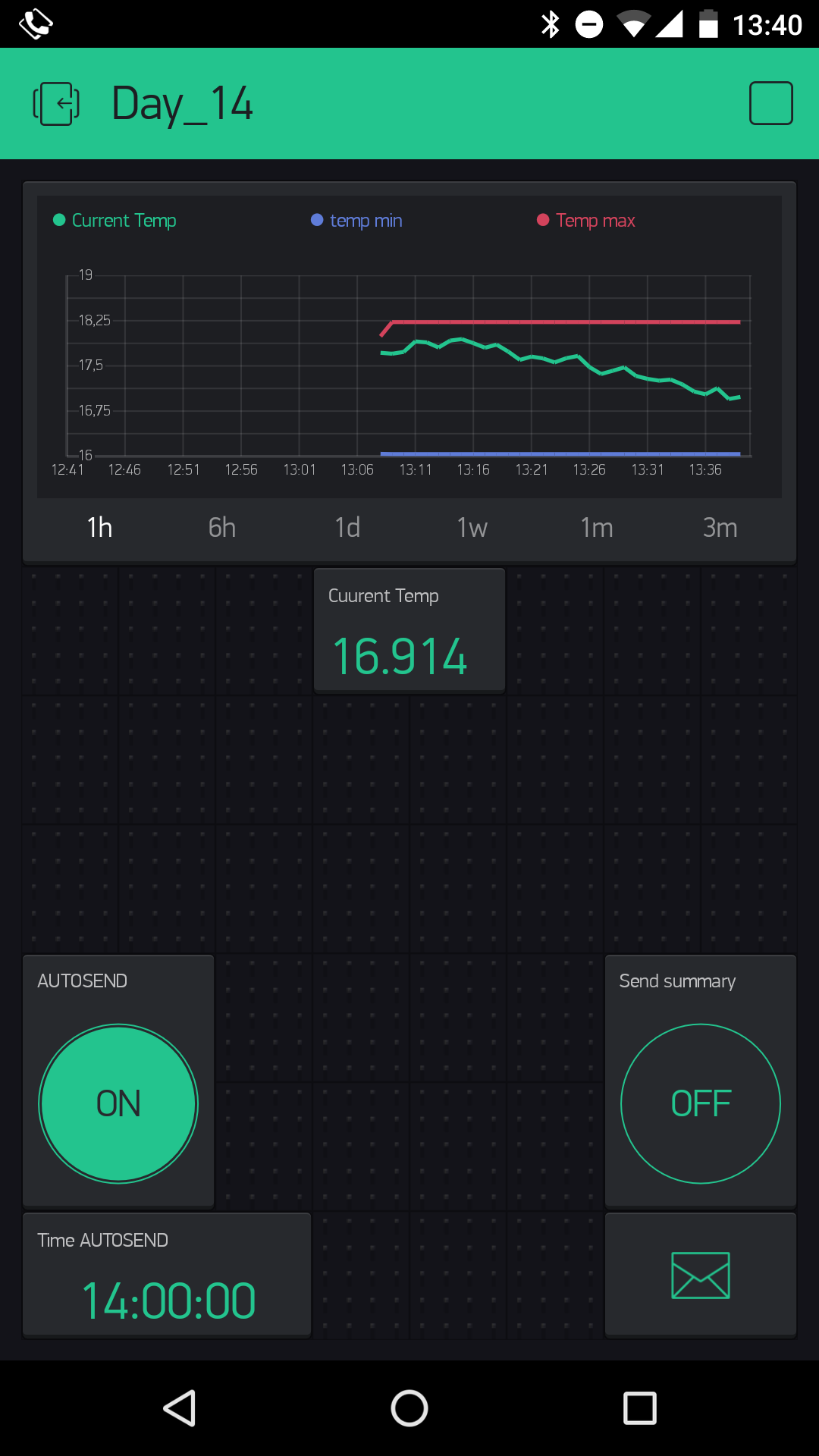
Behind today’s door is an NTC sensor (negative temperature coefficient thermistor). Its conductivity changes depending on the temperature. You’ll use the sensor today to undertake a long-term measurement of the temperature. As a small bonus, you can select a time at which you get a summary by email. For today’s layout, in addition to the NTC, you’ll also need the potentiometer and a 1-kohm resistor. You can make a fine adjustment of the temperature with the potentiometer. ...

14.12.2016 · 3 min · Fabian Kainka

Day 13: Alarm system with push messages

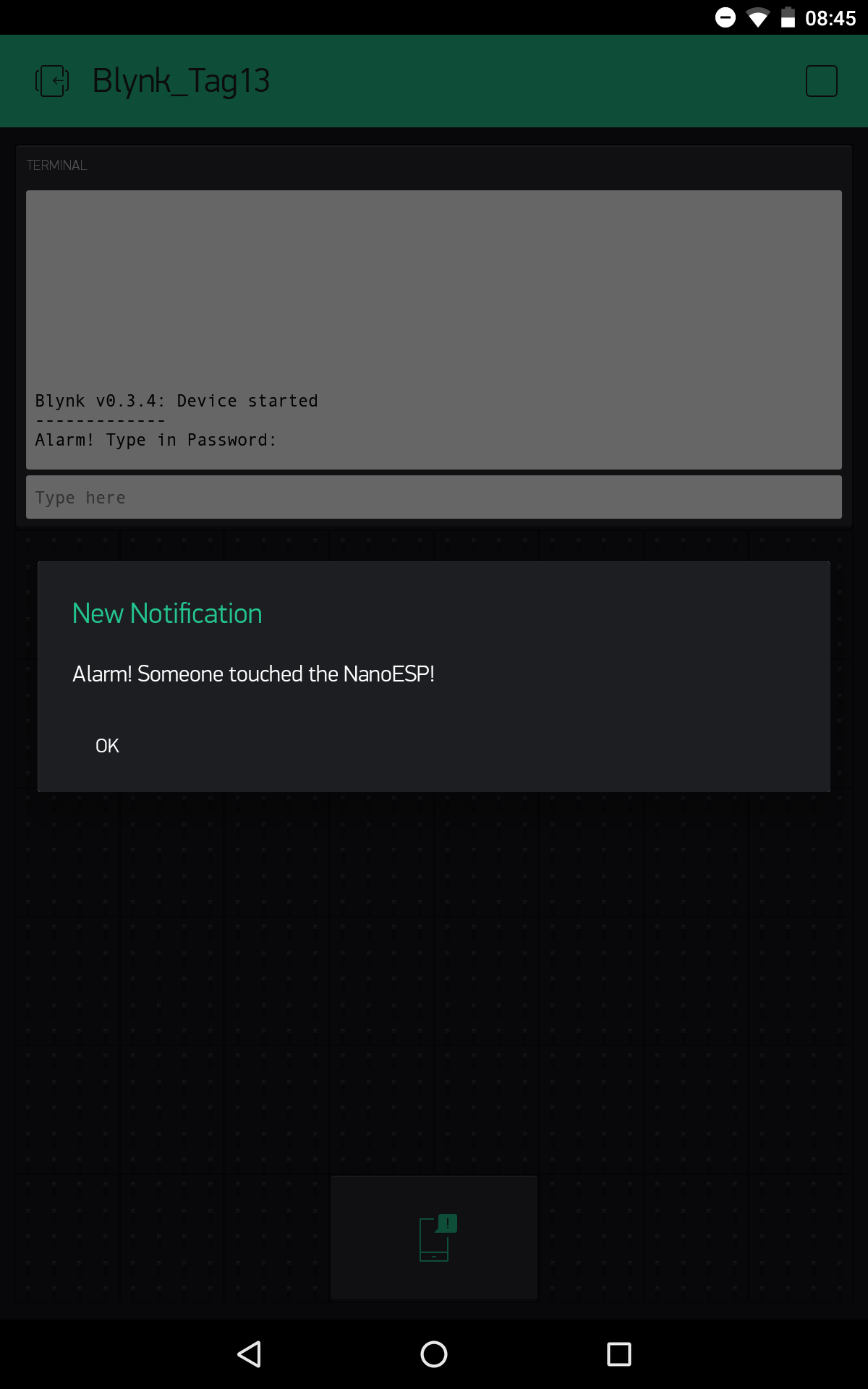
Today’s project deals with a simple silent alarm system with password input for resetting the alarm. So that you get anything at all from the alarm, the board sends a push message to your smartphone. We’ll set the tilt sensor that’s behind today’s door as a motion detector. It can give information about vibrations and thus inform you if someone tips the NanoESP board. Layout with tilt sensor The sketch: A16_P13_Blynk9_PushAlarm.ino /* Blnky9: PushAlarm Change ssid, password and token */ char ssid[] = "YourSSID"; char password[] = "YourPassword"; char token[] = "YourToken"; String passwordAlarm = "password"; String alarmMsg = "Alarm! Someone touched the NanoESP!"; #define BLYNK_DEBUG #define BLYNK_PRINT Serial // Comment this out to disable prints and save space #include <ESP8266_SoftSer.h> #include <BlynkSimpleShieldEsp8266_SoftSer.h> #include <SimpleTimer.h> // Set ESP8266 Serial object #include <SoftwareSerial.h> SoftwareSerial EspSerial(11, 12); // RX, TX ESP8266 wifi(EspSerial); SimpleTimer timer; WidgetTerminal terminal(V1); boolean alarm = false; void setup() { // Set console baud rate Serial.begin(19200); EspSerial.begin(19200); Blynk.begin(token, wifi, ssid, password); //push msg Blynk.notify("Alarm active"); pinMode(2, INPUT_PULLUP); //timer for blinking led on alarm timer.setInterval(1000L, blinkAlarm); } void loop() { Blynk.run(); if (alarm) timer.run(); else digitalWrite(13, LOW); //blink if alarm active if (digitalRead(2)) { //read tilt sensor if (!alarm) { alarm = true; Blynk.notify(alarmMsg); //push msg on alarm terminal.println(F("Alarm! Type in Password:")); terminal.flush(); } } } BLYNK_CONNECTED() { Blynk.syncAll(); terminal.println(F("Blynk v" BLYNK_VERSION ": Device started")); terminal.println("-------------"); terminal.flush(); } BLYNK_WRITE(V1) //Terminal { //type in password on alarm if (alarm) { String passInput = param.asStr(); if (passwordAlarm == passInput) { alarm = false; terminal.println(F("Alarm deaktivated")); terminal.flush(); } else { terminal.println(F("Wrong password!")); terminal.flush(); } } } //timer function for blinking led on alarm void blinkAlarm() { digitalWrite(13, !digitalRead(13)); } (The former Arduino Create embed is no longer available; the code is taken from the download of all sketches.) ...
13.12.2016 · 2 min · Fabian Kainka

Day 12: Light monitor

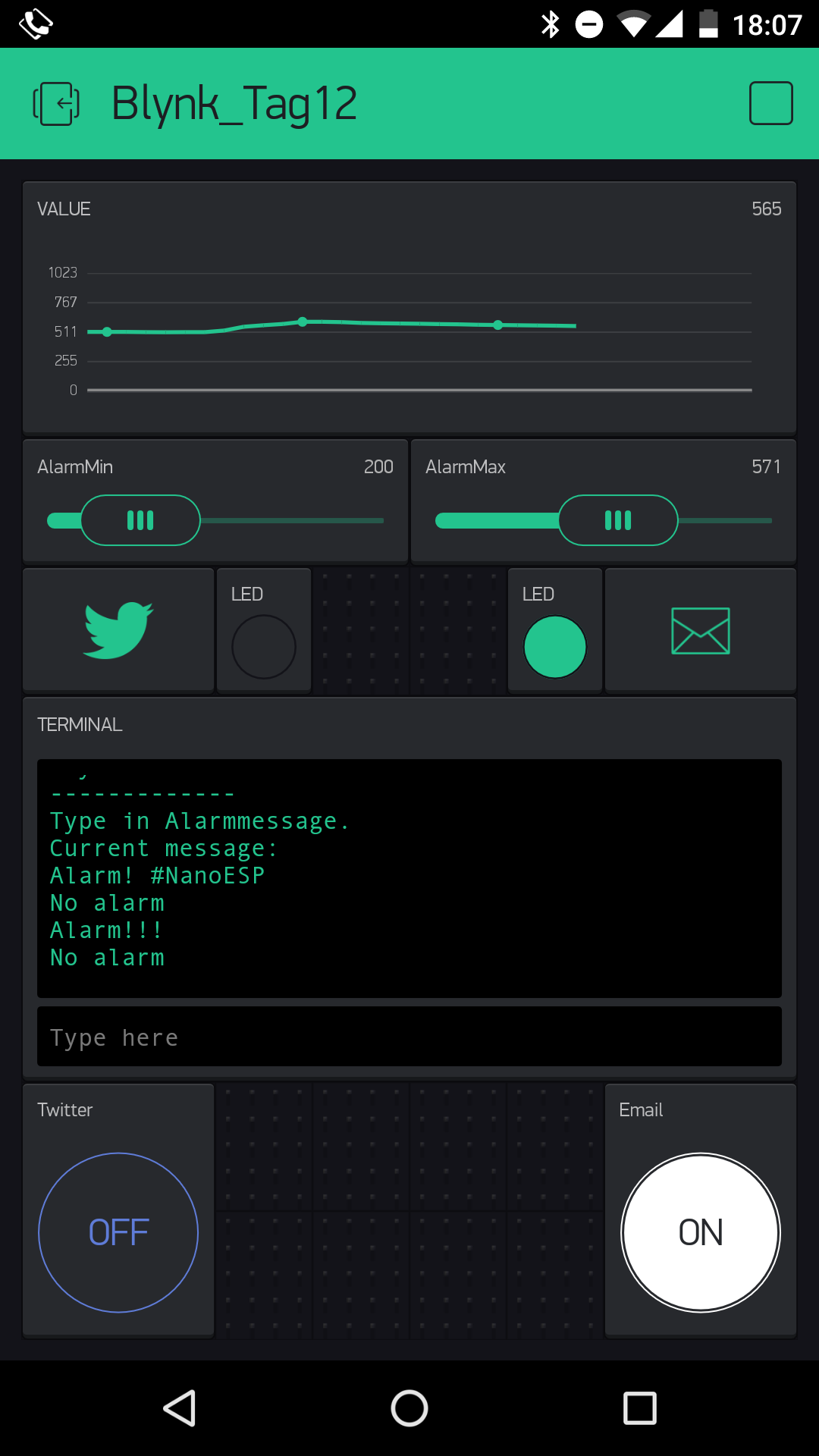
Behind today’s door, you’ll find a phototransistor. This is a sensor with which the brightness can be measured. You’ll do that today, but in addition to simple measurement, the project also sounds an alarm as soon as limit values that you’ve pre-set in the app are exceeded. So that everything will function, you have to connect the sensor with a voltage divider circuit at Pin A0, as shown in the picture below. Pay attention to the correct polarity of the phototransistor (short leg to VCC). It does also work the other way round, but not nearly as sensitively. ...

12.12.2016 · 4 min · Fabian Kainka

Day 11: Day- and nightlight

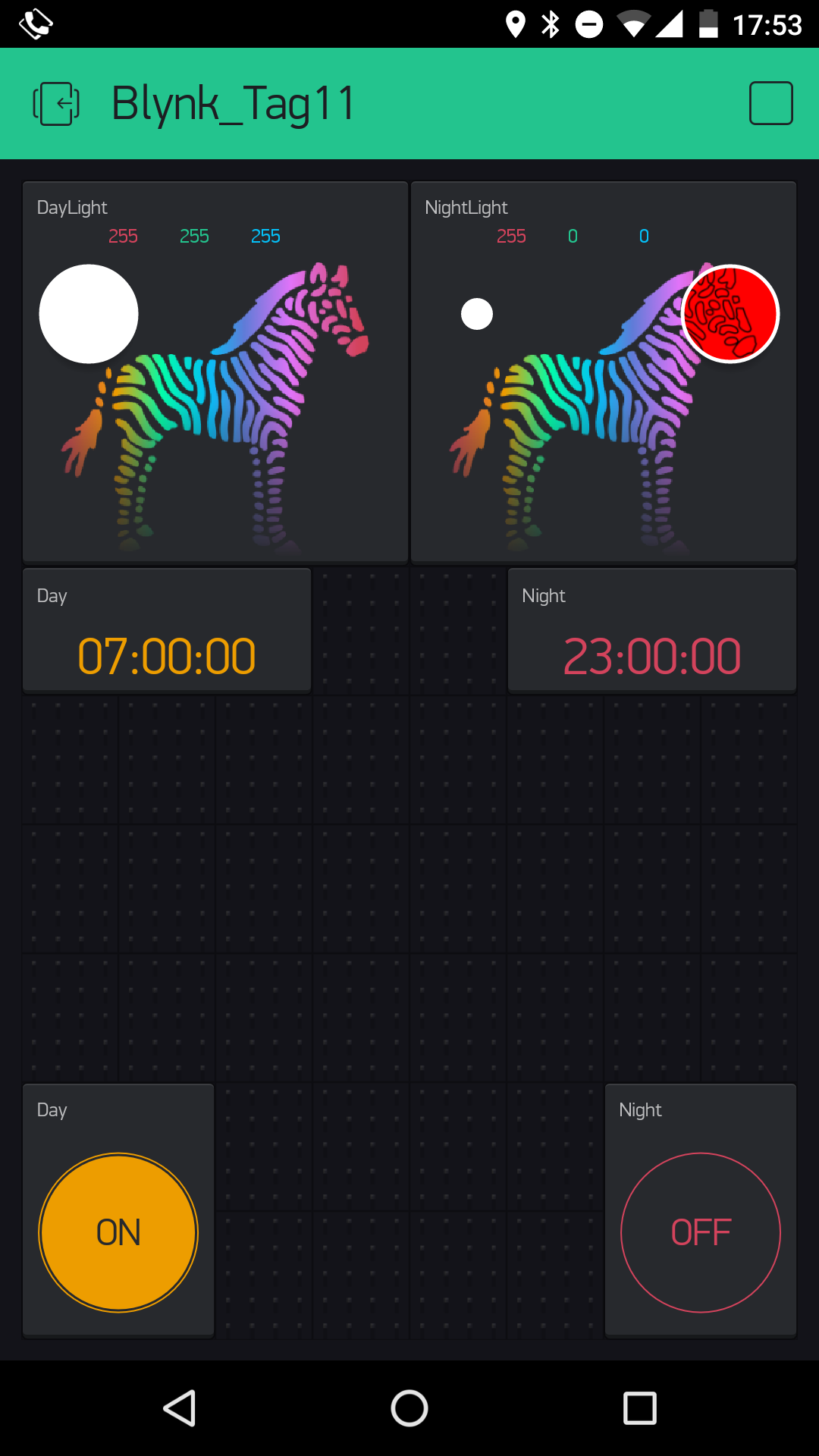
Behind today’s door is a 10-kohm resistor, but we don’t need it yet today. Instead, the set-up from yesterday’s test works today as well. In this project, you’ll build a day-night lamp that changes colours at specific times. Thus you can have a bright light shining during the day, while at night only a dim red serves as emergency lighting for a bit of orientation. The layout from Day 10 The sketch: A16_P11_Blynk7_DayNight.ino /* Blynk 7: DayNight Change ssid, password and token */ char ssid[] = "YourSSID"; char password[] = "YourPassword"; char token[] = "YourToken"; #define BLYNK_DEBUG #define BLYNK_PRINT Serial // Comment this out to disable prints and save space #include <ESP8266_SoftSer.h> #include <BlynkSimpleShieldEsp8266_SoftSer.h> // Set ESP8266 Serial object #include <SoftwareSerial.h> SoftwareSerial EspSerial(11, 12); // RX, TX ESP8266 wifi(EspSerial); boolean isDay; void setup() { // Set console baud rate Serial.begin(19200); EspSerial.begin(19200); Blynk.begin(token, wifi, ssid, password); } void loop() { //all events are handled by functions below Blynk.run(); } BLYNK_CONNECTED() { //Sync all states when reconnected Blynk.syncAll(); } BLYNK_WRITE(V1) //DayTimer { if (param.asInt()== 1){ Blynk.virtualWrite(V0,1); Blynk.virtualWrite(V7,0); isDay = true; Blynk.syncVirtual(V3); } } BLYNK_WRITE(V4) //NightTimer { if (param.asInt()== 1){ Blynk.virtualWrite(V0,0); Blynk.virtualWrite(V7,1); isDay = false; Blynk.syncVirtual(V8); } } BLYNK_WRITE(V0) //Day { if(param.asInt()==1) { Blynk.virtualWrite(V7,0); isDay = true; Blynk.syncVirtual(V3); } } BLYNK_WRITE(V7){ //Night if(param.asInt()==1) { Blynk.virtualWrite(V0,0); isDay = false; Blynk.syncVirtual(V8); } } BLYNK_WRITE(V3) // change color Day { if (isDay){ analogWrite(3, param[0].asInt()); // getting first value analogWrite(5, param[1].asInt()); // getting second value analogWrite(6, param[2].asInt()); // getting N value } } BLYNK_WRITE(V8) // change color Night { if (!isDay){ analogWrite(3, param[0].asInt()); // getting first value analogWrite(5, param[1].asInt()); // getting second value analogWrite(6, param[2].asInt()); // getting N value } } (The former Arduino Create embed is no longer available; the code is taken from the download of all sketches.) ...
11.12.2016 · 3 min · Fabian Kainka

Day 10: Colour mixing

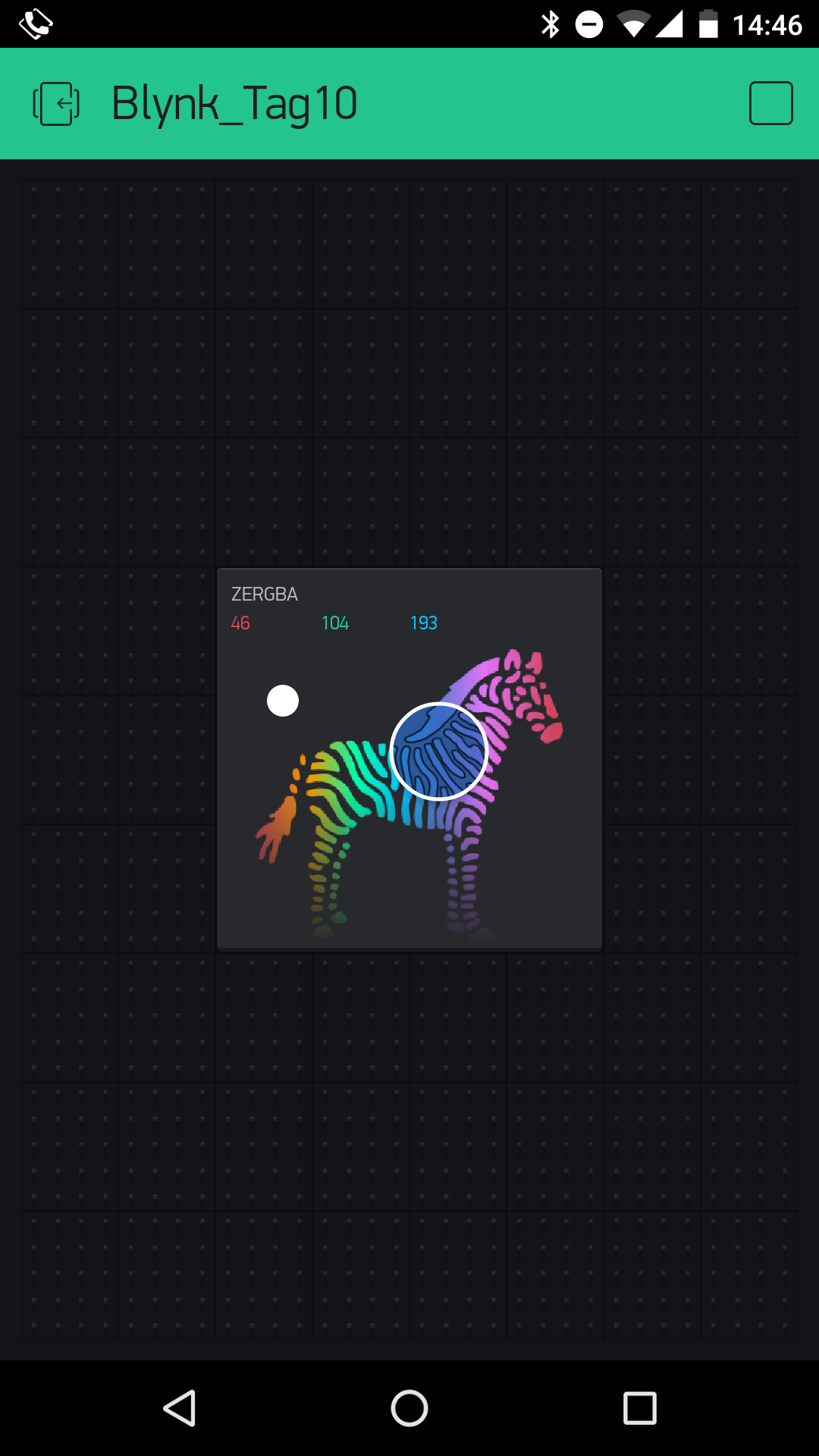
Behind today’s door is the reason for the many 1-kohm resistors. Namely, what you find there is a so-called RGB LED RGB stands for red-greenblue, since this LED is actually three LEDs that can be connected through a common cathode. By varying the brightness of the individual LEDs using PWM, you can generate almost every colour conceivable. You can see the layout of today’s circuit in the following figure. Note that the somewhat longer leg (the cathode) must be plugged into the GND contact strip. ...

10.12.2016 · 2 min · Fabian Kainka

Day 9: Brightness of the real LED

Behind today’s door is another 1-kohm resistor. But today you don’t have to change anything in the hardware layout from yesterday. Only a small detail changes on the interface. The layout from yesterday You don’t have to re-upload the programme because you’re simply manually adjusting the interface from yesterday. If you’d like to load the interface in the app anyway for safety’s sake, you’ll find the QR code here as usual. But then you also have to re-enter the token in your programme. ...

09.12.2016 · 3 min · Fabian Kainka

Day 8: Virtual LEDs

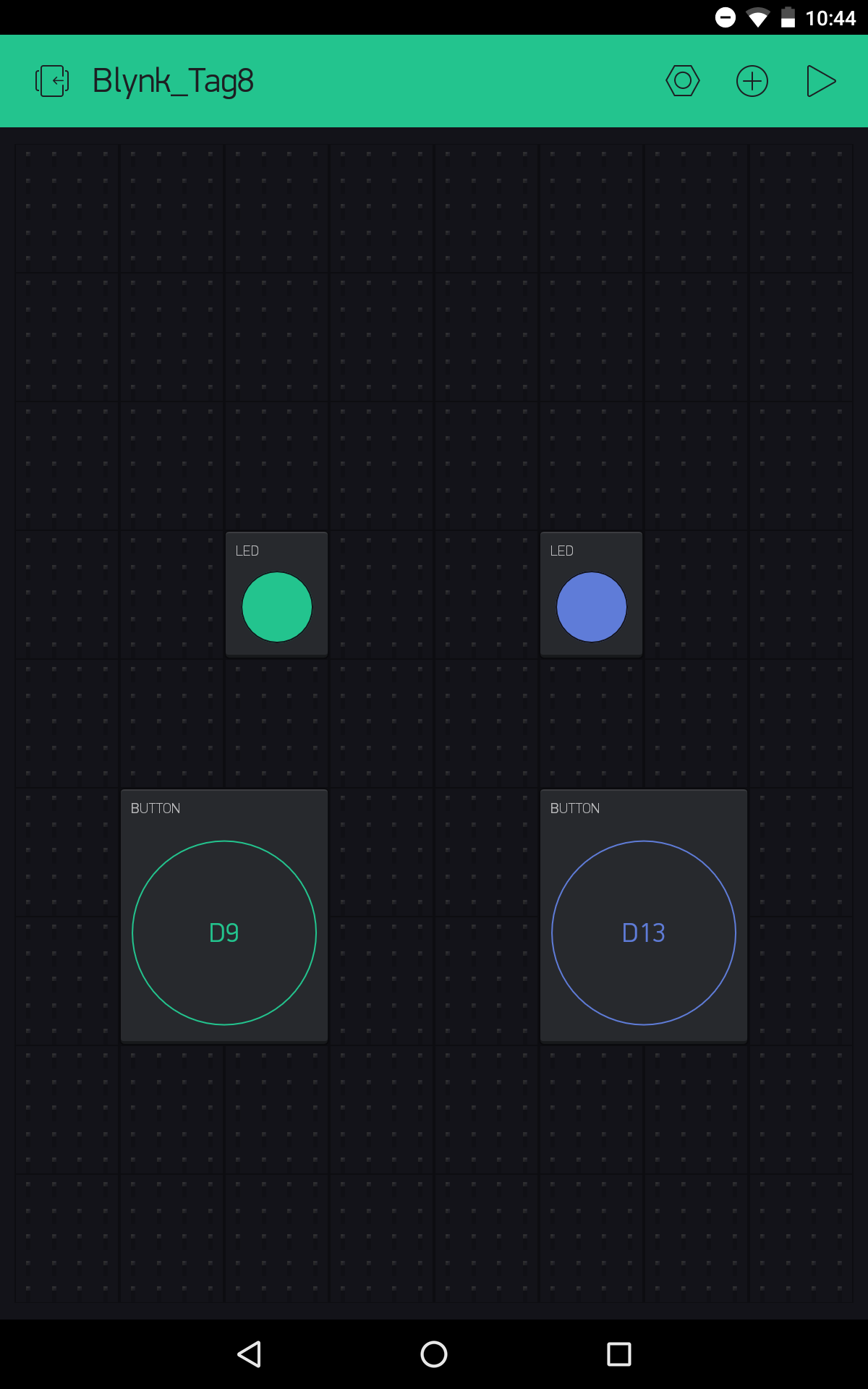
In the test for the sixth day, you saw how a push button on the hardware side can be mapped on a button in the app. However, another widget, namely the LED widget, is much simpler for this instance. In today’s test, you’ll see how to use it properly and what options it offers. Behind today’s door is another 1-kohm resistor that is important for later tests. Today the circuit from yesterday is expanded by a button. ...

08.12.2016 · 3 min · Fabian Kainka

Day 7: Analogue write

Behind today’s door is a potentiometer. You can use it to transfer analogue messages to the Blynk app. To do this, you need to build the circuit according to the picture. The potentiometer uses the lower wire for the connection to A0 Things can get a bit tight when constructing with the MicroUSB cable. So that everything connects, you first have to disconnect the board from the cable and place the jumpers to be as flat as possible. You also need to be aware that this time the VCC is not applied to the track at the bottom of the image; instead, the track is intended for the connection at Pin A0. ...

07.12.2016 · 2 min · Fabian Kainka

Day 6: The hardware button

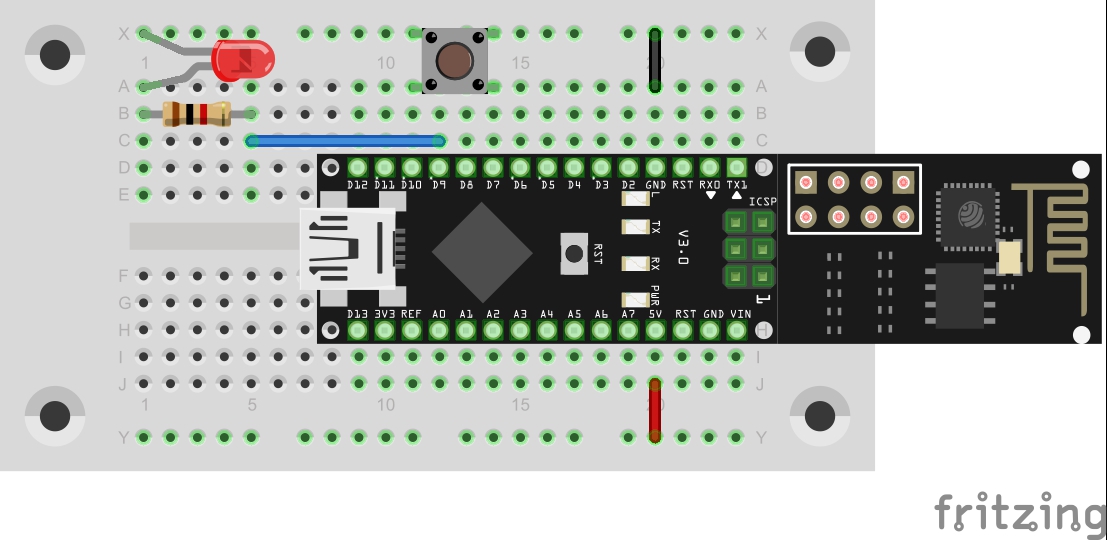
In yesterday’s test, you realised a simple control of an LED using the Blynk app. Today you’ll see that the control works in both directions. The push-button switch behind today’s door really comes in handy for this purpose. With it, you can expand yesterday’s circuit as follows: The new layout with push-button switch at D7 You can scan the interface for today here: ...

06.12.2016 · 2 min · Fabian Kainka

Day 5: Blynk

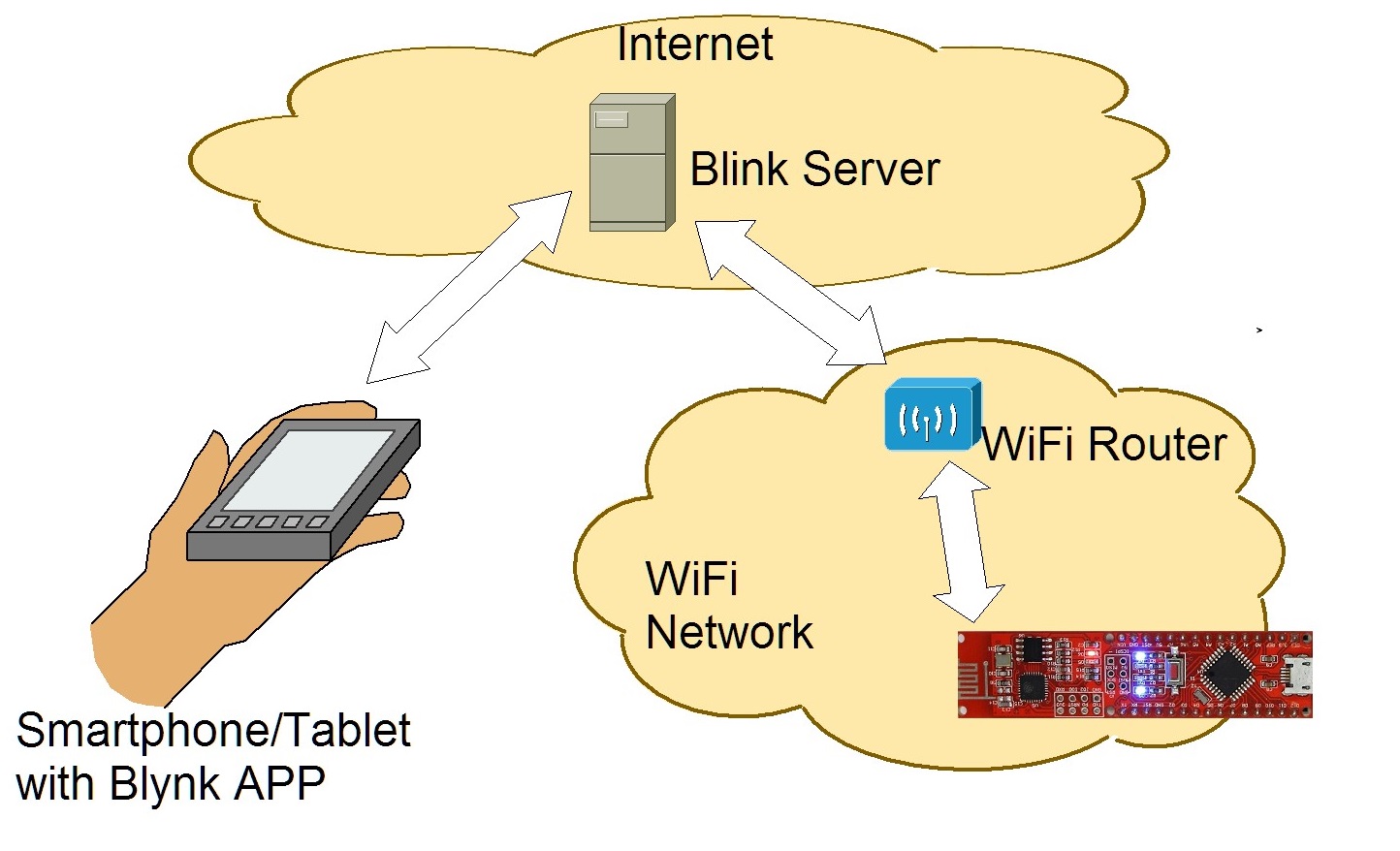
You already established a first connection from the board to the Internet yesterday. In the coming days, this connection should be used effectively. So we’re looking at the online platform Blynk, through which short commands, measurement data or messages can be exchanged between the NanoESP board and your smartphone. Communication with the Blynk Server Blynk enables the simple control of various IoT boards, e.g. the Raspberry Pi or our NanoESP, using an app. You can put the graphic interface together completely on your own, and programming is also extremely simple. As if that weren’t enough, you can even control the board from anywhere in the world. So it’s totally within the sense of the Internet of Things. ...

05.12.2016 · 4 min · Fabian Kainka